
Network Management
Basic SolarWinds NCM Jobs Troubleshooting Guide
This guide addresses the most common issues with the NCM Jobs you can troubleshoot on your own. Please check these items before you open a support ticket with SolarWinds.
First published date
Last published date
Overview
Product section
Resolution
Basic troubleshooting actions
Review the following list of actions you can take and go to individual sections for more details:
- Check NCM system hardware
- Check Same NCM Version and HF installed on all the pollers
- Disable Session Trace
- Clear the Temp folder
- Reduce the number of Simultaneous Downloads/Uploads
- Disable Windows Defender
- Clear pending reboot
- Disable Config Archive
- Increase/decrease CLI TimeOut
- Reduce the amount of the config retain
- Create individual Jobs for Each Poller and Vendors
- Check Port Requirements for NCM
- Create a separate job for the config type
- Recreate the Jobs - in some environments, such as when FIPS was enabled, recreating the job fixes issues
- What else can I do if the Schedule Job is not running or is stuck on 99% or 100%? Or Now Post Processing
- Issue with NCM inventory Job
- It is possible for an NCM Job stuck / Fail due to F5 devices; for more details, please see below KB
- This article describes how to fix the error "Test Failed Timeout" when doing a connection test or download config in NCM where you have an issue with a few devices in NCM
- NCM Logs and data locations
1. NCM System Hardware
- Audit your environment and make sure there is no bottleneck causing the issues. Learn more: How to check the server hardware using Orion Platform diagnostics
- Open the Task Manager on the Orion server > Performance Tab > CPU and make sure you have at least 4 sockets available.
- Make sure you are on recommended hardware; see NCM system requirements.
- For more details, see Thwack post My Orion Website & Server is slow, what shall I troubleshoot.
2. Check Same NCM Version and HF installed on all the pollers
Please make sure you have the same version of NCM and HF applied on all the pollers
3. Disable the Session Trace
Leaving Session Trace ON will consume CPU and Memory on the system as the session trace logs get larger, taking more time, and will impact the config download progress. Consider disabling the Session Trace.
Learn more: Generate session trace logs.
- Open the Orion Web Console.
-
Go to settings:
In NCM 7.6 and earlier, click Settings > All Settings > NCM Settings > Advanced Settings.
In NCM 7.7 and later, click Settings > All Settings > Product Specific Settings > CLI Settings. -
Clear the Enable Session Tracing check box and submit at the bottom of the page
-
Go to the trace log location:
In NCM 7.6 and earlier: C:\ProgramData\SolarWinds\Logs\Orion\NCM\Session-Trace
In NCM 7.7 and later: C:\ProgramData\SolarWinds\Logs\Orion\CLI\Session-Trace\NCM -
Delete the trace files.
4. Clear the Temp folder
Check the disc space on NCM drives and the SQL server where the NCM DB is stored.
Learn more: Clear windows temp directory to improve application performance in a SolarWinds Platform Deployment.
- Log in to the Orion server hosting the Main Polling Engine.
- Stop all Orion services .
- Navigate to:
C:\windows\Temp (including the SolarWinds folder) - Delete all files in the Temp folder.
- Restart all Orion services.
- Restart the system.
- Repeat steps 1 through 7 for all servers hosting an Additional Polling Engine (APE).
5. Reduce the number of Simultaneous Downloads/Uploads
Navigate to Settings > All Settings > NCM Settings > Config Settings > Simultaneous Download / Upload [Reduce this to 5]
6. Reboot the NCM Server
Pending Windows updates might cause issues with NCM jobs. Please consult with your Windows team if there is any pending reboot on the system required to reboot needed.
7. Disable Windows Defender
We have noticed Windows Defender can slow down the config download configuration; therefore, it's recommended to disable the Windows Defender if it's enabled to verify if there is an impact on NCM. Please consult with your windows team before disabling it.
8. Disable Config Archive
Click Settings > All Settings > Config Settings, and then disable Config Archive.
(Recommended only as a test to verify if there is an issue writing to the config archive folder)
9. Increase/Decrease CLI TimeOut
Click Settings > All Settings > CLI Settings.
Clear Session Trace and adjust the timeout
10. Reduce the number of configurations to retain in the NCM_Config Archive table in the Orion Database.
Removing extra load from the NCM DB also helps to run NCM jobs faster.
In NCM, click Configs > Jobs and edit the Default Purge Configs Job.
Follow the wizard and delete all Configs Except for the last 10 days on Add Job-Specific Details.
(If saving configs when there is a change, you may want to set this to the number of configs versus the number of days)
11. Create individual Jobs for Each Poller and Vendors
Instead of using one NCM Job for All the Nodes, Create individual jobs for nodes on each poller and each vendor. This will help further isolate the issue if you have a problem with some particular vendor/node /poller. Also, try to keep jobs running on the same pollers with schedules that do not overlap.
12. Check Port Requirements for NCM
Check if the required ports are open. Refer to SolarWinds Port Requirements article for the NCM Ports
13. Create a separate job for the config type
We have seen a few instances where the NCM backup issue is caused by configuring a job to backup start-up configuration and running configuration of the devices at the same time. We highly recommend splitting the job with different time interval as well.
14. Recreate the Jobs - in some environments, such as when FIPS was enabled, recreating the job fixes issues
Most common issues with NCM Jobs area
15. What else can I do if the Schedule Job is not running or is stuck on 99% or 100%? Or Now Post Processing
- Turn On NCM Job Logs.
- If it's already enabled, make a backup of the folder and delete all the old files from the folder:
-
Click Settings > NCM Settings> Advanced Settings > (Enable Scheduled Jobs)
- Create a New NCM TEST Job, add only one node polled by the main polling engine, and then run the job manually to check whether the job still fails.
Check the same Job schedule after 10 minutes.
- If the job is successful, add 10 more nodes to the same job and rerun it. If it works, add nodes up to 50 and 100 into the same job.
- If you have multiple polling engines, create a separate job for each of them and run the same test there.
- If the result is still a failure, check the log file at C:\ProgramData\Application Data\SolarWinds\Logs\Orion\NCM\NCMBusinessLayerPlugin.log.
This will help further isolate the issue if you have a problem with some particular vendor/node/poller.
If you find Jobs are stuck on Now Post Processing on a specific Additional Poller or Pollers?
Please reboot the Pollers and make sure all Orion services are UP and running on these pollers; try to reproduce your issue again.
16. Issue with NCM inventory Job
This article will address issues related to the NCM Inventory
Troubleshoot NCM inventory Jobs issues
17. It is possible for an NCM Job stuck / Fail due to F5 devices; for more details, please see below KB
Basic SolarWinds NCM Jobs Troubleshooting Guide
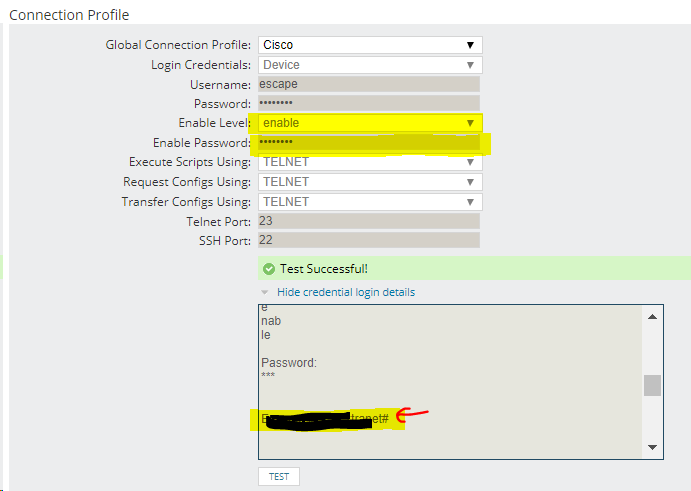
18. This article describes how to fix the error "Test Failed Timeout" when doing a connection test or download config in NCM where you have an issue with a few devices in NCM
I have nodes failing to download config files with Error / Error message: connectivity issues, discarding configuration / "show running" on a Cisco switch ( % Invalid input detected at '^' marker. ).
Please follow the above steps and ensure you have enabled mode setup for the device up to the # enable level.
19. NCM Logs and data locations
To review details about NCM Jobs activity and find errors, if available, go to logs at C:\ProgramData\SolarWinds\Logs\Orion\NCM. Review the following logs:
- NcmBusinessLayerPlugin
- NCM.Collector.Jobs
- DPE Logs
The default location for CLI and Session Trace Logs
C:\ProgramData\SolarWinds\Logs\Orion\CLI\Session-Trace
C:\ProgramData\SolarWinds\Logs\Orion\CLI
Default Location for NCM ASA Polling
C:\ProgramData\SolarWinds\Logs\Orion\ASA
The default location for NCM vulnerability location
C:\ProgramData\SolarWinds\NCM\Vuln
The default location for config archive
C:\ProgramData\SolarWinds\NCM\Config-Archive