
Tools
Unable to apply the Serv-U gateway license after upgrading to Serv-U 15.3.2 and above
After upgrading to Serv-U 15.3.2 and above, the administrator may not be able to apply the Serv-U Gateway license.
First published date
12/21/2022 12:50 AM
Last published date
4/16/2025 9:14 PM
Overview
When upgrading from a previous release running Serv-U 15.3.2 and below to a later software release and have a valid registration key, the following error message may appear:
Invalid Registration ID
Your current Serv-U registration key is not valid for this version, most likely because the upgrade protection period has expired.
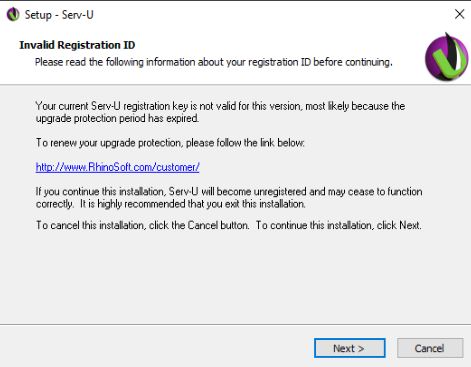
Invalid Registration ID
Your current Serv-U registration key is not valid for this version, most likely because the upgrade protection period has expired.
Product section
Serv-U Managed File Transfer & Serv-U FTP Server
Cause
This issue occurs due to the transition from Network Service from Local System change in Serv-U 15.3.2 and above. After upgrade, the service and permission are not applied to the license file and the requires admin to re-apply the license again.
Resolution
Important! When upgrading from Serv-U 15.3.1 and below to a newer version, this should be a one-time change. If this problem is reoccurring, please file a support ticket.
To obtain a copy of the Serv-U Gateway license:
- Open a browser and go to https://customerportal.solarwinds.com.
- Log in using your Solarwinds Customer Account UserID and Password.
- Navigate to Licenses > Manage Licenses.
For Windows deployments
- Remote into Serv-U Gateway Server
- Stop the Serv-U Gateway service
- Navigate to C:\ProgramData\RhinoSoft\Serv-U Gateway
- Edit Serv-U-Gateway-ID.txt file
- Clear the existing license key
- Enter your paid License Key
- Restart Serv-U Gateway service
For Linux deployments
- Remote into Serv-U Gateway Server
- Navigate to /usr/local/Serv-U Gateway
- Edit Serv-U-Gateway-ID.txt file
- Clear the existing license key
- Enter your paid License Key
- Restart Serv-U Gateway service
After the changes, return to the Serv-U MFT Management Console and verify that the Serv-U Gateway status is now Green.
If the above does not work, please follow the following:
- Remote into Serv-U Gateway Server
- Stop Serv-U Gateway Service from Services.msc
- Navigate to (Windows) C:\ProgramData\RhinoSoft\Serv-U Gateway or (Linux) /usr/local/Serv-U Gateway
- Create a backup of the Serv-U-Gateway-ID.txt file
- Delete the Serv-U-Gateway-ID.txt file
- Start Serv-U Gateway service from Services.msc
- Go back to your Serv-U Console GUI and Reapply the Serv-U Gateway:
- Global Domain > Server Details > Serv-U Gateway > Select Gateway > Properties
- Paste the License Key from SolarWinds Customer Portal on the Text Box under Registration ID > Save
Further Reference: Manually apply a Serv-U license