
Network Management
Report Schedule - Website Address Mismatch error in Orion Platform
This article shows how to resolve the Report Schedule - Website Address Mismatch prompt message.
First published date
9/26/2019 9:48 PM
Last published date
10/2/2023 12:59 PM
Overview
In Edit Report Schedule - Properties, when clicking on the NEXT button the prompt message below pops up:
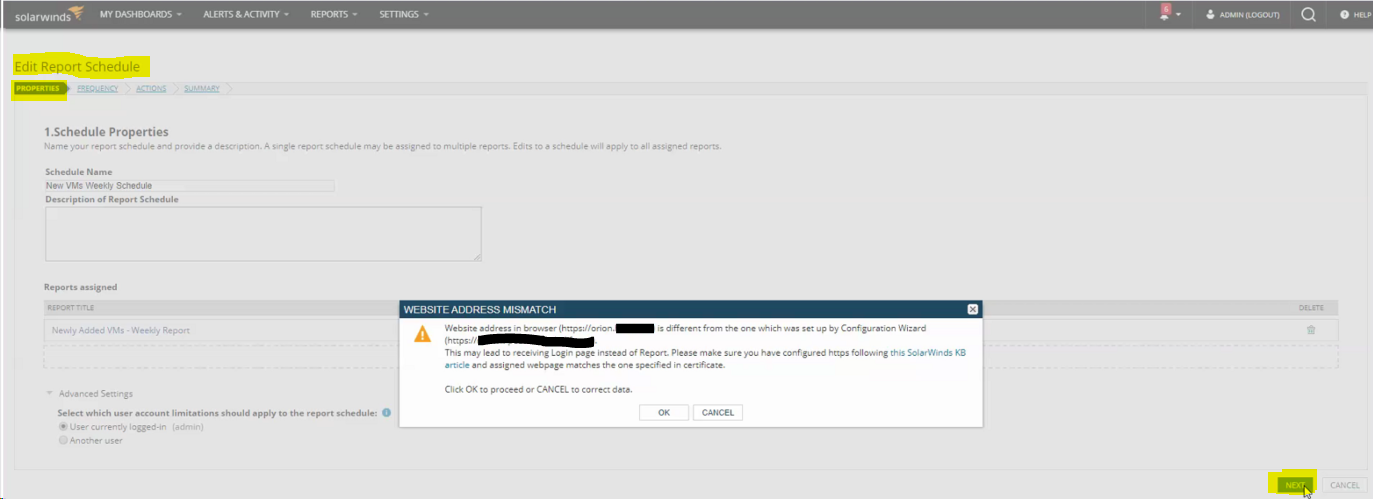
Product section
Network Performance Monitor
Cause
This issue occurs when one of the following below is true:
- The URL used in the web browser does not match the FQDN in the Websites table in the Orion database
- The IIS Edit Site Binding Type: HTTPS has a Hostname field populated
- Incorrect Orion Web Server Address in the Web Console Settings (SETTINGS > All Settings > PRODUCT SPECIFIC SETTINGS)
- Incorrect poller hostname selected from report schedule under advance settings.
- SSL certificate is invalid because it is NOT installed on Trusted Root Certification Authorities
- DNS resolution is pointing to different server or FQDN, issue could be presented after migrations, even when actual Websites table has correct Hostname and correct FQDN.
Resolution
Resolution 1
The FQDN in the Websites table in the Orion database does not match the URL in the web browser.
Resolution 2
The IIS Edit Site Binding Type: HTTPS has a Hostname field populated, follow the steps below:
Resolution 3
Incorrect Orion Web Server Address in the Web Console Settings (SETTINGS > All Settings > PRODUCT SPECIFIC SETTINGS), follow the steps in the article below:
The FQDN in the Websites table in the Orion database does not match the URL in the web browser.
-
Make sure that the FQDN configuration in the Websites table is correct:
- Start > SolarWinds Orion > Database Manager
- Click on Add default server
- Find and double-click on the Websites table
- Click on the Execute query button
- Ensure that the ServerName is correct and the Port is the same as you set in the IIS manager. If you are using HTTPS to access the website, Ensure that SSLEnabled is set to 1. Verify the value in the FQDN field. If you need to change any value here, click Enable table editing, then double-click on the field you want to change.
Resolution 2
The IIS Edit Site Binding Type: HTTPS has a Hostname field populated, follow the steps below:
- Open IIS Manager
- Go to Sites > SolarWinds NetPerfMon
- Click on Bindings...
- Edit all bindings and make sure that the IP address is set to All Unassigned for all of them
- Remove any hostname you may have set from the Hostname field as per the screenshot
- (Screenshot property of © 2021 Microsoft)
- Remove any hostname you may have set from the Hostname field as per the screenshot
- Perform IISRESET in CMD as administrator.
(Screenshot property of © 2021 Microsoft)
Resolution 3
Incorrect Orion Web Server Address in the Web Console Settings (SETTINGS > All Settings > PRODUCT SPECIFIC SETTINGS), follow the steps in the article below:
- Change the url of the Orion Web Interface used in Alert Macros
- If the customer has a URL problem with a single report follow this step
- Open the existing report schedule
- Under Properties, click Advanced Settings
- From the Orion website, the hypertext links on the resulting report will lead to the click-down arrow key and select the correct poller hostname.