
Applications Systems
How to Repair WPM
Repairing Web Performance Monitor. How to repair the module WPM on the main polling engine and additional polling engines. Transactions not playing, unknown, or down with a specific error.
First published date
10/7/2019 6:29 PM
Last published date
9/4/2023 7:15 AM
Overview
Repairing WPM is necessary for a wide range of issues. Many of which include transactions not playing, unknown, or down with a specific error. This guide provides the steps necessary in order to repair the Web Performance Monitor product. This also reinstalls the WPM job engine which is a critical plugin that helps deploy the polling jobs to the player(s).
Product section
Web Performance Monitor
Cause
n/a
Resolution
Repair the WPM module on the main WPM application server. This is typically the main polling engine but it can also be additional polling engines. Please note: This will bring down polling services for the duration of the Configuration Wizard.
• Transactions Unknown, Player not responding: The remote server returned an error: (400) Bad Request
• All Transactions are unknown on a specific player location in WPM
• Transactions are unknown - Location not responding
• WPM Transactions are unknown
- RDP to the polling engine.
- Open 'Programs & Features'.
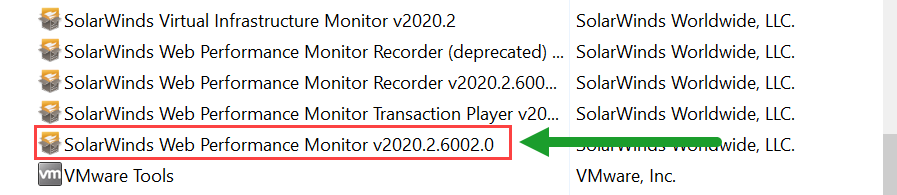
- Right click the Solarwinds Web Performance Monitor vX.X. - NOTE: be sure you're repairing the main application and not the Playback Player or the Recorder.
- This will automatically launch the Configuration Wizard. If it does not, launch the Configuration Wizard located in the Start Menu under SolarWinds Orion.
- Once the Configuration Wizard is complete, open the Orion web console and check the status of your transactions and/or player location(s).
• Transactions Unknown, Player not responding: The remote server returned an error: (400) Bad Request
• All Transactions are unknown on a specific player location in WPM
• Transactions are unknown - Location not responding
• WPM Transactions are unknown