
Applications Systems
WPM Transactions are unknown and SolarWinds.SEUM.Jobs.AgentClientException appears in Agent Service Log
Transactions is reporting down. Often across one or many WPM Player locations. Transaction of recording xxxxxxxx errored. Trying repeated dispatch. ERROR SolarWinds.SEUM.Jobs.AgentDetailsController - Unable to get agent details from agent. SolarWinds.SEUM.Jobs.AgentClientException: Communication Error: The remote server returned an error: (408) Request Timeout. Steps on performing a repair for Web Performance Monitor (WPM).
First published date
9/6/2019 5:20 PM
Last published date
12/22/2025 10:29 PM
Overview
This article addresses concerns with WPM transactions that display an Unknown status in the Orion Web Console. This issue can occur for all transactions assigned to a single transaction location, or across multiple player locations.
An error similar to the following example appears in the Agent Service Log, which is typically located in C:\ProgramData\SolarWinds\Logs\SEUM\AgentService.log on systems that host the WPM Player service.
An error similar to the following example appears in the Agent Service Log, which is typically located in C:\ProgramData\SolarWinds\Logs\SEUM\AgentService.log on systems that host the WPM Player service.
Transaction of recording xxxxxxxx errored. Trying repeated dispatch.

ERROR SolarWinds.SEUM.Jobs.AgentDetailsController - Unable to get agent details from agent.
SolarWinds.SEUM.Jobs.AgentClientException: Communication Error: The remote server returned an error: (408) Request Timeout. ---> System.Net.WebException: The remote server returned an error: (408) Request Timeout.
   at System.Net.HttpWebRequest.GetResponse()
   at SolarWinds.SEUM.Jobs.AgentClient.GetHttpResponseForActiveAgent(String api, String method, Stream dataStream, String contentType, Dictionary`2 customHeaders, String& url)
   at SolarWinds.SEUM.Jobs.AgentClient.GetHttpResponse(String api, String method, Stream dataStream, String contentType, Dictionary`2 customHeaders)
   --- End of inner exception stack trace ---
Product section
Web Performance Monitor
Cause
Corrupted WPM Job Engine Plugin.
Resolution
Repair the WPM module on the main WPM application server. This is typically the Main Polling Engine but can also be an Additional Polling Engine (APE).
If the issue persists, contact SolarWinds Support to open a new support ticket.
See also:
• Transactions Unknown, Player not responding: The remote server returned an error: (400) Bad Request
• All Transactions are unknown on a specific player location in WPM
• Transactions are unknown - Location not responding
• How to Repair WPM
To determine which polling engine a Player Location is assigned to:
- Navigate to Settings > All Settings > WPM Settings > Manage Player Locations.
- Select the location and click Edit.
- Expand the Advanced section to view the assigned poller in the dropdown.
Note: The following steps involve running the Configuration Wizard, which stops polling services across your deployment. When the wizard finishes, polling resumes.
- Use RDP to log into the polling engine.
- Open Programs & Features.
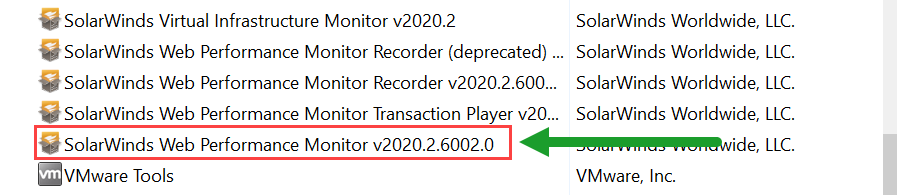
- Right-click the SolarWinds Web Performance Monitor vX.X. option.
Important: Be sure to repair the main WPM application, not a Recorder or Player.
- The Configuration Wizard should launch automatically. If necessary, launch it from the Windows Start menu by clicking Start > SolarWinds Orion > Configuration Wizard.
- When the wizard is complete, open the Orion Web Console and check the status of your transactions and/or player location(s).
If the issue persists, contact SolarWinds Support to open a new support ticket.
See also:
• Transactions Unknown, Player not responding: The remote server returned an error: (400) Bad Request
• All Transactions are unknown on a specific player location in WPM
• Transactions are unknown - Location not responding
• How to Repair WPM