
Applications Systems
Record transactions for responsive design web applications in WPM 3.0
This article provides workarounds if using SolarWinds WPM 3.0 to create transactions of web applications that use responsive design but transactions fail during playback.
First published date
8/26/2019 5:36 PM
Last published date
8/26/2019 5:36 PM
Overview
WPM 3.0 does not yet provide direct support for responsive design web applications that display different layouts and elements based on the size of a browser window or the size of a device on which the website is browsed. For example, banking applications usually use responsive design; elements appear differently depending on whether you're viewing them on a computer, tablet, or mobile phone but you can use the same features in either portrayal.
Recordings of responsive web apps often fail because the WPM Player service uses the same default width and height sizes as the WPM Recorder, but responsive websites check the resolution before loading the layout. When you display information in the Transaction Details widget, the status of the transaction is Down, as shown in this example. .
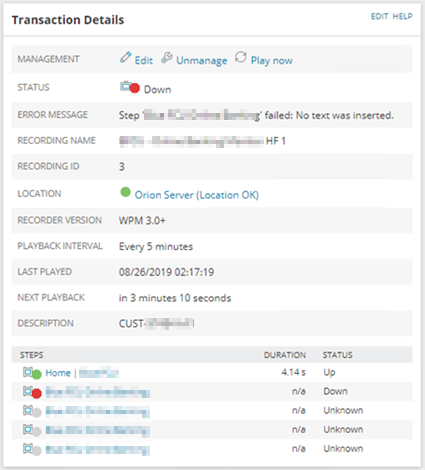
Recordings of responsive web apps often fail because the WPM Player service uses the same default width and height sizes as the WPM Recorder, but responsive websites check the resolution before loading the layout. When you display information in the Transaction Details widget, the status of the transaction is Down, as shown in this example. .
Product section
Web Performance Monitor
Resolution
WPM 3.0 supports two WPM Recorders -- the new 3.0+ WPM Recorder, and the Deprecated WPM Recorder included in earlier versions of WPM. SolarWinds recommends using the Deprecated WPM Recorder to record transactions for responsive design web applications, as described next.
Here is a workaround you can use to record transactions for responsive web applications with the Deprecated WPM Recorder, which you can download from the Manage Recordings page. (Click here for details.)
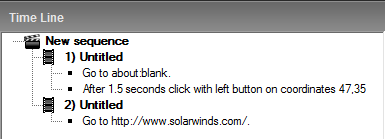
This procedure involves enabling and then disabling X, Y Capture Mode so that the WPM Player will not automatically use default browser window dimensions during playback.
Deprecated WPM Recorder workaround (recommended)
Here is a workaround you can use to record transactions for responsive web applications with the Deprecated WPM Recorder, which you can download from the Manage Recordings page. (Click here for details.)This procedure involves enabling and then disabling X, Y Capture Mode so that the WPM Player will not automatically use default browser window dimensions during playback.
- Launch the Deprecated WPM Recorder.
- Maximize the Deprecated WPM Recorder window.
- Leave the default value that appears in the URL bar, about:blank. Press Enter.
- Click Record.
- Click X, Y Capture Mode to enable the mode.
- Click anywhere in the top left corner of the blank browser window.
- Click X, Y Capture Mode again to disable the mode.
- At the top of the recorder, enter the URL of the web application that you're creating a recording for.
- Continue with the steps that you want to record in the responsive web application.
- When finished, click Stop.
3.0+ WPM Recorder workaround
You can try the following workaround with the 3.0+ WPM Recorder, although using the Deprecated WPM Recorder is recommended. Instead of adjusting the window to the desired size for a recording, set the window to the same size as when it appears during automatic playback after recording.- Launch the 3.0+ WPM Recorder.
- Create a recording and take a screenshot when WPM plays it back.
- Maximize the 3.0+ WPM Recorder window.
- Before you start recording, resize the 3.0+ Recorder window to match the size in the screenshot.
- When finished, click Stop.