
Tools
Web Help Desk Site Outgoing Mail Accounts is not working, getting an error: 451 5.7.3 STARTTLS is required to send mail [XXXXX.XXXXX.prod.outlook.com]
This article discusses the issue where Web Help Desk Outgoing Mail Accounts is not working and unable to send an email when updating Tickets
First published date
1/10/2022 11:32 AM
Last published date
2/11/2025 7:26 PM
Overview
In this issue, the On-Premise Email was migrated to Office 365 and configured to Web help Desk Outgoing Mail Account Settings. When saving the settings and the SSL is enabled, get an error: “Authentication failed”.
Then after disabling the SSL options and hitting save, the email was saved successfully, however unable to send an email when updating Tickets and got a new error message: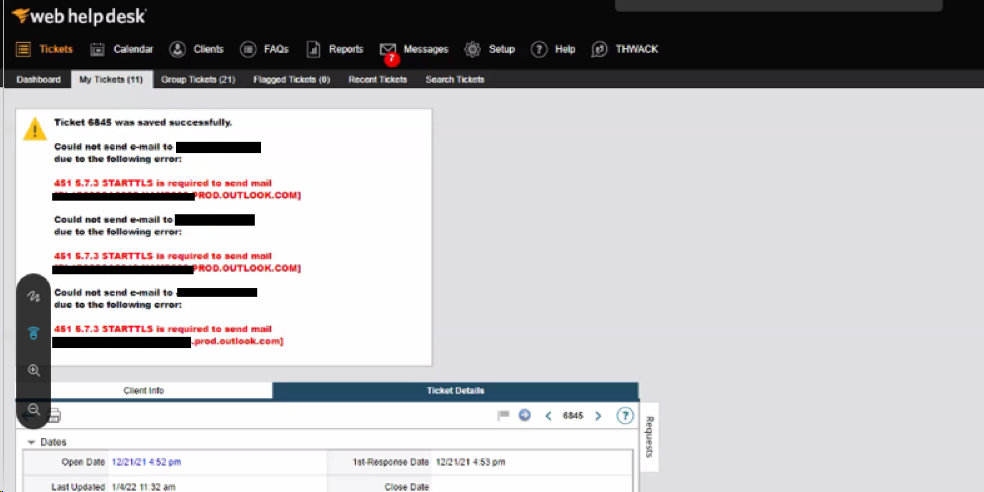
When checking the whd.log, seeing the error below:
Then after disabling the SSL options and hitting save, the email was saved successfully, however unable to send an email when updating Tickets and got a new error message:
451 5.7.3 STARTTLS is required to send mail [XXXXX.XXXXX.prod.outlook.com]
When checking the whd.log, seeing the error below:
2022-01-04 11:29:34.892 [Thread-132] DEBUG whd.helpdesk.com.macsdesign.whd.util - Direct SSL connection failed; attempting to get secure connection with STARTTLS...
javax.mail.MessagingException: Could not connect to SMTP host: smtp.office365.com, port: 587
at com.sun.mail.smtp.SMTPTransport.openServer(SMTPTransport.java:2211)
at com.sun.mail.smtp.SMTPTransport.protocolConnect(SMTPTransport.java:740)
at javax.mail.Service.connect(Service.java:366)
Product section
Web Help Desk
Resolution
1. Advise to perform the steps below from the Microsoft 365 admin center and edit the Web Help Desk email account Mail Server Settings.
a. Disabled the 2FA
b. Ensure that the settings: Authenticated client SMTP submission (SMTP AUTH) is enabled for the user (Web Help Desk email account).
- Go to Admin center > Users > Active Users
- Click on User who is sending emails via SMTP relay > Click on Mail > Manage email apps
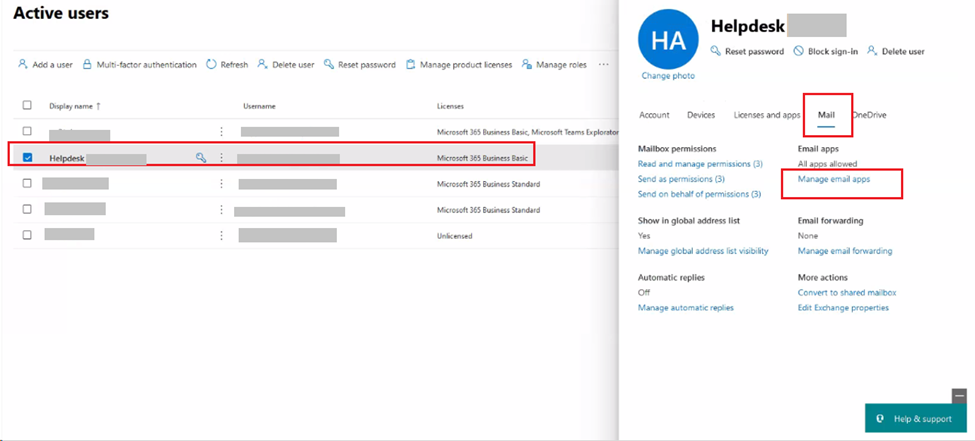
- If Authenticated SMTP is unchecked, select it and save.
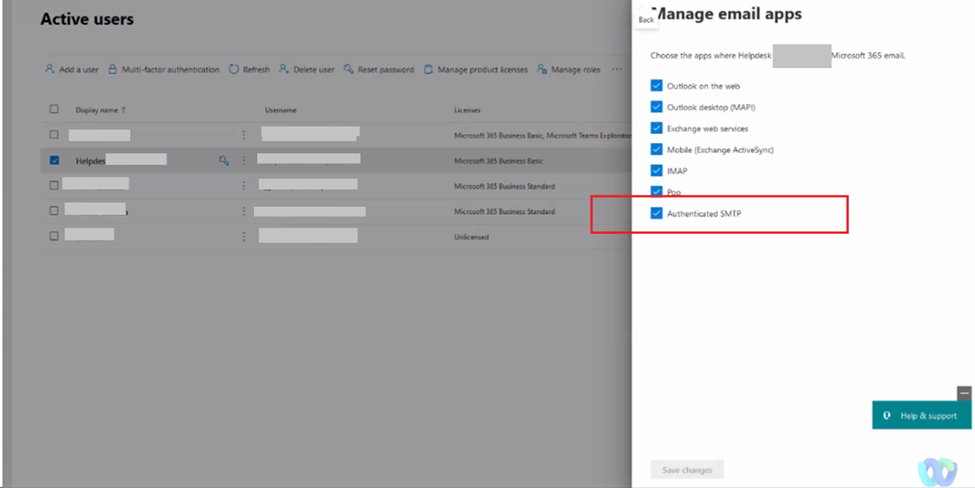
2. Go back to Web Help Desk Web Console and go to Setup>E-mail>Outgoing Mail Accounts and open the current account.
3. Enabled now the SSL options and under Advanced E-Mail Properties, add the details below: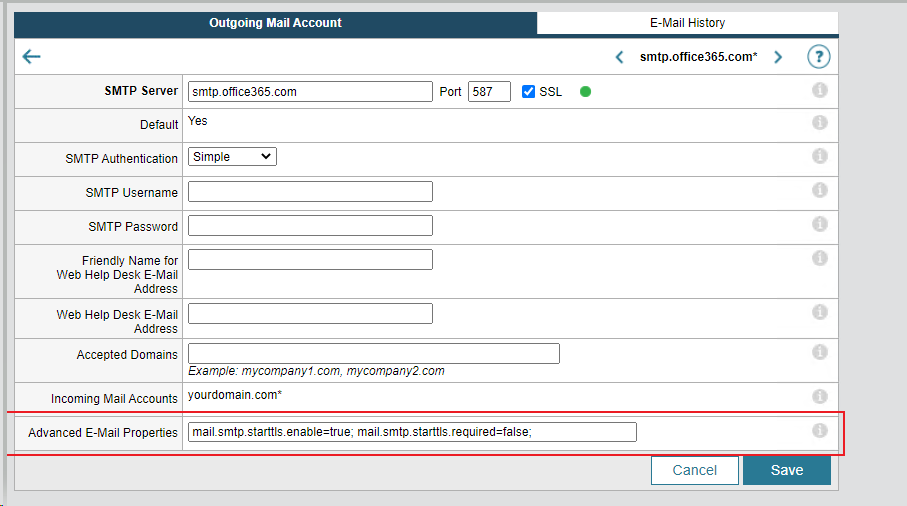
4. Save.
5. Create a test ticket or update an existing ticket to confirm that email notifications are now working.
a. Disabled the 2FA
b. Ensure that the settings: Authenticated client SMTP submission (SMTP AUTH) is enabled for the user (Web Help Desk email account).
- Go to Admin center > Users > Active Users
- Click on User who is sending emails via SMTP relay > Click on Mail > Manage email apps
- If Authenticated SMTP is unchecked, select it and save.
2. Go back to Web Help Desk Web Console and go to Setup>E-mail>Outgoing Mail Accounts and open the current account.
3. Enabled now the SSL options and under Advanced E-Mail Properties, add the details below:
mail.smtp.starttls.enable=true; mail.smtp.starttls.required=false;
4. Save.
5. Create a test ticket or update an existing ticket to confirm that email notifications are now working.