
Applications Systems
WPM Browser processes consumes high CPU
Some WPM player locations have high CPU load whenever transactions are played back on player location with GPU card installed. Other player locations are working fine
First published date
1/20/2022 10:32 AM
Last published date
6/24/2023 7:59 AM
Overview
In some customer environments, the WPM Player node shows WPM Browser processes consuming high CPU and the WPM browser processes continuously runs instead of closing the processes after playback is completed.
This is generally seen on Physical server with GPU card other player locations (virtual machines) running fine with normal CPU usage.
Check the task manager > Show hidden Icon (up arrow besides clock) to see if there is an External GPU card on this player machine.
If yes, the WPM Browser high CPU below could be related to the Graphic card.
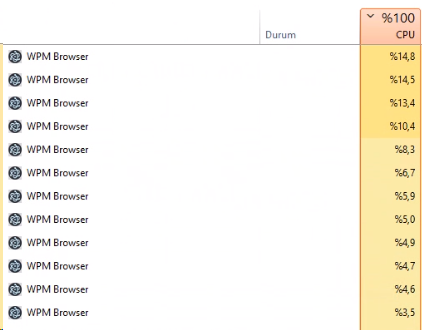
The problem was first reported in Version 2020.2.6 where a buddy drop was released. However, we noticed same issues with customers running Solarwinds Platform 2023.2 as well.
This is generally seen on Physical server with GPU card other player locations (virtual machines) running fine with normal CPU usage.
Check the task manager > Show hidden Icon (up arrow besides clock) to see if there is an External GPU card on this player machine.
If yes, the WPM Browser high CPU below could be related to the Graphic card.
The problem was first reported in Version 2020.2.6 where a buddy drop was released. However, we noticed same issues with customers running Solarwinds Platform 2023.2 as well.
Product section
Web Performance Monitor
Cause
Unknown incompatibility issues of Chromium driver and WPM transaction playbacks
Resolution
To resolve the "Cannot parse probe results" errors and high CPU usage on Player server.
1. RDP to player Server
2. Backup and Modify the C:\Program Files (x86)\SolarWinds\Orion\SEUM\Player\SolarWinds.SEUM.Agent.Worker.exe.config > agentWorkerConfiguration section to look like this
4. Play back the transaction again from Solarwinds web console.
This will disable external GPU usage by Chromium driver and will drop the CPU utilization by WPM Browser processes.
1. RDP to player Server
2. Backup and Modify the C:\Program Files (x86)\SolarWinds\Orion\SEUM\Player\SolarWinds.SEUM.Agent.Worker.exe.config > agentWorkerConfiguration section to look like this
probeExtraArgs="--enableWebDriverLogging --scriptExecutionTimeoutS 120 --extraSwitches " --disable-gpu --enable-logging=stderr --log-level=0 2>&1""3. Save the configuration file (no need to restart player service)
4. Play back the transaction again from Solarwinds web console.
This will disable external GPU usage by Chromium driver and will drop the CPU utilization by WPM Browser processes.