
Tools
WHD 12.8.2 Upgrade Failure for FIPS Environment Server
This issue describes the upgrade failure to WHD 12.8.x for the FIPS Environment Server, which shows an error on the logs as "ERROR c.s.w.s.a.i.WhdApplicationManagerImpl - Failed to start WHD application com.solarwinds.whd.symmetric.SymetricCryptoProviderInvalidStateException: Found FIPS encrypted password...".
First published date
7/10/2024 5:22 PM
Last published date
3/31/2026 4:48 PM
Overview
When upgrading a FIPS installation of Web Help Desk, the files configured for FIPS are overwritten by the installer and have to be configured again. Typically, after installation, you will likely get the error in the browser:
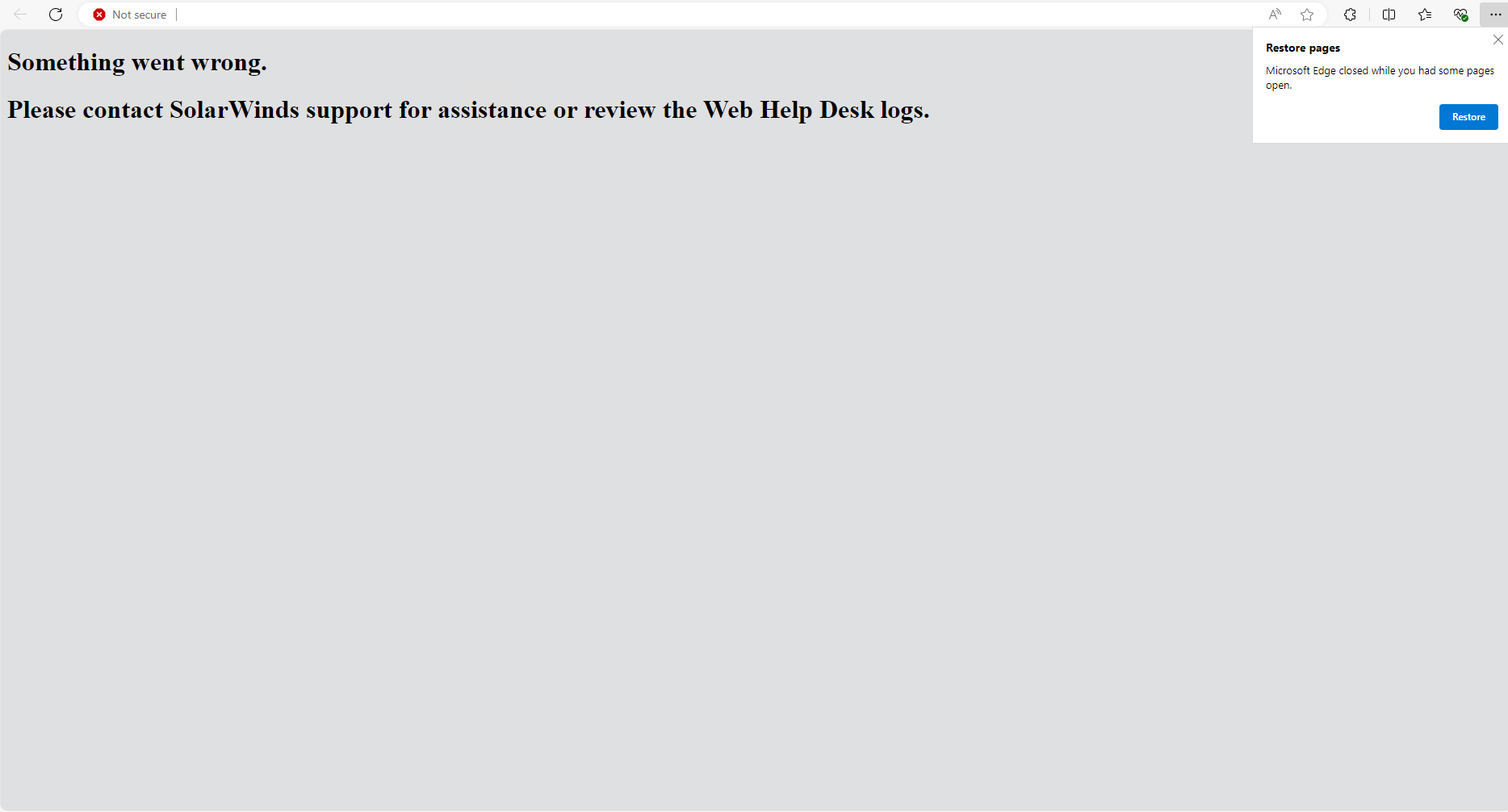
And when the whd.log was checked, it had the following entry:
Ref: Enable FIPS in an existing deployment (solarwinds.com)
And when the whd.log was checked, it had the following entry:
2024-06-20 12:33:26.725 [ApplicationManager-1] WARN c.s.w.s.SymetricCryptoManager - Couldn't find AES_FIPS symetric crypto provider for message encryption - message: {AES_FIPS}xxxxxxxxxxxxxxxxxxxxxxxxxxxxxxxxxxxxxxxxxx-xxxxxxxxxxxxxxxxxxxxxxxxxxxxxxxxxxxxxxxxxx
2024-06-20 12:33:26.748 [ApplicationManager-1] ERROR c.s.w.s.a.i.WhdApplicationManagerImpl - Failed to start WHD application
com.solarwinds.whd.symmetric.SymetricCryptoProviderInvalidStateException: Found FIPS encrypted password: {AES_FIPS}xxxxxxxxxxxxxxxxxxxxxxxxxxxxxxxxxxxxxxxxxx-xxxxxxxxxxxxxxxxxxxxxxxxxxxxxxxxxxxxxxxxxx, but FIPS is not enabled!
This issue is applied to an environment that is FIPS enabled and the WHD 12.8.x upgrade is failing.Ref: Enable FIPS in an existing deployment (solarwinds.com)
Product section
Web Help Desk
Cause
- The WHD files used for FIPS configuration are overwritten during the upgrade and need to be reconfigured for FIPS.
Resolution
-
Create a Server Snapshot
-
Stop the WHD service
- Go to the
<WebHelpDesk>installation directory. (Default is C:\Program Files\WebHelpDesk) - Run the whd_stop.bat as an admin
- Wait for the cmd window to close automatically.
- Go to the
-
Create a backup folder of the whole
<WebHelpDesk>installation directory. (Default is C:\Program Files\WebHelpDesk)
-
Run the WHD 12.8.2 installer downloaded from the SolarWinds Customer Portal.
- Once the Installer has been finished, it is expected to have an error like this:
- Once the Installer has been finished, it is expected to have an error like this:
-
Stop the WHD service again.
- Go to the
<WebHelpDesk>installation directory. (Default is C:\Program Files\WebHelpDesk) - Run the whd_stop.bat as an admin
- Wait for the cmd window to close automatically.
- Go to the
-
Update the java.security file
- Open a Notepad by running it as an admin. (Best to use Notepad++ if available).
- On the Notepad, open: <WebHelpDesk>\bin\jre\conf\security\java.security
- Scroll down to the following comment:
- #List of providers and their preference orders
- In the list of providers, add the following cryptography providers to the top of the list:
-
security.provider.1=org.bouncycastle.jcajce.provider.BouncyCastleFipsProvider
security.provider.2=org.bouncycastle.jsse.provider.BouncyCastleJsseProvider fips:BCFIPS
-
- Renumber the preference order so all providers are listed in descending order.
- For example:
-
security.provider.1=org.bouncycastle.jcajce.provider.BouncyCastleFipsProvider
security.provider.2=org.bouncycastle.jsse.provider.BouncyCastleJsseProvider fips:BCFIPS
security.provider.3=SUN
security.provider.4=SunRsaSign
security.provider.5=SunEC
security.provider.6=SunJSSE
security.provider.7=SunJCE
security.provider.8=SunJGSS
security.provider.9=SunSASL
security.provider.10=XMLDSig
security.provider.11=SunPCSC
security.provider.12=JdkLDAp
security.provider.13=JdkSASL
security.provider.14=SunMSCAPI
security.provider.15=SunPKCS11
- Scroll down to the following comment:
-
#Default keystore type
 keystore.type=pkcs12
-
- Comment out the pkcs12 keystore type and add the following type: keystore.type=bcfks
- For example:
-
#Default keystore type
#keystore.type=pkcs12
 keystore.type=bcfks
- Scroll down to the following entry:
-
ssl.KeyManagerFactory.algorithm=SunX509
-
- Change the entry to the following:
-
ssl.KeyManagerFactory.algorithm=PKIX
-
- Save and close the file.
-
Update the wrapper_template file
- Open a Notepad by running it as an admin. (Best to use Notepad++ if available).
- On the Notepad, open: <WebHelpDesk>\bin\wrapper\conf\wrapper_template.conf
- Scroll down to:
-
# Java Classpath
-
- Enter the following elements after the last element in the list:
-
wrapper.java.classpath.4=../../webapps/helpdesk/WEB-INF/lib/bc-fips.jar
wrapper.java.classpath.5=../../webapps/helpdesk/WEB-INF/lib/bcpkix-fips.jar
wrapper.java.classpath.6=../../webapps/helpdesk/WEB-INF/lib/bctls-fips.jar
-
- Reorder all elements in descending order.
- For example
-
wrapper.java.classpath.1=../../wrapper/lib/wrapper.jar
wrapper.java.classpath.2=../../tomcat/bin/bootstrap.jar
wrapper.java.classpath.3=../../tomcat/bin/tomcat-juli.jar
#wrapper.java.classpath.4=../../webapps/helpdesk/WEB-INF/lib/MDSunicode.jar
wrapper.java.classpath.4=../../webapps/helpdesk/WEB-INF/lib/bc-fips.jar
wrapper.java.classpath.5=../../webapps/helpdesk/WEB-INF/lib/bcpkix-fips.jar
wrapper.java.classpath.6=../../webapps/helpdesk/WEB-INF/lib/bctls-fips.jar
- Scroll down to:
-
# Java Additional Parameters
-
- Correct the list by following these parameters:
-
wrapper.java.additional.1=-XX:MaxPermSize=@@@WHD_MAX_PERM_MEMORY@@@m
wrapper.java.additional.2=-Dcatalina.base=../../tomcat
wrapper.java.additional.3=-Dcatalina.home=../../tomcat
wrapper.java.additional.4=-Djava.io.tmpdir=../../tomcat/temp
wrapper.java.additional.5=-Dorg.apache.tomcat.util.http.ServerCookie.ALLOW_HTTP_SEPARATORS_IN_V0=true
wrapper.java.additional.6=-Dwhd.stdDeploy=true
wrapper.java.additional.7=-DWHDFingerPort=@@@MAIL_NOTIFICATION_PORT@@@
wrapper.java.additional.8=-DWHDPrivilegedNetworks=@@@PRIVILEGED_NETWORKS@@@
wrapper.java.additional.9=-DWHDPort=@@@URL_DEFAULT_PORT@@@
wrapper.java.additional.10=-DWHDSecurePort=@@@URL_HTTPS_PORT@@@
wrapper.java.additional.11=-DWHDconnections=@@@DATABASE_CONNECTIONS@@@
wrapper.java.additional.12=-DWHDPrivateBaseUrl=@@@PRIVATE_BASE_URL@@@
wrapper.java.additional.13=-Xmx@@@WHD_MAX_MEMORY@@@m
wrapper.java.additional.14=-DWODisplayExceptionPages=true
wrapper.java.additional.15=-Dlogback.configurationFile="@@@WHD_HOME@@@\conf\logback-config.xml"
wrapper.java.additional.16=-DWHDWebObjectsMonitorDeployment=false
wrapper.java.additional.17=-Dfile.encoding="utf-8"
wrapper.java.additional.18=-Djavax.xml.stream.XMLInputFactory="com.macsdesign.whd.util.Xml11AllowingWstxInputFactory"
wrapper.java.additional.19=-Dwhd.12.7.8.not.send.mail.individually=false
wrapper.java.additional.20=-DWHDfips
wrapper.java.additional.21=-Djavax.net.ssl.keyStore="C:\Program Files\WebHelpDesk\conf\cacerts.bcfks"
wrapper.java.additional.22=-Djavax.net.ssl.keyStorePassword=changeit
wrapper.java.additional.23=-Djavax.net.ssl.keyStoreType=BCFKS
wrapper.java.additional.24=-Djavax.net.ssl.trustStore="C:\Program Files\WebHelpDesk\conf\cacerts.bcfks"
wrapper.java.additional.25=-Djavax.net.ssl.trustStorePassword=changeit
wrapper.java.additional.26=-Djavax.net.ssl.trustStoreType=BCFKS
-
- Verify that all elements are numbered in descending order.
- If the environment uses Office365 for Email, please perform this step 9. Otherwise, proceed to Step 10.
- Copy this code below and connect it on the wrapper.java.additional.XX from step 7.
-
#Uncomment below Java Additional arguments to Access an Office365 e-mail account on a GCCH/Azure US Government tenant.
#Verify that the argument numbers are listed in numerical order inline with above argument list.
#wrapper.java.additional.20=-DAzureTokenURL="https://login.microsoftonline.us/"
#wrapper.java.additional.21=-DAzureAuthorizationURL="https://login.microsoftonline.us/"
#wrapper.java.additional.22=-DIsGcchAzureAccount=true
#wrapper.java.additional.23=-DAzureAuthorizationScope="offline_access%20https://graph.microsoft.us/.default"
#wrapper.java.additional.24=-DExchangeServiceURL="https://outlook.office365.us/"
#wrapper.java.additional.25=-DMicrosoftGraphServiceRoot="https://graph.microsoft.us/v1.0"
- The result will be like this:
-
....
wrapper.java.additional.20=-DWHDfips
wrapper.java.additional.21=-Djavax.net.ssl.keyStore="C:\Program Files\WebHelpDesk\conf\cacerts.bcfks"
wrapper.java.additional.22=-Djavax.net.ssl.keyStorePassword=changeit
wrapper.java.additional.23=-Djavax.net.ssl.keyStoreType=BCFKS
wrapper.java.additional.24=-Djavax.net.ssl.trustStore="C:\Program Files\WebHelpDesk\conf\cacerts.bcfks"
wrapper.java.additional.25=-Djavax.net.ssl.trustStorePassword=changeit
wrapper.java.additional.26=-Djavax.net.ssl.trustStoreType=BCFKS
wrapper.java.additional.27=-DAzureTokenURL="https://login.microsoftonline.us/"
wrapper.java.additional.28=-DAzureAuthorizationURL="https://login.microsoftonline.us/"
wrapper.java.additional.29=-DIsGcchAzureAccount=true
wrapper.java.additional.30=-DAzureAuthorizationScope="offline_access%20https://graph.microsoft.us/.default"
wrapper.java.additional.31=-DExchangeServiceURL="https://outlook.office365.us/"
wrapper.java.additional.32=-DMicrosoftGraphServiceRoot="https://graph.microsoft.us/v1.0"
-
-
- Copy this code below and connect it on the wrapper.java.additional.XX from step 7.
- (Optional) Update the changeit password in the following elements based on your corporate requirements.
- The password must be identical to the password used when you created the BCKFS keystore.
- The default is "changeit".
-
wrapper.java.additional.21=-Djavax.net.ssl.keyStorePassword=changeit
wrapper.java.additional.24=-Djavax.net.ssl.trustStorePassword=changeit
-
- Save and close the file.
-
Update the tomcat_server_template file
- Open a Notepad by running it as an admin. (Best to use Notepad++ if available).
- On the Notepad, open: <WebHelpDesk>\conf\tomcat_server_template.xml
- Locate the following comment:
-
@@@WEBHELPDESK_SSL_START@@@
-
- Below this comment are two headers with the following name:
-
<Connector port="@@@WEBHELPDESK_SSL_PORT@@@" protocol="HTTP/1.1 SSLEnabled="true"
-
- Under the first Connector port section, locate the following elements:
-
keystoreFile="@@@WEBHELPDESK_KEYSTORE@@@"
keystorePass="@@@WEBHELPDESK_KEYSTORE_PASS@@@"
keystoreType="@@@WEBHELPDESK_KEYSTORE_TYPE@@@"
-
- Update the element values as shown below:
-
keystoreFile="C:\Program Files\WebHelpDesk\conf\keystore.bcfks"
keystorePass="changeit"
keystoreType="BCFKS"
-
- In the same section, delete the following cipher entries:
-
ciphers="TLS_RSA_WITH_AES_128_CBC_SHA256,TLS_RSA_WITH_AES_256_CBC_SHA256_TLS_RSA_WITH_A
ES_256_CBC_SHA_TLS_RSA_WITH_AES_128_CBC_SHA_SSL_RSA_WITH_3DES_EDE_CBC_SHA_SSL_RSA_WITH_
RC4_128_SHA1_SSL_RSA_WITH_RC4_128_MDS_TLS_EMPTY_RENEGOTIATION_INFO_SCSV"
-
- Repeat steps 5 through 7 in the second connector port section.
- Save and close the file.
-
Start the WHD service. It is important to start WHD via the whd_start.bat file to update the wrapper config file.
- Go to the
<WebHelpDesk>installation directory. (Default is C:\Program Files\WebHelpDesk) - Run the whd_start.bat as an admin
- Wait for the cmd window to close automatically and the browser to complete loading.
- Go to the
-
Verify that the WHD is now up and running.