
Tools
Viewing and exporting device details in Dameware Remote Everywhere (DRE)
This article shows how to export device details.
First published date
5/5/2020 11:43 PM
Last published date
5/5/2020 11:43 PM
Overview
In the Dameware Remote Everywhere admin area, you can check the device details such as Processor, RAM, Disk, and others when selecting the device from the list, but you cannot export. The only way to export is during the remote session, and there is no way to export multiple devices all at the same time.
Product section
Dameware Remote Everywhere
Resolution
1. Connect to the remote computer.
2. In the DRE remote viewer, click System Info.

3. Click Audit.

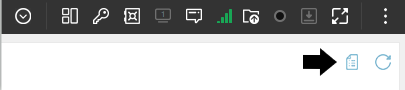
4. Click Export to CSV in the top right corner.
2. In the DRE remote viewer, click System Info.
3. Click Audit.
4. Click Export to CSV in the top right corner.