
Tools
Using Keystore Explorer to import a self signed or wildcard certificate in PFX format to Web Help Desk
This guide shows how to import a self-signed or wildcard certificate in .pfx format using the Keystore Explorer.
First published date
10/7/2022 9:05 PM
Last published date
10/7/2022 9:27 PM
Overview
In situations when Portacle.bat is not running, the keystore explorer is a good alternative software that can be used in importing a self-signed or wildcard certificate in .pfx format.
Product section
Web Help Desk
Resolution
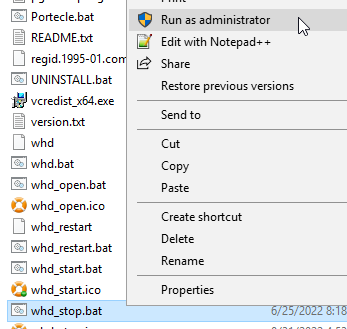
1. Stop WHD by going to <WebHelpDesk> folder and run whd_stop.bat as Administrator.
2. Copy and backup the original keystore.jks file found at <webHelpDesk>\conf directory to a safe location so you may return if you wish to revert to your original keystore setup.
3. Download, install and run keystore explorer.
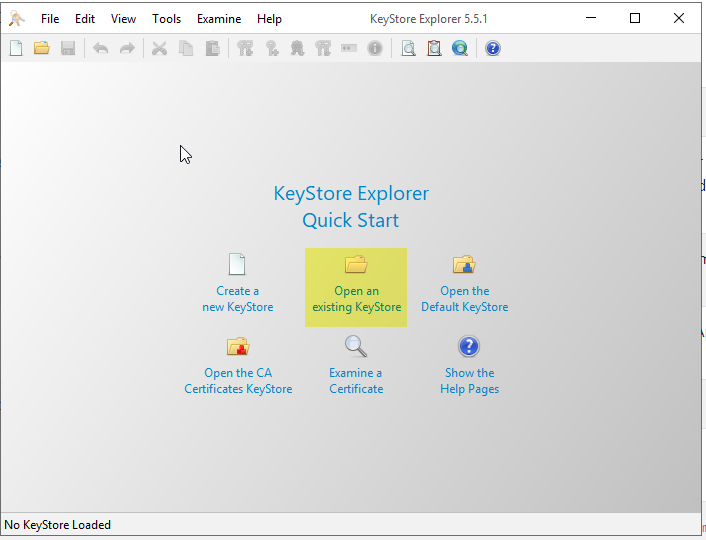
4. Launch keystore explorer and press Open an existing KeyStore.
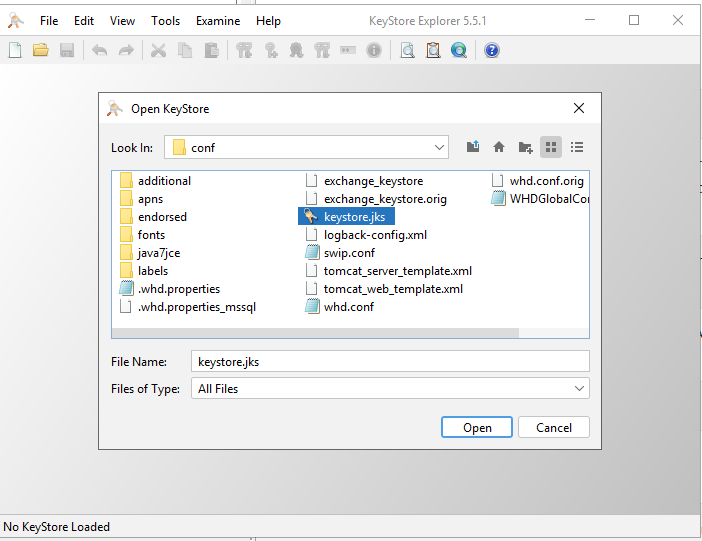
5. Browse for the <webHelpDesk>\conf directory
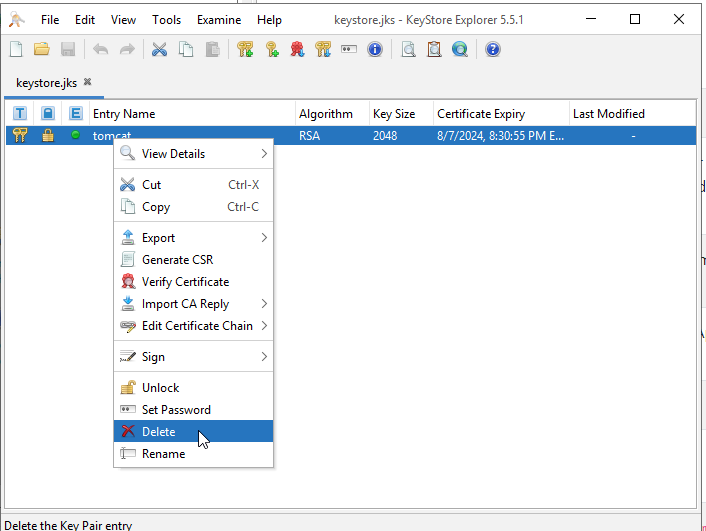
6. Delete the tomcat and other certificates (if there is any)
7. Press Tools > Import KeyPair
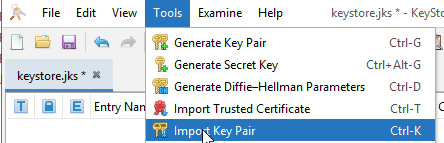
8. Choose PKCS #12
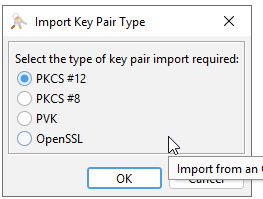
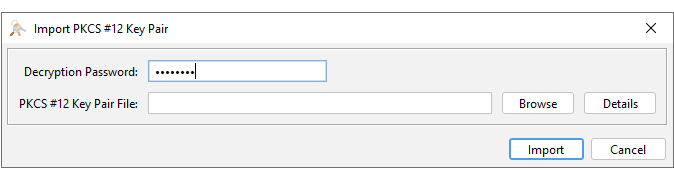
9. Enter the .pfx file password and press browse to upload the .pfx certificate
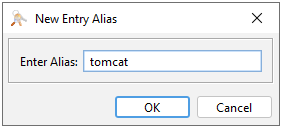
10. Change the key pair entry alias to tomcat and press OK.
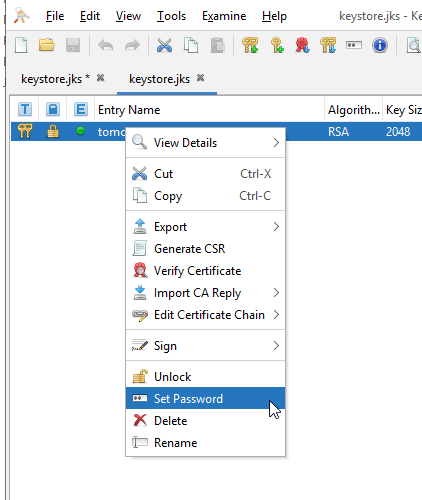
11. Right-click on tomcat and press Set Password to update the password.
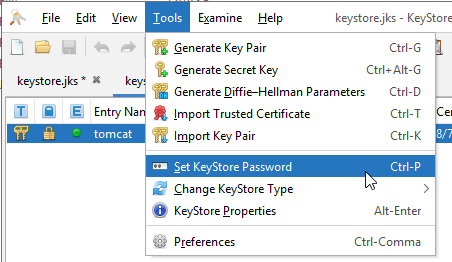
12. Press Tools > Set KeyStore Password
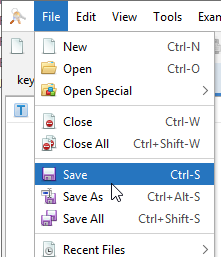
13. Press File > Save
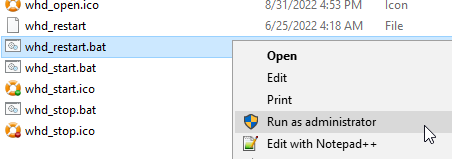
14. Restart WHD by going to <WebHelpDesk> folder and run whd_restart.bat as Administrator
15. Launch WHD in a new browser and check the certificate if it is applied properly.
2. Copy and backup the original keystore.jks file found at <webHelpDesk>\conf directory to a safe location so you may return if you wish to revert to your original keystore setup.
3. Download, install and run keystore explorer.
4. Launch keystore explorer and press Open an existing KeyStore.
5. Browse for the <webHelpDesk>\conf directory
6. Delete the tomcat and other certificates (if there is any)
7. Press Tools > Import KeyPair
8. Choose PKCS #12
9. Enter the .pfx file password and press browse to upload the .pfx certificate
10. Change the key pair entry alias to tomcat and press OK.
11. Right-click on tomcat and press Set Password to update the password.
12. Press Tools > Set KeyStore Password
13. Press File > Save
14. Restart WHD by going to <WebHelpDesk> folder and run whd_restart.bat as Administrator
15. Launch WHD in a new browser and check the certificate if it is applied properly.