
Network Management
Under the Manage Reports page whenever editing the report the Preview tab errors out with Unexpected Website Error Request timed out.
This article shows how to resolve an issue in editing a report that has multiple Data Resource where the Preview tab errors out with Unexpected Website Error Request timed out.
First published date
7/14/2021 9:41 PM
Last published date
7/14/2021 9:41 PM
Overview
Under the Manage Reports page whenever editing a report that has multiple Data Resource in it:

The Preview tab errors out with Unexpected Website Error Request timed out similarly shown below:
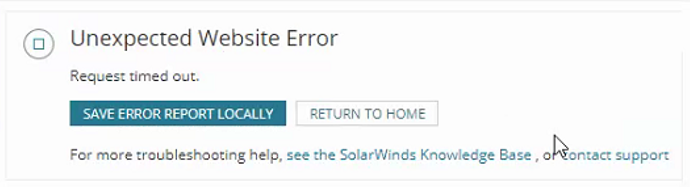
The Preview tab errors out with Unexpected Website Error Request timed out similarly shown below:
Product section
Network Performance Monitor
Cause
Missing element in the web.config (C:\inetpub\SolarWinds) file.
Resolution
- RDP to the Main Polling Engine
- Locate the web.config file (C:\inetpub\SolarWinds) and create a back-up before editing
- Run the Notepad as Administrator and open the web.config file
- Insert the following new element:
<system.web>
<httpRuntime maxRequestLength="16096" executionTimeout="3600" />
</system.web>
</location>
- After inserting the new element, it should look similarly like this:
<system.web>
<httpRuntime maxRequestLength="16096" executionTimeout="1800" />
</system.web>
</location>
<location path="Orion/Report.aspx">
<system.web>
<httpRuntime maxRequestLength="16096" executionTimeout="1800" />
</system.web>
</location>
<location path="Orion/Reports/AsExcel.aspx">
<system.web>
<httpRuntime maxRequestLength="64384" executionTimeout="1800" />
</system.web>
</location>
<location path="Orion/Reports/Preview.aspx">
<system.web>
<httpRuntime maxRequestLength="16096" executionTimeout="1800" />
</system.web>
</location>
<location path="Orion/Reports/Add/Preview.aspx">
<system.web>
<httpRuntime maxRequestLength="16096" executionTimeout="3600" />
</system.web>
</location>
<location path="Orion/Reports/Scheduler.aspx">
<system.web>
<httpRuntime maxRequestLength="16096" executionTimeout="1800" />
</system.web>
</location>
- Save the web.config file and perform a quick Shutdown of all Orion Services which will include the Websites for changes to take effect.
- Verify the Preview tab in editing a report, the error should be resolved.