
Tools
Unable to open private key file after upgrading to Serv-U 15.4 and above
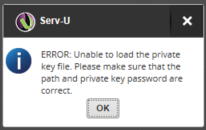
This article describe the issue in Serv-U SSH and SFTP were clients are unable to connect to Serv-U upgrading to Serv-U 15.4+ The Error "Unable to open private key file: *Path_to_Certificates*" is seen in the logs and from GUI, you might get, "Error: Unable to load the private key file. Please make sure that the path and private key password are correct."
First published date
2/14/2024 10:43 PM
Last published date
2/12/2025 5:22 AM
Overview
After upgrading to Serv-U 15.4 and above, SSH, SFTP client unable to connect to Serv-U.
Excerpt of domain activity log:
Also, the following error message may appear:
Error: Unable to load the private key file. Please make sure that the path and private key password are correct.
Excerpt of domain activity log:
	[02] Mon 18Dec23 10:48:27 - (000003) Connected to xxx.xxx.xxx.xxx (local address xxx.xxx.xxx.xxx, port 22)
	[03] Mon 18Dec23 10:48:27 - (000003) IP-Name: serveraname.domain (zzz.zzz.zzz.zzz)
	[02] Mon 18Dec23 10:48:27 - (000003) Unable to open private key file: *Path_to_Certificates*
	[02] Mon 18Dec23 10:48:27 - (000003) Closed session
	[02] Mon 18Dec23 10:51:40 - (000004) Connected to xxx.xxx.xxx.xxx (local address xxx.xxx.xxx.xxx, port 22)
	[03] Mon 18Dec23 10:51:40 - (000004) IP-Name: serveraname.domain (zzz.zzz.zzz.zzz)
	[02] Mon 18Dec23 10:51:40 - (000004) Unable to open private key file: *Path_to_Certificates*
	[02] Mon 18Dec23 10:51:40 - (000004) Closed session
Also, the following error message may appear:
Error: Unable to load the private key file. Please make sure that the path and private key password are correct.
Product section
Serv-U Managed File Transfer & Serv-U FTP Server
Cause
This issue occurs when one of the following conditions are true:
- Some algorithms are no longer supported in the updated OpenSSL libraries [DSA size 2048 & 4096]
- OpenSSL libraries hardened requirements for using private keys generated while FIPS is enable
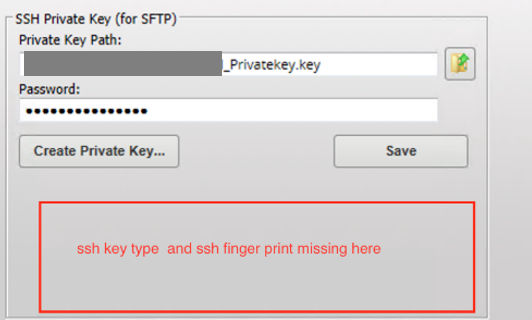
- Missing SSH Key Type and SSH Key Fingerprint
Resolution
To resolve this problem, perform the following steps:
Note: A key generated when FIPS is OFF will not work with FIPS ON

- Take a backup of the C:\ProgramData\RhinoSoft\Serv-U\Serv-U.Archive
- Check if the SSH Key Type and SSH Key fingerprint present
- If not, try re-entering the "Password"
- Alternatively, delete the password (field remains without a password)
Note: If removing the password solves the problem, i.e. fingerprint appears, a security audit would be strongly recommended. - Clear out the SSH Private Key Path and Password first and then save it as empty.
- Once the SSH Key Type and SSH Key fingerprint appears, reselect the SSH Private Key and input the password and save it.
- Check if FIPS is enabled
- If so, try disabling FIPS and test client connection.
- If the above works, re-enable FIPS and generate a new key
- If it fails, obtain Serv-U.Archive + key + password for the key and open a support case for further investigation.
Note: A key generated when FIPS is OFF will not work with FIPS ON