
Security Compliance
"ARM server is not connected! Please contact your administrator." error when logging into the ARM Web Console
ARM Web Console is not accessible due to a login error.
First published date
11/24/2021 2:38 PM
Last published date
7/9/2025 2:09 PM
Overview
This article provides information about issues related to the inability to login into the ARM Web Console. In most cases while doing it, the system will respond with the below error message (screenshot taken from ARM 2021.4):
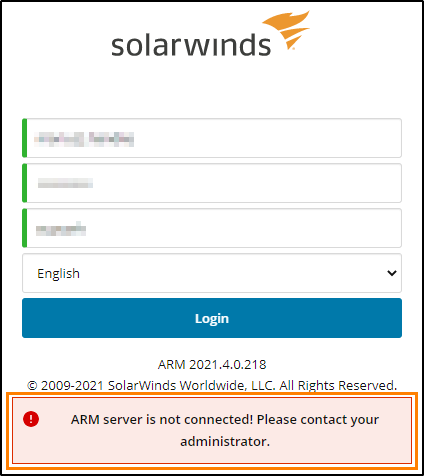
ARM server is not connected! Please contact your administrator.
From the above screenshot you can establish that credentials are correct - green ribbon on the left of each field.
Product section
Access Rights Manager
Cause
Possible causes:
IIS APPPOOL\ARM WebAPI AppPool|SolarWinds.ARM.Remo…ng.GrpcClientManager|220329| 9:14:59.873|Warning ] AsyncTaskMethodBuilder`1.Start(TStateMachine& stateMachine): Unexpected error while connecting to grpc://x.x.x.x:55555/, channel state , 1 retries left
SolarWinds.ARM.Remoting.GrpcRemotingException: Could not connect to the ARM server! The remote certificate is invalid according to the validation procedure. ---> System.Security.Authentication.AuthenticationException: The remote certificate is invalid according to the validation procedure.
- If the web service (GrantMA) runs on the same server as the ARM Server the ARM service might be stopped or is not responding (i.e. hanging).
- If the web service (GrantMA) runs on a different server above also applies but the access to the ARM Server over the network can also be blocked.
- Certificate unable to load in the grantMA, check the log 'grantMA' in C:\ProgramData\protected-networks.com\8MAN\log
IIS APPPOOL\ARM WebAPI AppPool|SolarWinds.ARM.Remo…ng.GrpcClientManager|220329| 9:14:59.873|Warning ] AsyncTaskMethodBuilder`1.Start(TStateMachine& stateMachine): Unexpected error while connecting to grpc://x.x.x.x:55555/, channel state , 1 retries left
SolarWinds.ARM.Remoting.GrpcRemotingException: Could not connect to the ARM server! The remote certificate is invalid according to the validation procedure. ---> System.Security.Authentication.AuthenticationException: The remote certificate is invalid according to the validation procedure.
Resolution
Try following:
Workaround 2:
- Using Windows™ Services check if ARM Server is running and start it if it is stopped.
- Using Windows™ Services check if ARM Server is running and re-start it if it is running.
- Verify if the port on which ARM Server is set up (default: TCP/55555) is reachable from the remote machine (if ARM web service is installed remotely).
Workaround 2:
- Edit and Add your ARM Server FQDN in GrantMA.config file in (C:\ProgramData\protected-networks.com\8MAN\cfg)
- Change the server name to a fully qualified domain name of your ARM Server
It should look like this.
<server>
<name>arm.domain.local</name>
<port type="System.Int32">55555</port>
</server> - Save the file, try login to Web-console.