
Tools
Unable to Authorize Email Address, getting an error: "Failed to authorize Office 365 email access Invalid client secret" in Web Help Desk (WHD)
This article described an issue where the Clients were unable to set up Modern Authentication for Office 365 e-mail due to an invalid Client Secret, getting an error: "Failed to authorize Office 365 mail access: Invalid client secret" in the Web Help Desk.
First published date
10/13/2022 3:15 AM
Last published date
2/12/2025 3:24 AM
Overview
Beginning in Web Help Desk Version 12.7.2, Modern Authentication for Office 365 e-mail accounts is supported. It is allowed to set up a new incoming e-mail account with Modern Authentication to access Microsoft Exchange Web Services (EWS) and your Office 365 e-mail.
However, in this issue, the Oath setup fails due to an invalid Client Secret value and getting an error:
However, in this issue, the Oath setup fails due to an invalid Client Secret value and getting an error:
Error validating credentials. AADSTS50012: Invalid client secret is provided
Product section
Web Help Desk
Cause
Mismatch client secret ID value.
Resolution
1. Open a web browser and navigate to:
https://portal.azure.com/#home
In the navigation pane, click App registrations.
2. Under Display name, click the current App Registration name for Web Help Desk.
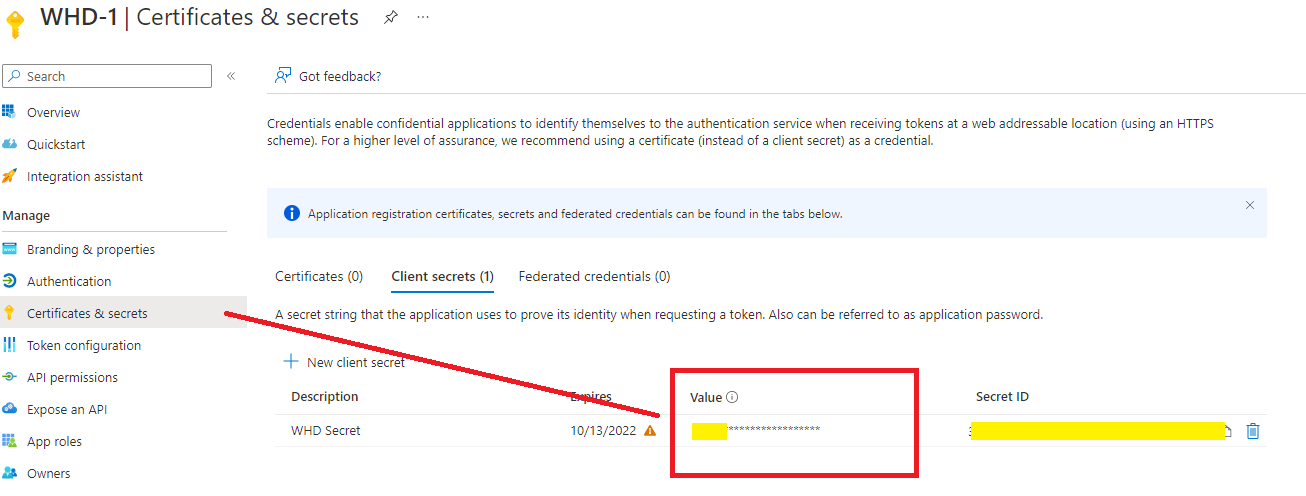
3. Find the Client Credentials and browse them.
4. Ensure to copy the client secret “Value”, not the client Secret ID.
5. Go back to Web Help Desk Console, log in as Administrator
6. Go to Setup> E-mail > Incoming Mail Accounts and select the existing Email account
7. Enter the client secret value, then re-authorize
NOTE: There will be a prompt indicating Permissions requested double check that the email indicated there is the WHD email address)
8. Click accept and save.
https://portal.azure.com/#home
In the navigation pane, click App registrations.
2. Under Display name, click the current App Registration name for Web Help Desk.
3. Find the Client Credentials and browse them.
4. Ensure to copy the client secret “Value”, not the client Secret ID.
5. Go back to Web Help Desk Console, log in as Administrator
6. Go to Setup> E-mail > Incoming Mail Accounts and select the existing Email account
7. Enter the client secret value, then re-authorize
NOTE: There will be a prompt indicating Permissions requested double check that the email indicated there is the WHD email address)
8. Click accept and save.