
Network Management
Troubleshooting Powershell Script Alert action not working
This article provides some workarounds with regards to the issue on a Powershell script alert action that doesn't trigger in Alert Manager
First published date
2/26/2021 7:59 AM
Last published date
7/28/2021 11:11 PM
Overview
This will provide some workarounds when the PowerShell script is not triggering properly
e.g Manual PowerShell script running - Works fine, but in Alert Manager, it was triggered successfully, but nothing happened
e.g Manual PowerShell script running - Works fine, but in Alert Manager, it was triggered successfully, but nothing happened
Product section
Network Performance Monitor
Cause
- Account Permissions
- ExecutionPolicy
- PowerShell script not working at all
Resolution
Assuming the PS Script works when run locally
Workaround 1: Add the full path of the powershell.exe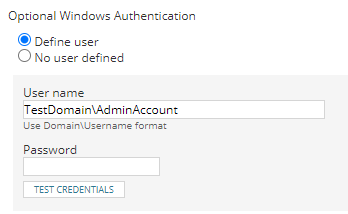
If you saw 'Check ‘Replace a process level token’ account privilege of the user which runs SolarWinds Orion Module Engine service'
Workaround 3: Verify if the PS Script works using the credential to you define
1. "C:\Windows\System32\WindowsPowerShell\v1.0\powershell.exe -ExecutionPolicy -Bypass -File C:\ScriptFolder\test.ps1
Workaround 5: Disable 'User Account Control: Run all administrators in Admin Approval Mode'
Workaround 1: Add the full path of the powershell.exe
-
Add the "Run an external Program" action to the alert.
-
In the file path, enter the path to powershell.exe followed by -File and the path to the .ps1 file.
Example:
"C:\Windows\System32\WindowsPowerShell\v1.0\powershell.exe -File C:\ScriptFolder\test.ps1"
For the 32 bit version of PowerShell use:
"C:\Windows\SysWOW64\WindowsPowerShell\v1.0\powershell.exe -File C:\ScriptFolder\test.ps1"
-
Finish saving the action and alert as normal.
- Edit the Alert Action
- Define user, then Add a Local Admin or Domain Admin account (Make sure this account is able to run the PowerShell Script)
- Make sure the credential passed the test
If you saw 'Check ‘Replace a process level token’ account privilege of the user which runs SolarWinds Orion Module Engine service'
- Log in with your Administrator account on the Windows machine.
- Go to Control Panel and open the Administrative Tools.
- Open Local Security Policy and expand Local Policies.
- Under User Rights Assignment, open the Replace a Process Level Token.
- Add the service account name that is being used to the policy and click OK.
Workaround 3: Verify if the PS Script works using the credential to you define
- Open Windows Powershell or ISE (Right Click and 'Run as Different User)
- Fill in the credential where you used in 'Define user'
- Run the script
- If it doesn't work, then it's environmental, or check the error code
1. "C:\Windows\System32\WindowsPowerShell\v1.0\powershell.exe -ExecutionPolicy -Bypass -File C:\ScriptFolder\test.ps1
Workaround 5: Disable 'User Account Control: Run all administrators in Admin Approval Mode'
- Log in to your Orion Server
- Open Control Panel, and then go to Administrative Tools > Local Security Policy > Local Policies > Security Options.
- Locate and turn OFF the User Account Control: Run all administrators in Admin Approval Mode policy.
- Save and if possible to reboot the Orion Server