
Tools
The port is already in use appears in the Serv-U logs and users cannot connect
This article provides steps to fix an issue with Serv-U wherein an attempted connection fails with the message: Port already in use
First published date
10/11/2021 4:57 PM
Last published date
11/8/2021 10:26 PM
Overview
There are some cases that the user was not able to connect to Serv-U, and then in the Serv-U logs, it shows the port is already in use for some reason. Rebooting the server would correct the issue, but sometimes it is not, or eventually, it will occur again.
Product section
Serv-U Managed File Transfer & Serv-U FTP Server
Cause
Port conflict with other processes in the OS.
Resolution
Reboot the server, or close/terminate the other processes that are using the same port.
To close/terminate the other processes.
1. Open the CMD.
2. Type the command below (replace the port number in question).
4. Find Serv-U.exe, check the PID, and compare with the netstat results.
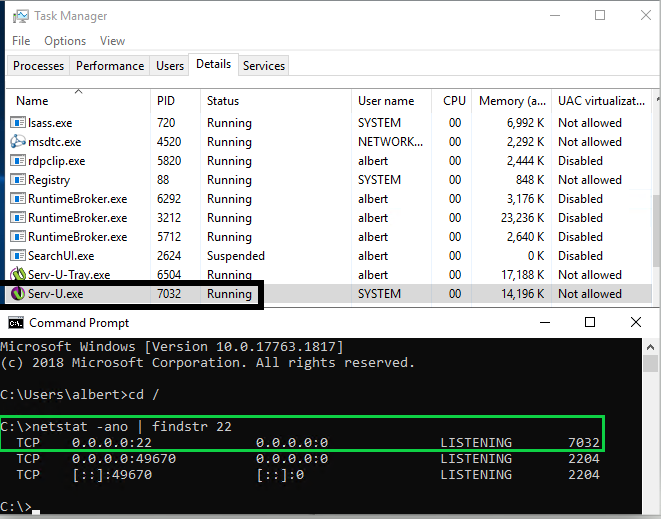
5. If it's different from Serv-U PID, terminate the PID.
6. Find the PID number in the task manager, right-click and then select End Task.
7. You can also terminate it permanently by going to Windows Services.
8. Find the service that is running and open the properties.
9. Select the Startup type to Disable, click Apply, and OK.
To close/terminate the other processes.
1. Open the CMD.
2. Type the command below (replace the port number in question).
netstat -ano | findstr port_number

-- Scripts are not supported under any SolarWinds support program or service.
-- Scripts are provided AS IS without warranty of any kind. SolarWinds further
-- disclaims all warranties including, without limitation, any implied warranties
-- of merchantability or of fitness for a particular purpose. The risk arising
-- out of the use or performance of the scripts and documentation stays with you.
-- In no event shall SolarWinds or anyone else involved in the creation,
-- production, or delivery of the scripts be liable for any damages whatsoever
-- (including, without limitation, damages for loss of business profits, business
-- interruption, loss of business information, or other pecuniary loss) arising
-- out of the use of or inability to use the scripts or documentation.
3. Run the task manager, select the Details tab.
4. Find Serv-U.exe, check the PID, and compare with the netstat results.
5. If it's different from Serv-U PID, terminate the PID.
6. Find the PID number in the task manager, right-click and then select End Task.
7. You can also terminate it permanently by going to Windows Services.
8. Find the service that is running and open the properties.
9. Select the Startup type to Disable, click Apply, and OK.