
Tools
The Requested license quantity exceeds the amount currently available (0). Error when Activating Dameware License
This article describes the issue error message, "The license you provided cannot be activated. Requested license quantity exceeds the amount currently available (0). Reduce the quantity requested or deactivate licenses on another server and try again." when activating Dameware Remote Support or Dameware Mini Remote Control License.
First published date
4/1/2024 3:06 PM
Last published date
2/19/2025 7:56 PM
Overview
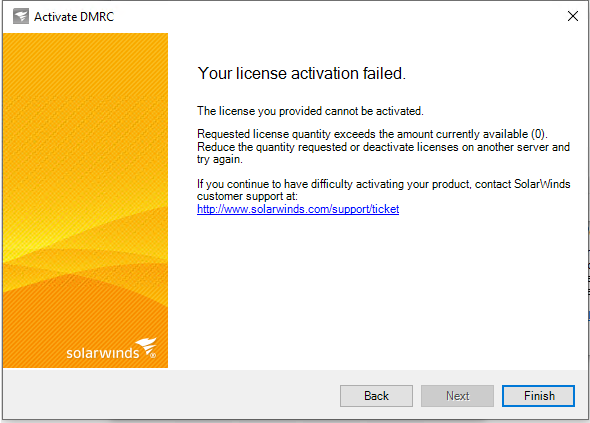
There are instances in which the error message below appears when activating Dameware Licenses.
Requested license quantity exceeds the amount currently available (0).
Reduce the quantity requested or deactivate licenses on another server and try again.
If you continue to have difficulty activating your product, contact SolarWinds customer support at: http://www.solarwinds.com/support/ticket solarwinds"
This happens when you already maximized all of the available per seat or user license allocated for your Dameware License.
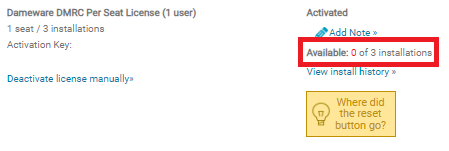
For users that recently renewed their license, renewals only mean that the validity of the Dameware License Key will be extended but the number of installations or users you can use with your existing Dameware license will not change unless there was a purchase of an additional license.
"Your license activation failed.
The license you provided cannot be activated.Requested license quantity exceeds the amount currently available (0).
Reduce the quantity requested or deactivate licenses on another server and try again.
If you continue to have difficulty activating your product, contact SolarWinds customer support at: http://www.solarwinds.com/support/ticket solarwinds"
This happens when you already maximized all of the available per seat or user license allocated for your Dameware License.
For users that recently renewed their license, renewals only mean that the validity of the Dameware License Key will be extended but the number of installations or users you can use with your existing Dameware license will not change unless there was a purchase of an additional license.
Product section
Dameware Remote Support & Mini Remote Control
Cause
The number of Dameware License Subscriptions has been fully Utilized.
Resolution
-
Manage all of your existing Dameware License by removing machines that is not accessible and not in-used.
- Log into the SolarWinds Customer Portal.
- Click Licenses > Manage Licenses.
- Locate your license key, and click Deactivate license manually.

- Click I don't have access to the machine with the SolarWinds product.

- Click Reset License.
- Select the computer name from the list.
- Click Reset License.

- On the Confirmation dialog box, click OK.
- To verify that the licenses were reset, locate your license key in the SolarWinds Customer Portal, and click View install history.
- The selected computer displays as Parked, which indicates that the license count was reset.

Ref: Deactivate Dameware seat-based licenses
- If after 30 minutes of license reset and the license were still showing as unable, please create a new ticket to our Customer Service and request for license reset.