
Tools
How to view missing or disabled Technicians on the Dameware Remote Everywhere (DRE) web admin
This article shows you how to modify the Technician display filter to show all DRE Technicians, not including the deleted ones.
First published date
4/1/2020 11:03 PM
Last published date
10/16/2025 4:35 PM
Overview
By default, the DRE web admin will display only enabled Technicians and disabled ones are automatically hidden from the site.
Below are example scenarios where a Technician gets disabled:
- You attempted to add a technician but it returns "Cannot add technician, username already exists"
- Technician suddenly disappears from the DRE list
Below are example scenarios where a Technician gets disabled:
- You attempted to add a technician but it returns "Cannot add technician, username already exists"
- Technician suddenly disappears from the DRE list
Product section
Dameware Remote Everywhere
Cause
Disabled Technicians are automatically hidden from the Web admin list.
Resolution
1. Open your web admin > Open the "Management" folder on the left pane
2. Select "Technicians" > Click Filter icon

3. Select only the "Disabled" for the Technician Filter to display the disabled DRE technicians
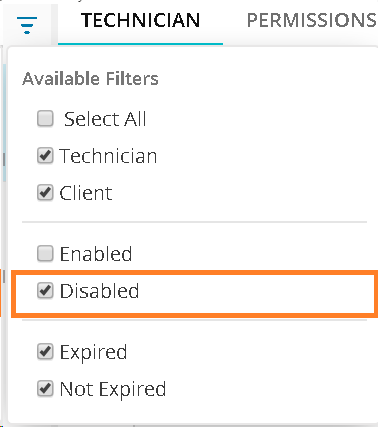
4. Check if the missing account is on the list
5. Toggle the Enable switch for the selected technician, then Save.
There may be instances where the account is already deleted but still getting an error "Username already used." The browser may still be caching the username. You may clear the browser's cache and cookies or log in to the Web Admin console via Incognito and add the user again.
2. Select "Technicians" > Click Filter icon
3. Select only the "Disabled" for the Technician Filter to display the disabled DRE technicians
4. Check if the missing account is on the list
5. Toggle the Enable switch for the selected technician, then Save.
There may be instances where the account is already deleted but still getting an error "Username already used." The browser may still be caching the username. You may clear the browser's cache and cookies or log in to the Web Admin console via Incognito and add the user again.