
Database Management
Task Factory – SFTP Using a Connection String
Steps to put the SFTP connection string in a variable.
First published date
8/5/2021 4:58 PM
Last published date
8/5/2021 4:58 PM
Overview
I would like to be able to put the SFTP connection string in a variable. So that in the properties of the connection manager, I can set the expression of the connection string to take this variable created. How do we accomplish this?
Product section
Task Factory (TF)
Resolution
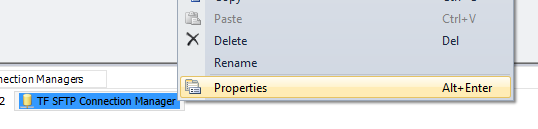
1. Access the properties tab of the Secure FTP Connection Manager by right clicking on the Connection Manager and selecting “Properties”.
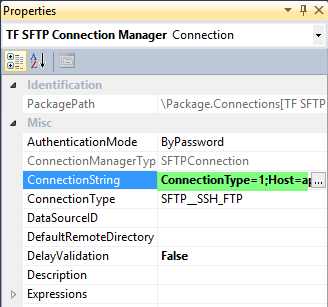
2. Locate the field titled, “ConnectionString” and copy the entire string listed in that field.
3. Once the ConnectionString is copied, paste it into a new Notepad or Word Document where you can edit the string value.
4. Within the String Value you will see the ‘Username’ listed. It is after this value you will want to enter your password as follows: Password=enter password here;
See example below (highlighted value is added password):

***(Please note, you will have to manually add the password value into the Connection String because it is not a part of Connection String as it was originally copied from the properties tab of the Connection Manager) ***
5. Copy the newly configured Connection String from your Notepad or Word Document.
6. Create new string variable with the connection string value pasted in the Value field of the variable.

7. After the variable has been created, Save your package.
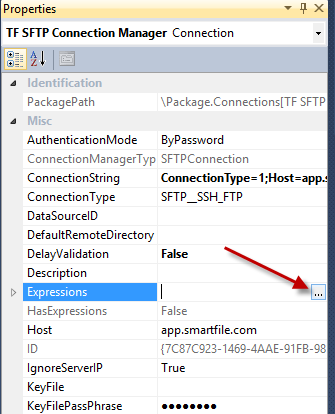
8. Once again, right click the SFTP Task Connection Manager and locate the "Expressions" tab within the properties; select the Ellipses button located next to that field.
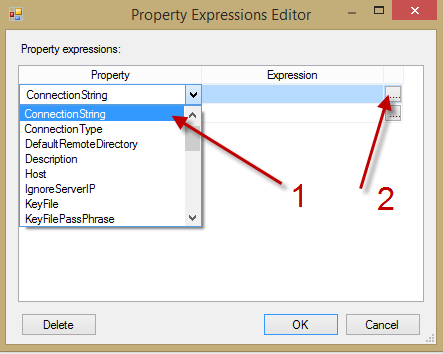
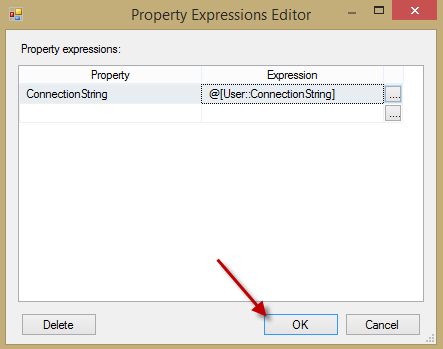
9. A new window titled “Property Expressions Editor” will appear where the “Connection String” value will then be selected from the Property drop down.
10. Once the “Connection String” value has been selected within the “Property” field, locate the “Expression” property and select the Ellipses button within that field.
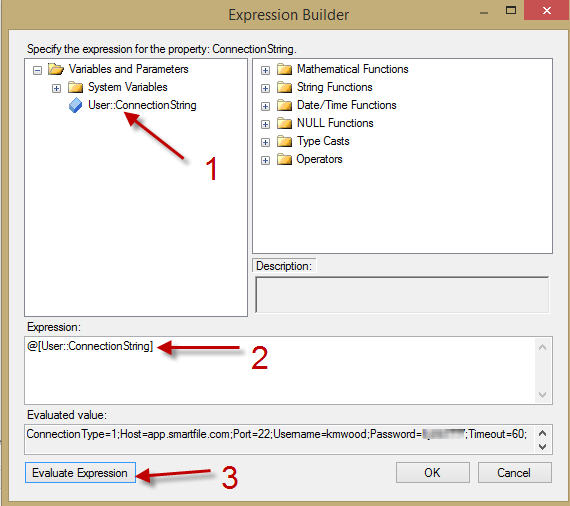
11.Another window will appear titled “Expression Builder”.
12.Within the “Expression Builder”, the user will locate the variable created that contains the Connection String value.
13. Once the variable has been located, drag the variable into the “Expression:” box to evaluate the expression and verify it is valid.
14. Select “OK” to return to the previous screen.
14. You will now notice that your Expression field is populated with the newly created variable. You can verify this and select “OK” to exit this configuration and Save your package.
Once your package is saved, you can now execute the process and the connection string will be used.
2. Locate the field titled, “ConnectionString” and copy the entire string listed in that field.
3. Once the ConnectionString is copied, paste it into a new Notepad or Word Document where you can edit the string value.
4. Within the String Value you will see the ‘Username’ listed. It is after this value you will want to enter your password as follows: Password=enter password here;
See example below (highlighted value is added password):
***(Please note, you will have to manually add the password value into the Connection String because it is not a part of Connection String as it was originally copied from the properties tab of the Connection Manager) ***
5. Copy the newly configured Connection String from your Notepad or Word Document.
6. Create new string variable with the connection string value pasted in the Value field of the variable.
7. After the variable has been created, Save your package.
8. Once again, right click the SFTP Task Connection Manager and locate the "Expressions" tab within the properties; select the Ellipses button located next to that field.
9. A new window titled “Property Expressions Editor” will appear where the “Connection String” value will then be selected from the Property drop down.
10. Once the “Connection String” value has been selected within the “Property” field, locate the “Expression” property and select the Ellipses button within that field.
11.Another window will appear titled “Expression Builder”.
12.Within the “Expression Builder”, the user will locate the variable created that contains the Connection String value.
13. Once the variable has been located, drag the variable into the “Expression:” box to evaluate the expression and verify it is valid.
14. Select “OK” to return to the previous screen.
14. You will now notice that your Expression field is populated with the newly created variable. You can verify this and select “OK” to exit this configuration and Save your package.
Once your package is saved, you can now execute the process and the connection string will be used.