
Database Management
Task Factory How to use the Unpack Data Transform with JSON
This article will guide on how to use the Unpack Data Transform with JSON.
First published date
7/26/2021 10:48 AM
Last published date
6/2/2025 9:54 PM
Overview
As an end user, you have successfully connected to a REST Source but, you found that you can only parse one level of the JSON. We will need to use the Unpack Data Transform to parse the JSON that is unparsed in the REST Source.
Product section
Task Factory (TF)
Resolution
We will need to use the Unpack Data Transform to parse the JSON that is unparsed in the REST Source.
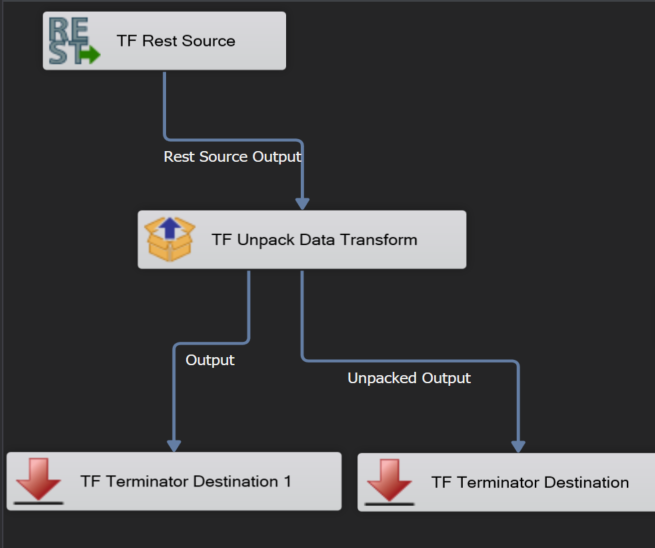
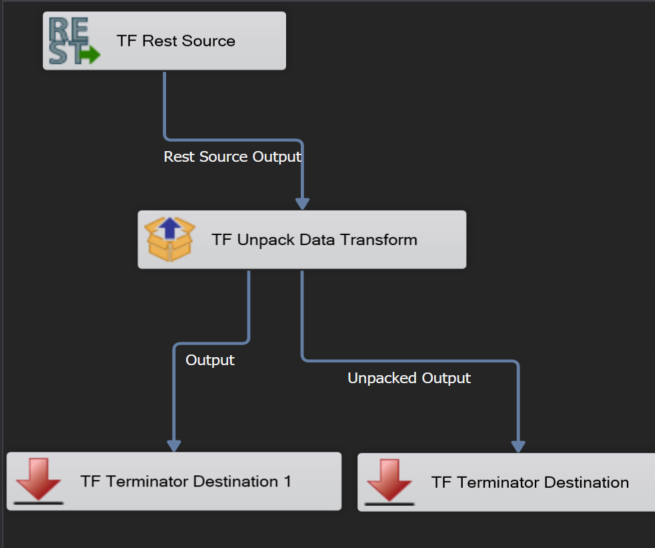
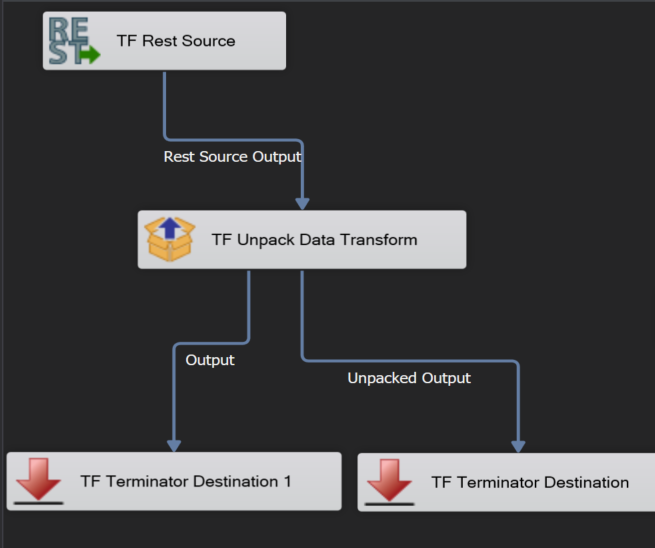
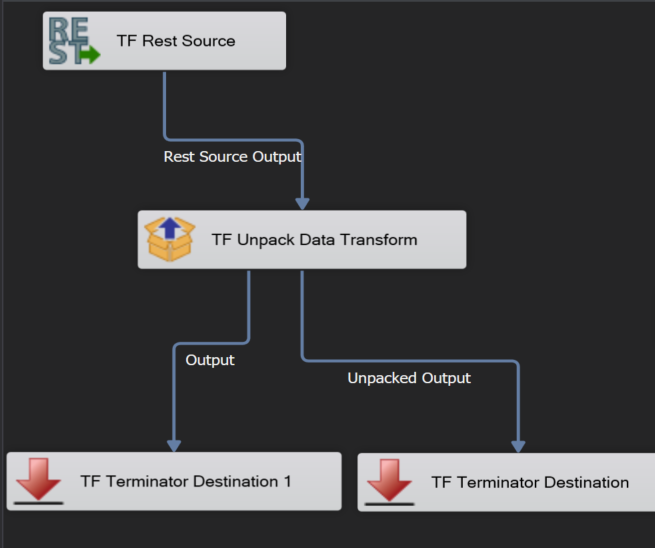
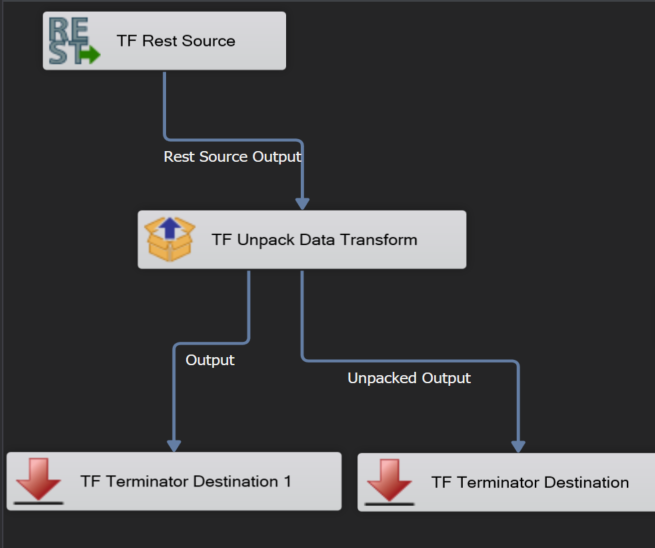
8. While running your package if you find that no rows are being input to your destination, you should use a Terminator Destination to connect the Unpack Data Transforms Output data. You may also want to set the Unpack Data Transforms Error Handling to Fail Component to view any errors that may be causing an issue.
- The first thing we will need to do is set up the return in the REST Source to contain a column of packed data. To do this configure the column Token Path to contain the next level of JSON you want to parse. In the screenshot below, you can see that my Category column is the column containing the packed data.
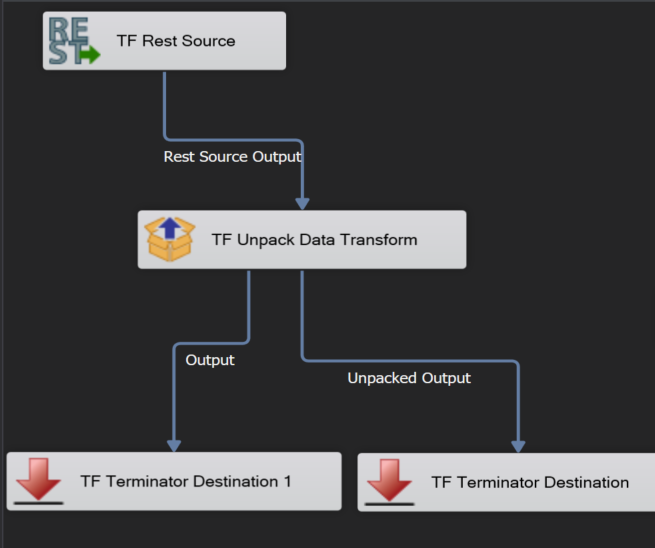
- Once that is configured, it is time to bring in the Unpack Data Transform, below is an example of how your Data Flow should look. Please note that I am using a Terminator Destination, in your scenario you would most likely use a different destination i.e.) Upsert, OLE DB, or another destination.
- Now we can configure the Unpack Data Transform. It is important to note that you can only parse one column of packed data per Unpack Data Transform. So, if you have multiple columns of packed data you would need to use more Unpack Data Transforms.
- The File Format tab is where we tell the component which column contains the packed data, as well as what columns to include in the unpacked data. If you had multiple columns of packed data you would include all the columns, except the column being parsed in this Unpack Data transform, as part of the unpacked data.
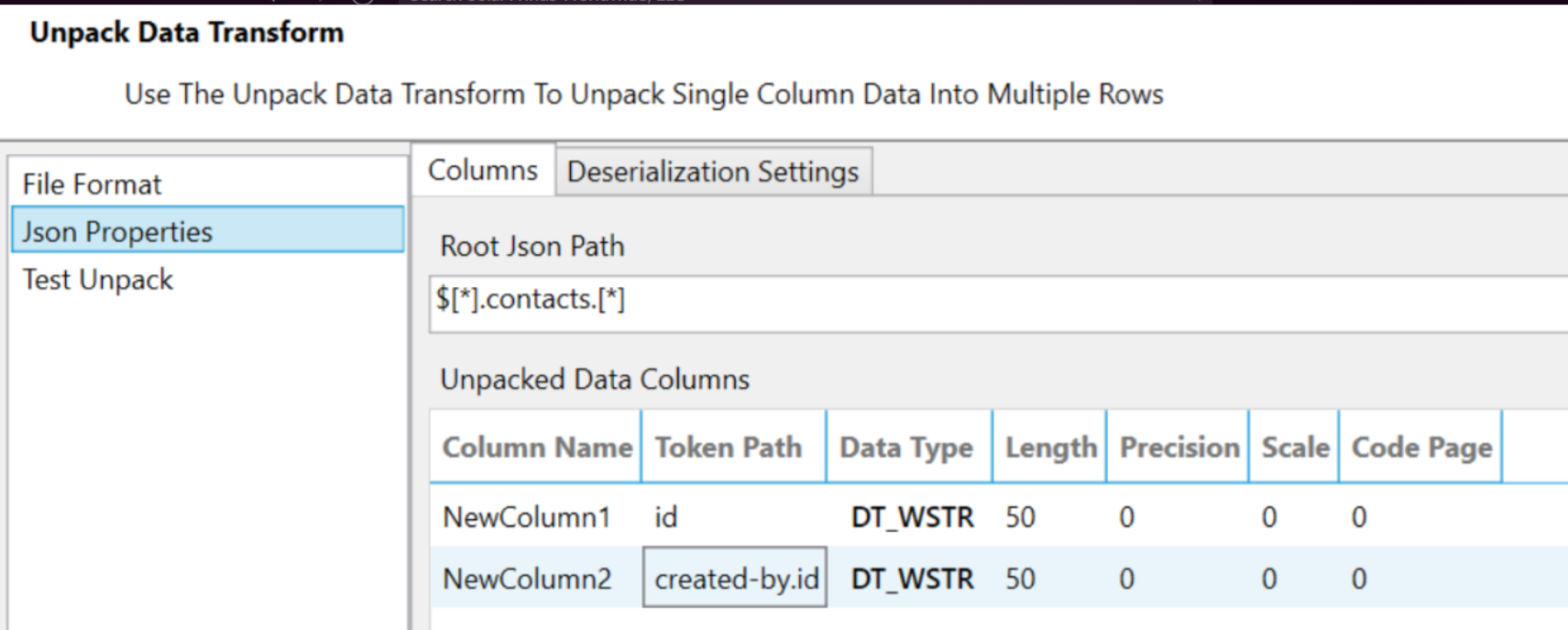
- The JSON Properties tab is where we will parse the data, similar to how you configure the REST Source to parse the return. My screenshot below shows that I am only parsing the packed data into one column but, it is important to note that you can create more than one column from the packed data column.
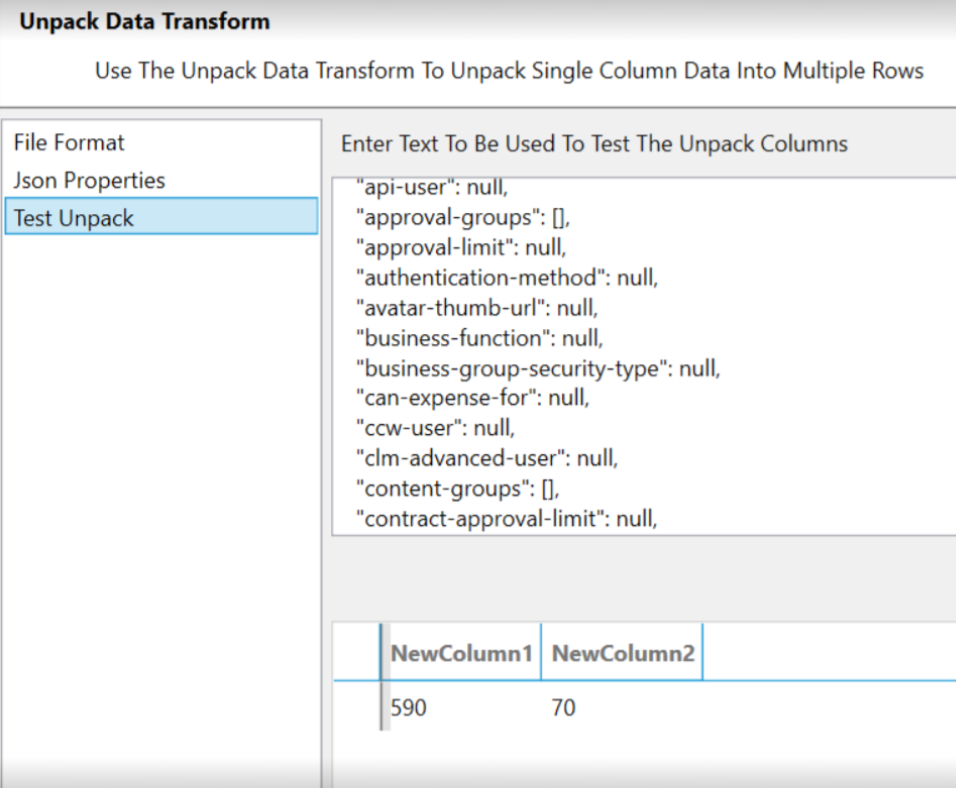
- To test the unpack under the Test Unpack tab you will need to copy and paste the data from the packed column. You can do this by copy and pasting the packed data from the REST Source.
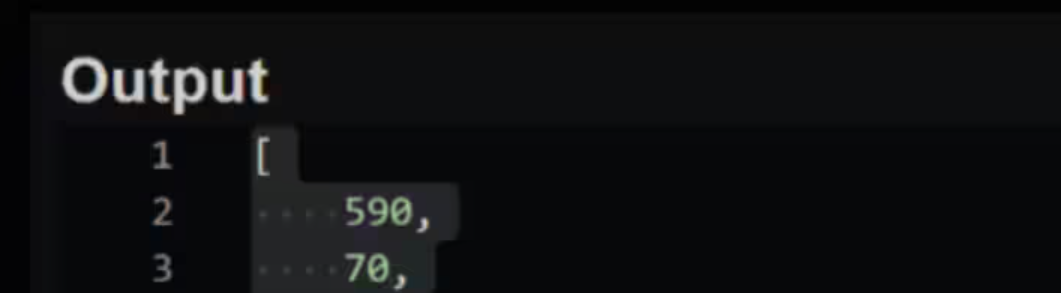
- You may have to play with the JSON token path under the JSON Properties tab to ensure you get the data you want parsed out successfully but, once you have achieved that you are ready to connect the "Unpacked Output" to your destination and run your package. As a side note there is a large amount of 3rd party resources to assist in understanding how to parse JSON prior to applying these technical skills to Task Factory. This link is Basics On Parsing JSON and there are other tools such as validating your JSON through JSON Lint and others to test parsing JSON outside of the application altogether using JSON Query Tool. You can also refer to these screenshots below in playing with the token path to properly parse JSON using the TF Unpack Data Transform Component. (Screenshots 1 & 2 for this step display examples of leveraging a 3rd party tool such as JSON Query Tool to adjust the JSON token path and then parse the Output. Screenshots 3 & 4 for this step display examples of parsing the same JSON script and adjusting the JSON token path the same way with another 3rd party tool and then shows a successful test of the Output.)
8. While running your package if you find that no rows are being input to your destination, you should use a Terminator Destination to connect the Unpack Data Transforms Output data. You may also want to set the Unpack Data Transforms Error Handling to Fail Component to view any errors that may be causing an issue.