
Applications Systems
WPM Transaction Step failed: No element was clicked.
Step failed, no element was clicked error message when assigning out a transaction. Transaction is unknown. Transaction is down. Transaction will not work. Recording works in player but not on the player. Web Performance Monitor transaction is not working (WPM). Error received on Transaction. Step Failed: No element was clicked. Link not clicked, image not clicked. Element not found, can't click link. Cannot click the link to proceed, Transaction is down, Transaction failing, Transaction fails.
First published date
12/13/2019 7:57 PM
Last published date
3/31/2023 6:09 AM
Overview
Transaction is failing due to 'No element was clicked'. This is often found on Transactions where the Recording may work as expected, but once assigned to the Player, it fails.
This is known to fail both consistently and inconsistently.
The error message will be on the Transaction Details page and similar to:
Step 'https://<MonitoredSiteName>' failed: No element was clicked.
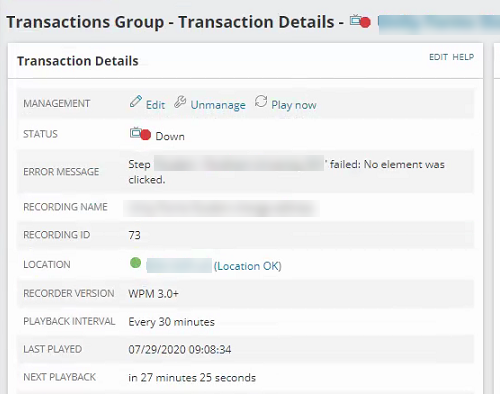
Playback in Modern Player fails with this message in 2024.x, this is known issue and engineering are working to apply fix. Workaround is to use Deprecated Recorder or remote the extra click step.
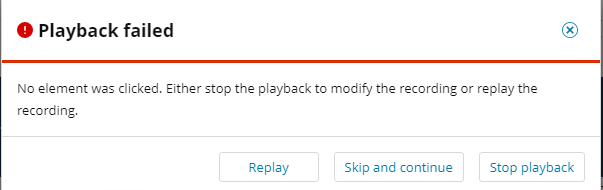
This is known to fail both consistently and inconsistently.
The error message will be on the Transaction Details page and similar to:
Step 'https://<MonitoredSiteName>' failed: No element was clicked.
Playback in Modern Player fails with this message in 2024.x, this is known issue and engineering are working to apply fix. Workaround is to use Deprecated Recorder or remote the extra click step.
Product section
Web Performance Monitor
Cause
- Active directory accounts are required for authentication to the website.
- Element to be clicked on was not found on the page during playback of the Transaction.
- WPM Recorder is intercepting all events, even the ones that are triggered programmatically by the websites code. This is not intended behavior, as often the internal website code is setting state on some elements that are not reachable, and playback of such actions will fail. (confirmed as bug)
Resolution
For Single Sign On / Windows Authentication Websites:
This message is often received when the transaction requires a specific user to login to the site. This is easily missed with Automatic Windows Authentication because typically, the WPM Recorder is launched as the currently logged in user who as access to the website. When the recording is then assigned to the Player, the transaction is played back using the local WPM users. Instead, domain accounts should be configured on the Player location. Please consult the appropriate documentation: Configure Domain Accounts per Player Location.
Workaround 1:
It is recommended to use the new WPM Recorder and not the deprecated Recorder. This is available on WPM version 3.0 and later. Implement an X,Y Capture method to the Recording. These Instructions are for the 3.0+ Recorder.
- Open the Recording in the WPM Recorder
- Before the failing step: select 'Continue recording from here'
- Click X,Y Capture in the top tool menu
- Click the link that was failing before
- Continue building out the remainder of the Recording
- Save the Recording to overwrite the existing Recording file
In some rare cases, the mouseover feature is also useful. While in Recording mode, hitting the Ctrl + ~ (some keyboards could be Ctrl + ' (single quotes) or Ctrl + ` (backquote)) keys will record the location of the mouse cursor location. This can be useful when recording some mouseover menus, especially where clicks are not necessary, only a mouseover action.
You should see "Hover over" on the transaction steps.
These Instructions are for the deprecated Recorder.
- Start WPM Recorder(deprecated) and maximize it
- Start recording by navigating to about:blank page
- Enable XY mode
- Click anywhere on the blank page
- Disable XY mode
- Navigate to the website
- Continue recording additional steps
Workaround 2:
You may also add a wait condition before the failing step.- Open Recording in the WPM Recorder
- Click the 3 dots next to the failing step
- Add wait condition before
- Save Recording.
If none of the above workarounds works, please log a ticket with Support as it could be a bug. Support, please check pro-content area for bug info.