
Network Management
Scheduled chart reports show as loading
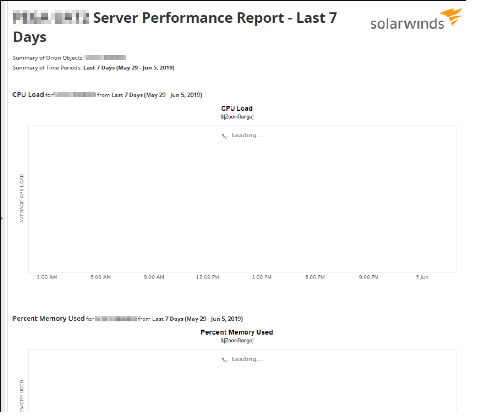
This article provides brief information and steps to resolve the issue when the HTML action of a scheduled report does not finish loading before the emails are sent, which result in half-loaded pages. Scheduled chart reports only show loading and does not contain any data. Rubiks cube is displayed for scheduled report charts.
First published date
7/1/2019 2:51 AM
Last published date
8/22/2022 7:21 AM
Overview
Reports that are sent through e-mail which contains charts show as loading. The report being sent thru e-mail is not showing any data. Instead it only shows as loading or contains the Rubik's cube which indicates it is still loading data.

Product section
Network Performance Monitor
Cause
Unknown
Resolution
Resolution 1:
NOTE: Resolution 1 does not apply to version 2020.2.6.
If the above steps didn't work, please try other resolutions below:
Resolution 2:
Resolution 3:
- On your Orion Server, go to the directory where your Website is saved: C:\inetpub\SolarWinds\Orion\js
- Backup the file DetachResourceAsImage.js file to another location
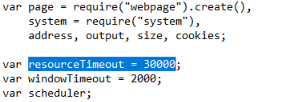
- On the original file, modify and change the value of page.setting.resourceTimeout from 30000 to 60000
- Open CMD as administrator and run an IISRESET
- Check the Reports again
NOTE: Resolution 1 does not apply to version 2020.2.6.
If the above steps didn't work, please try other resolutions below:
Resolution 2:
- Open your web browser and go this link: HostnameOfOrionServer/Orion/Admin/AdvancedConfiguration/Global.aspx
- Locate ExportToPdfCmd.ExportToPdfSettings and change the conversion delay to 00:03:00.
- Manually run the scheduled report
Resolution 3:
- On the web console, go to Settings > Web Console Settings
- Select disable for "Export Charts as image in PDF" then click save
- Run and check the report once again.