
Database Management
SFTP Task Download list of files from SFTP Server
Using the SFTP Task to download a list of files from an SFTP Server
First published date
8/5/2021 4:52 PM
Last published date
1/30/2025 4:54 PM
Overview
This article will walk through how to download a list of files from an SFTP server using the Task Factory Secure FTP Task. The initial setup of this process is covered in the KBA article titled ‘Task Factory – SFTP – Get List of Files with Metadata’. If you have not reviewed the other KBA article, it is recommended you review the Get List of Files with Metadata KBA article before continuing with this article.
Product section
Task Factory (TF)
Resolution
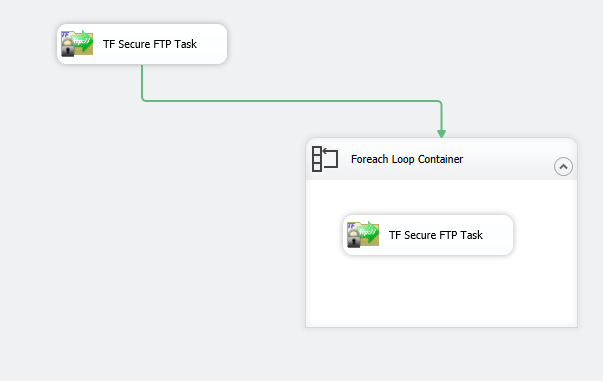
The basic configuration of this package will look like our Get List of Files with Metadata package. The only component change will be to substitute a second SFTP Task for the Execute SQL Task in the Foreach Loop Container:
4. To create the second variable, we will need to know the remote file path directory. The easiest way to do this is to open the SFTP task for editing
5. In the editor for the second SFTP task, choose ‘Download file from server’ as the action for this task
6. Under Remote Connection and Directory or File settings, select the SFTP connection manager for the SFTP server
7. In File to download from server, click the … button to browse the SFTP director
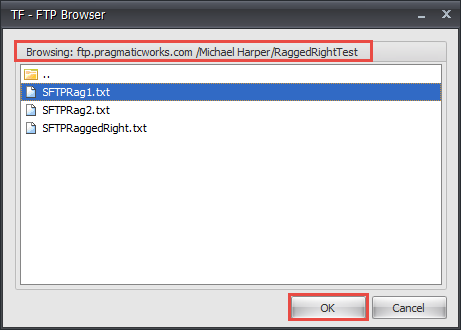
8. In the Browse window, navigate to one of the files you plan to download then select ‘OK’ to close the browse window.
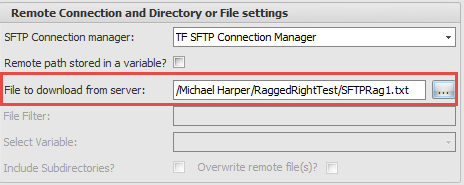
9. Note the directory path displayed in the File to download to server field:
10. Close the SFTP Task
11. Create a new string variable named strRemoteFilePath
12. Once these variables have been created, open the second SFTP task to for editing
13. Choose ‘Download file from server’ as the action for this task
14. Under Local Directory or File Settings, tick the Local path stored in a variable box
15. In the Select local variable drop down, choose User::strLocalFilePath
16. Under Remote Connection and Directory or File Settings, choose the SFTP connection manager for the SFTP server
17. Click the Remote path stored in a variable box
18. In the File to download from server drop down, choose User::RemoteFilePath
19. Click ‘OK’ to save the settings and close the editor
20. Once these steps have been completed, the package should execute and download the files without issue
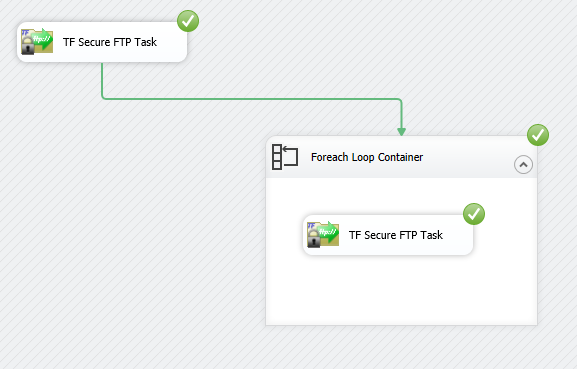

- Before configuring the second SFTP task, the first STFP task and the Foreach Loop will need to be configured according to steps 1-12 in the Get List of Files with Metadata KBA article.
- Once the first SFTP task and the Foreach Loop Container have been configured properly, two variables will need to be created.
- The first variable will be the local file path where the files will be written to.
- Create a string variable named strLocalFilePath
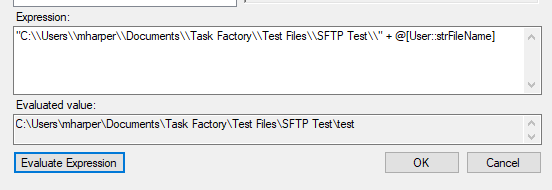
- Click the … under Expression to populate the variable with an expression
- The expression will need to be a fully qualified file path. For example, I will write the files to my C:\users\mharper\Desktop\Task Factory\Test Files\SFTP Test directory, then concatenate the User::strFileName variable to this path. NOTE: \ must be escaped in the SSIS expression language with a double \
4. To create the second variable, we will need to know the remote file path directory. The easiest way to do this is to open the SFTP task for editing
5. In the editor for the second SFTP task, choose ‘Download file from server’ as the action for this task
6. Under Remote Connection and Directory or File settings, select the SFTP connection manager for the SFTP server
7. In File to download from server, click the … button to browse the SFTP director
8. In the Browse window, navigate to one of the files you plan to download then select ‘OK’ to close the browse window.
9. Note the directory path displayed in the File to download to server field:
10. Close the SFTP Task
11. Create a new string variable named strRemoteFilePath
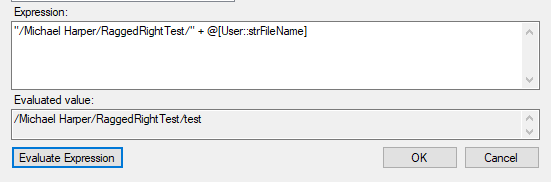
- Click the … under Expression to populate the variable with an expression
- The Expression will be similar to the strLocalFilePath expression where we define the directory name as a string value then concatenate the User::strFilePath variable to the end of the string. This directory will be the same as the remote directory path displayed in Step 9
12. Once these variables have been created, open the second SFTP task to for editing
13. Choose ‘Download file from server’ as the action for this task
14. Under Local Directory or File Settings, tick the Local path stored in a variable box
15. In the Select local variable drop down, choose User::strLocalFilePath
16. Under Remote Connection and Directory or File Settings, choose the SFTP connection manager for the SFTP server
17. Click the Remote path stored in a variable box
18. In the File to download from server drop down, choose User::RemoteFilePath
19. Click ‘OK’ to save the settings and close the editor
20. Once these steps have been completed, the package should execute and download the files without issue