
Applications Systems
SAM Licensing FAQs
This article provides answers to frequently asked questions (FAQs) about the SolarWinds SAM licensing model, including details about Additional Polling Engines (APEs) that do not require extra licenses.
First published date
8/15/2019 4:47 PM
Last published date
1/30/2025 5:52 PM
Overview
As described in the SAM licensing model portion of the SAM Administrator Guide, two types of licenses are available:
This article provides answers to FAQs about SAM licensing.
What type of SAM license do I have?
To determine your license type in the Orion Web Console, click Settings > All Settings > License Details. If the SAM section of the License Details page refers to nodes, you have node-based licensing. If component statistics are listed, you have component-based licensing. You can also display license details in the SolarWinds Customer Portal, as described in Determine your license type.
We currently use component-based licensing. What are our upgrade options?
You can upgrade to a component-based license with more capacity, or convert to node-based licensing at a fixed conversion rate. If you opt to convert your component-based license to a node-based license, the following table outlines comparable levels of licensing.
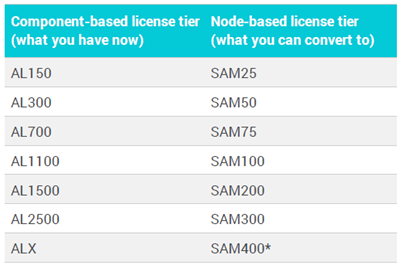
*Additional tiers are available. Contact SolarWinds Sales for details.
How do I activate licenses offline?
If you installed an Orion Platform product on a computer without Internet access, the web-based License Manager guides you through offline activation. See Activate Licenses for products .
Note: In offline activation mode, you can't activate licenses for products that aren't installed.
What's the minimum version of SAM that supports node-based licensing?
All currently-supported versions of SAM support node-based licensing, but you'll need to upgrade to SAM 6.9.1 or later to take advantage of benefits like adding an Additional Polling Engine (APE) that does not require an extra license.
Per the SAM Administrator Guide, a node-based SAM license governs how many managed nodes can be monitored within your environment, while allowing for an unlimited number of component monitors per node. What constitutes a managed node?
It depends on whether or not other Orion Platform products, such as NPM, are installed.
If you’re monitoring the parent hypervisor, then it counts as a managed node.
Does a VM count as a managed node?
If you monitor the VM directly, it counts as a managed node, if you collect metrics and status via the parent hypervisor, individual VMs on the hypervisor do not count as managed nodes.
Does an external node or service count as a managed node?
If the external node or service, such as an Azure VM or Office 365, is monitored directly via an API or SAM template then it counts as a managed node.
Note: This includes SAM SaaS and PaaS monitoring abilities.
We switched from component-based licensing to node-based licensing for SAM. How do we install an Additional Polling Engine that does not require an extra license?
After applying the main SAM license, run the SolarWinds Orion Installer to deploy an APE. The Installer checks all SolarWinds licenses on the main polling engine to determine which scalability engines can be installed. When prompted to select a Server Role, select the "Additional Polling Engine for Server & Application Monitor" option. To learn more, see Add polling engines to scale your SAM environment.
Note: Downgrading from a SAM APE with a standard license to a SAM APE that doesn't require an extra license (often called a "free" poller) is not supported. To change the license type, redeploy the APE and choose the "Additional Polling Engine for Server & Application Monitor" option during installation. Click here for details.
We use VMAN, SRM, and SAM, all of which support APEs that do not require extra licenses. Can VMAN leverage the SAM APE?
No, the VMAN and SRM APEs can only poll for those two products; they can also poll for node and volume interfaces (but not interfaces). As described in the VMAN documentation, VMAN can poll for Hardware Health for vCenters and ESX servers through the API and the Common information Model (CIM) but nothing else. VMAN cannot use Asset Inventory or any other type of SAM polling.
What happens if SAM monitoring exceeds the current node-based license?
If polling detects an application that isn't being monitored because the node isn't licensed, a message appears in the Orion Web Console Message Center. Either stop monitoring another managed node to reduce your total managed node count, or contact SolarWinds Sales to upgrade your license.
Technically, it is based on the highest number of nodes, volumes, and component monitors, but in most cases, the number of component monitors is the highest factor. There may be some instances where volumes or nodes would be the highest factor. For example, with an AL300 you can monitor 300 nodes, 300 volumes AND 300 component monitors but you cannot exceed the 300 count on any of those entities.
For reference, NPM is licensed by the largest number of the following types of monitored network elements:
AppInsight applications provide tremendous value within SAM while consuming a fixed number component monitor licenses. However, they cannot be partially unlicensed because the way they collect data differs significantly from traditional application monitor templates.
You can disable some component monitors within AppInsight applications but they will not reclaim component monitor licenses because AppInsight applications typically monitor far greater than 50 components.
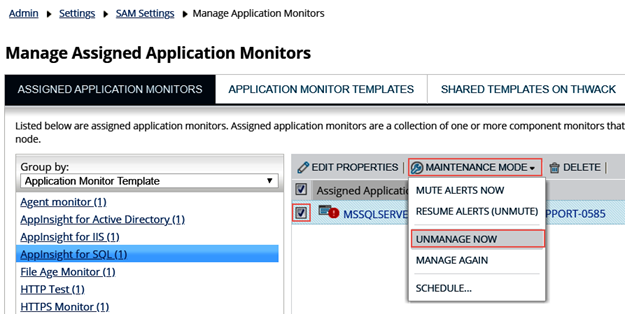
Tip: You can use Maintenance Mode to temporarily disable AppInsight application monitors. Navigate to Settings > All Settings > SAM Settings and click Manage Application Monitors. In the list on the left, click a parent template and then select each related application monitor that you want to turn off on the right. Click Maintenance Mode > Unmanage Now. To enable monitoring later, click Manage Again.
What type of SAM license do I have?
To determine your license type in the Orion Web Console, click Settings > All Settings > License Details. If the SAM section of the License Details page refers to nodes, you have node-based licensing. If component statistics are listed, you have component-based licensing. You can also display license details in the SolarWinds Customer Portal, as described in Determine your license type.
We currently use component-based licensing. What are our upgrade options?
You can upgrade to a component-based license with more capacity, or convert to node-based licensing at a fixed conversion rate. If you opt to convert your component-based license to a node-based license, the following table outlines comparable levels of licensing.
*Additional tiers are available. Contact SolarWinds Sales for details.
How do I activate licenses offline?
If you installed an Orion Platform product on a computer without Internet access, the web-based License Manager guides you through offline activation. See Activate Licenses for products .
Note: In offline activation mode, you can't activate licenses for products that aren't installed.
Node-based licensing FAQs
What's the minimum version of SAM that supports node-based licensing?All currently-supported versions of SAM support node-based licensing, but you'll need to upgrade to SAM 6.9.1 or later to take advantage of benefits like adding an Additional Polling Engine (APE) that does not require an extra license.
Per the SAM Administrator Guide, a node-based SAM license governs how many managed nodes can be monitored within your environment, while allowing for an unlimited number of component monitors per node. What constitutes a managed node?
It depends on whether or not other Orion Platform products, such as NPM, are installed.
- In a SAM-only environment, a managed node is any entity from which SAM extracts data directly via supported polling methods (such as WMI), Orion agents, or API pollers. Nodes monitored by Asset Inventory and/or Hardware Health are also considered managed nodes in a SAM-only environment.
- If your environment includes SAM and other Orion Platform products, the SAM node count has the potential to be additive with other modules that use node licensing, such as NPM. In a multi-module scenario, only nodes being monitored by SAM application monitors or API pollers are classified as managed nodes for SAM. Nodes monitored by Asset Inventory and/or Hardware Health do not impact licensing.
If you’re monitoring the parent hypervisor, then it counts as a managed node.
Does a VM count as a managed node?
If you monitor the VM directly, it counts as a managed node, if you collect metrics and status via the parent hypervisor, individual VMs on the hypervisor do not count as managed nodes.
Does an external node or service count as a managed node?
If the external node or service, such as an Azure VM or Office 365, is monitored directly via an API or SAM template then it counts as a managed node.
Note: This includes SAM SaaS and PaaS monitoring abilities.
We switched from component-based licensing to node-based licensing for SAM. How do we install an Additional Polling Engine that does not require an extra license?
After applying the main SAM license, run the SolarWinds Orion Installer to deploy an APE. The Installer checks all SolarWinds licenses on the main polling engine to determine which scalability engines can be installed. When prompted to select a Server Role, select the "Additional Polling Engine for Server & Application Monitor" option. To learn more, see Add polling engines to scale your SAM environment.
Note: Downgrading from a SAM APE with a standard license to a SAM APE that doesn't require an extra license (often called a "free" poller) is not supported. To change the license type, redeploy the APE and choose the "Additional Polling Engine for Server & Application Monitor" option during installation. Click here for details.
We use VMAN, SRM, and SAM, all of which support APEs that do not require extra licenses. Can VMAN leverage the SAM APE?
No, the VMAN and SRM APEs can only poll for those two products; they can also poll for node and volume interfaces (but not interfaces). As described in the VMAN documentation, VMAN can poll for Hardware Health for vCenters and ESX servers through the API and the Common information Model (CIM) but nothing else. VMAN cannot use Asset Inventory or any other type of SAM polling.
What happens if SAM monitoring exceeds the current node-based license?
If polling detects an application that isn't being monitored because the node isn't licensed, a message appears in the Orion Web Console Message Center. Either stop monitoring another managed node to reduce your total managed node count, or contact SolarWinds Sales to upgrade your license.
Component-based licensing FAQs
Is component-based licensing for SAM always based on component monitors?Technically, it is based on the highest number of nodes, volumes, and component monitors, but in most cases, the number of component monitors is the highest factor. There may be some instances where volumes or nodes would be the highest factor. For example, with an AL300 you can monitor 300 nodes, 300 volumes AND 300 component monitors but you cannot exceed the 300 count on any of those entities.
For reference, NPM is licensed by the largest number of the following types of monitored network elements:
- Nodes: Any device being monitored, such as a router, switch, virtual or physical server, access point, or modem.
- Interfaces: Any single point of network traffic, such as a switch port, virtual or physical interface, sub-interface, and VLAN.
- Volumes: Any logical disk being monitored.
AppInsight applications provide tremendous value within SAM while consuming a fixed number component monitor licenses. However, they cannot be partially unlicensed because the way they collect data differs significantly from traditional application monitor templates.
You can disable some component monitors within AppInsight applications but they will not reclaim component monitor licenses because AppInsight applications typically monitor far greater than 50 components.
Tip: You can use Maintenance Mode to temporarily disable AppInsight application monitors. Navigate to Settings > All Settings > SAM Settings and click Manage Application Monitors. In the list on the left, click a parent template and then select each related application monitor that you want to turn off on the right. Click Maintenance Mode > Unmanage Now. To enable monitoring later, click Manage Again.
Product section
Server Application Monitor