
Network Management
Product license expired in Pre-flight check up but not visible from Orion
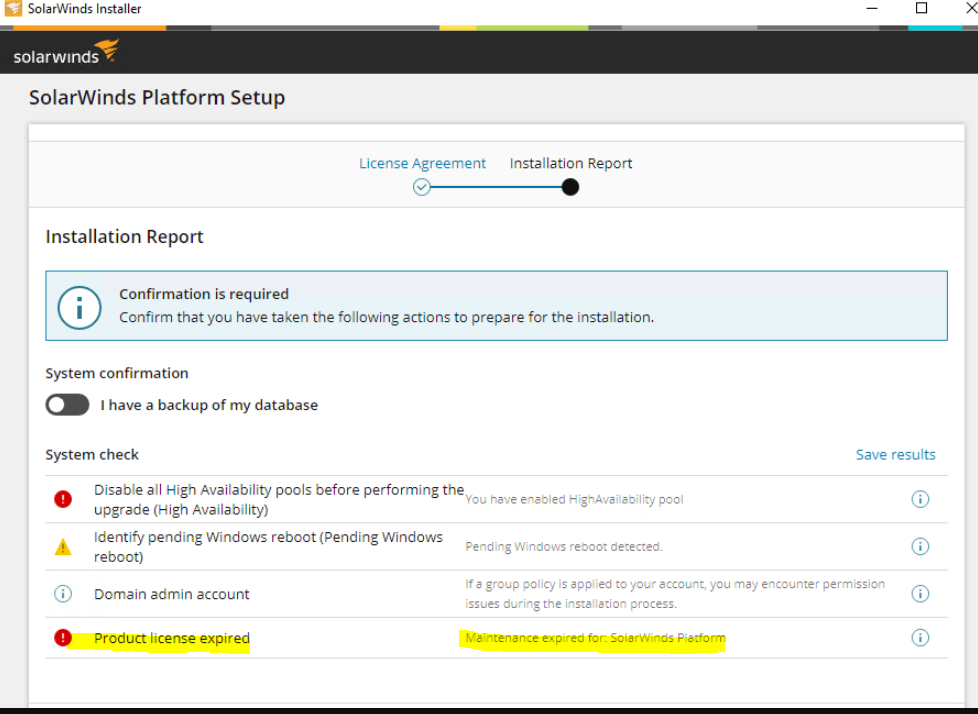
When you run the Pre-flight checkup during Orion upgrade, an error or warning "Product license expired - Maintenance expired for SolarWinds Platform" appears. But when you check the Orion license page, you can't see any expired licenses there, so how will you proceed?
First published date
10/20/2023 8:56 AM
Last published date
2/21/2025 10:09 PM
Overview
This article describes how to resolve the following error (Product license expired - Maintenance expired for SolarWinds Platform) during the Pre-flight checkup of the SolarWinds upgrade.
Product section
Network Performance Monitor
Cause
Sometimes, when deactivating the license key from the past, it is successfully removed from the license page, but not in the license store. Run Migration.exe /details to show all licenses saved in the license store.
Resolution
Before you begin:
- If your main polling engine is a member of a High Availability pool, disable the main polling engine pool.
- Shut down the Orion Module Engine Service.
- If Orion is on 2022.3, Migration.exe will now be found in the C:\Program Files (x86)\SolarWinds\Orion directory.
To deactivate from the license store:
- Stop the Orion Module Engine on the Main Polling Engine.
- Run the command-line shell (cmd.exe) on the active Main Polling Engine as Administrator, and navigate to Licensing folder. The default location is C:\Program Files (x86)\SolarWinds\Orion\Licensing
.Note: If the Orion folder is missing, verify if it is installed in a different drive (other than "C:"). Re-install Orion if SolarWinds is not properly installed. - Execute the
migration.exe /detailscommand, and follow the on-screen instructions.
Note: Look for the "IS EXPIRED" value if set to "True", and it's not an evaluation or temp key; it is the expired one. You can also check the Expires value.
4. Take note of the license key details.
5. Run now
5. Run now
migration.exe /deactivate=<expiredlicense>. Hit ENTER key.6. After that, rerun the Pre-flight checkup and see if the error earlier is still there. If yes, recheck the details command if you missed other expired keys.
Note. You can run
migration.exe /? to see other commands available.