
Tools
Configure Serv-U users password expiry notification
Setting up the Serv-U password stale event to send notifications via email.
First published date
10/25/2018 3:57 PM
Last published date
2/25/2025 5:31 PM
Overview
The password expiry notification can be configured using the Password Stale event in Serv-U. It is triggered by a stale password, as configured in the Limits & Settings, that will expire. Once it triggers, it will send an email to the user's email address configured in their profile. For this to work, the SMTP settings should be configured first. See Serv-U SMTP configuration.
Product section
Serv-U Managed File Transfer & Serv-U FTP Server
Resolution
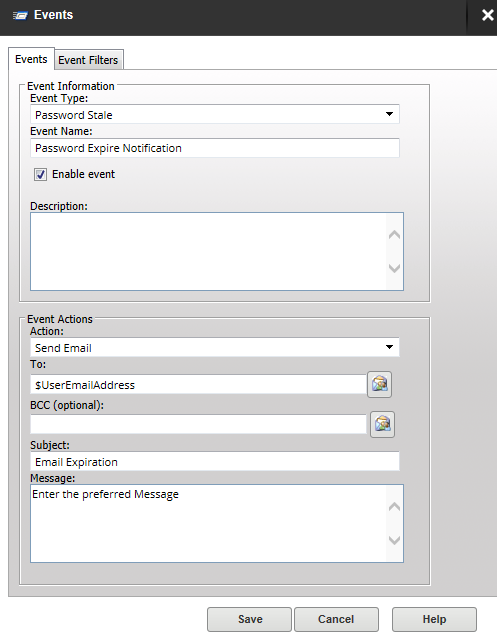
Configure Password Stale Event.
1. Log in to the Serv-U Management console.
2. Go to the Domain level, click Domain Details.
3. Select the Events.
4. Click Add; in the Event type, select Password Stale.
5. Set the preferred Event Name and add a description if you want.
6. In the Event Action, select Send Email.
7. Use the system variable $UserEmailAddress in the recipient.
8. Set the preferred Email Subject and the Message.
9. Click OK to save the Event.
Configure User Password expiration
1. In the Serv-U Management console.
2. Go to the Domain level, under Domain Users, select or add the user with password expiry.
3. Under User Information, make sure Email Address is defined.
4. Click the Limits and Settings tab; in the drop-down, choose Password.
5. Double-click the "Automatically expire passwords," choose Yes to create a new limit.
6. Set the days of expiration, then click Save.
7. Click Save again to save the changes to the user profile.
1. Log in to the Serv-U Management console.
2. Go to the Domain level, click Domain Details.
3. Select the Events.
4. Click Add; in the Event type, select Password Stale.
5. Set the preferred Event Name and add a description if you want.
6. In the Event Action, select Send Email.
7. Use the system variable $UserEmailAddress in the recipient.
8. Set the preferred Email Subject and the Message.
9. Click OK to save the Event.
Configure User Password expiration
1. In the Serv-U Management console.
2. Go to the Domain level, under Domain Users, select or add the user with password expiry.
3. Under User Information, make sure Email Address is defined.
4. Click the Limits and Settings tab; in the drop-down, choose Password.
5. Double-click the "Automatically expire passwords," choose Yes to create a new limit.
6. Set the days of expiration, then click Save.
7. Click Save again to save the changes to the user profile.