
Network Management
"The PaloAlto API polling credentials you entered are invalid or will not be saved" when trying to enter Palo Alto credentials in Edit Node details
This article discusses on what to do when the Palo Alto credentials does not get saved even after submitting the changes done in Edit Node details page.
First published date
7/5/2019 2:30 AM
Last published date
7/9/2025 11:07 PM
Overview
Palo Alto credentials does not get saved even after enabling Palo Alto polling settings > Poll for Palo Alto and submitting changes in Node details.
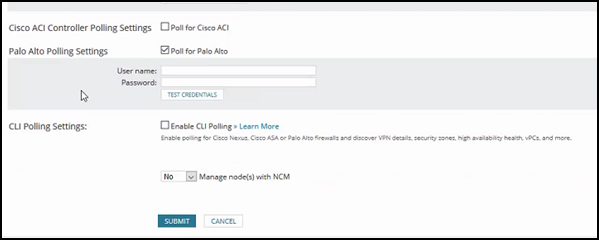
In the OrionWeb.log, the following error messages may appear:
In the OrionWeb.log, the following error messages may appear:
ERROR OrionFirewallsControlsPaloAltoPollingCheckBox - (null) PaloAlto polling has been enabled on node [X], but there is no API key. Credentials cannot be saved.
WARN SolarWinds.Orion.Core.SharedCredentials.OrionEntitySharedCredentialManager`1 - (null) Found no CredentialRelations records for entity Uri swis://XXXXXX/Orion/Orion.Nodes/NodeID=X and use PaloAltoFirewall
Product section
Network Performance Monitor
Cause
This error occurs when one of the following conditions is true:
- Incorrect permissions assigned to the Palo Alto credentials.
- Cortex service needs to be restarted
- Certificate associate with Palo Alto device was changed and SolarWinds device does not accept the newer certificate.
Resolution
To resolve this problem, ensure to enable the permissions for XML API:
Note: Before you start with the steps, restart Cortex service and wait for a while to be sure service is up and running again.
- Logs
- Operational Requests are enabled.
Note: Before you start with the steps, restart Cortex service and wait for a while to be sure service is up and running again.
Workaround 1:
To workaround the certificate issue, perform the following steps:- From the Node Management page, Select one of these nodes
- Click Edit Properties
- Select Poll for Palo Alto
- Enter The credentials and TEST.
- If you see certificate error, click Accept Certificate
- Click TEST
- Once Test is successful, uncheck Poll for Palo Alto
- Click Submit
- Edit Properties
- Enable Poll for Palo Alto
- Enter in 'User name', 'Password' and 'TEST CREDENTIALS'
- Click Accept Certificate
- Click TEST
- Click Submit
- Check if the polling works. You can check in Cortex.log
Workaround 2:
- From the Node Management page, Select one of these nodes
- Click Edit Properties
- Under Polling Method, re-enter the SNMP credentials again
- Click Test
- At the bottom of the page, click Submit