
Applications Systems
Orion Polling Engine is Not Polling
Resolves issues of nodes which are not polling data or application monitors stuck in 'Initial Poll in progress" for greater than 5 minutes. Component monitors will not test properly. Component test fails or tests up but the application is not polling. Component testing shows different than the current status of the application. Additional polling engine cannot test components. For NPM, interfaces may not polling and the next poll is displaying a past date. Reinstall JobEngine and Collector Services. Outlines the process of installing JobEngineV2 and Collector services on the Orion platform. It also fixes issues with IP SLA operations that are no longer polling. MSMQ collector is filling up on the polling engine.
First published date
7/22/2019 4:14 PM
Last published date
2/3/2022 4:14 PM
Overview
JobEngine and Collector services are related to scheduling and executing polling jobs across many Orion products. This article outlines the process of installing JobEngineV2 and Collector services on the Orion platform when there are polling issues. This process is often used when SAM application monitors are not polling data. Or when SAM applications are stuck in 'initial poll in progress' for greater than 5 minutes. This can solve some issues when nodes are no longer polling metrics such as CPU, memory, volume, and interface information. If you own the VNQM product, it can restore polling jobs that are 'stuck' and no longer polling your IP operations. This is also known to fix issues with a 'Next Poll' time in the past. If the test component feature on the 'Edit Application Monitor' page is not working, these steps should also be performed.
Application message for initial poll:

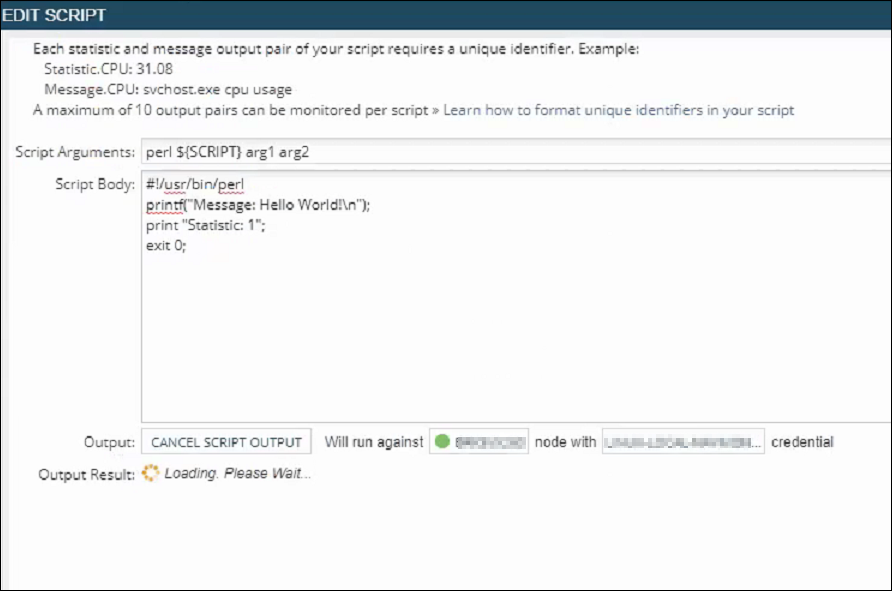
Testing Component never finishes:
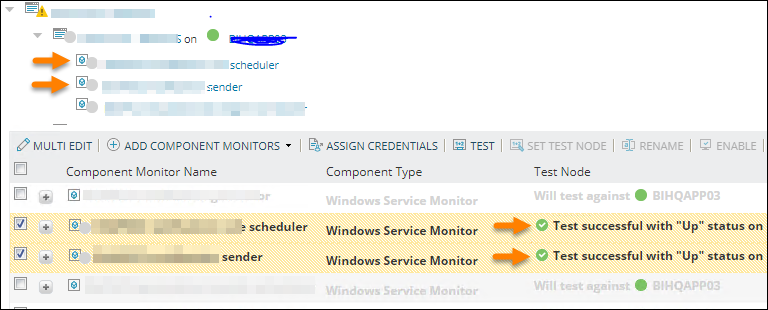
Testing component displays a different status than the current status of the application:
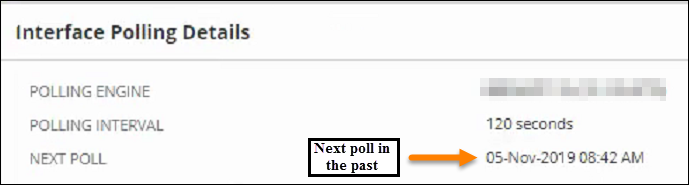
Interface, node, or application 'Next Poll' is a timestamp in the past:
Application message for initial poll:
Testing Component never finishes:
Testing component displays a different status than the current status of the application:
Interface, node, or application 'Next Poll' is a timestamp in the past:
Product section
Server Application Monitor
Cause
1. Polling Engines are not up to date.
2. System requirements are under specifications.
3. A network issue.
4. SQL Server details and credentials are under specifications or incorrect.
5. Licensing expired or not activated.
6. DNS issues.
7. Network devices are not configured correctly for sending SNMP traffic.
8. Server firewalls such as Windows Firewall are blocking SNMP frames.
9. Broken Collector or Job Engine Service.
10. Polling intervals, retention times, and outgrowth are not set to best practices.
2. System requirements are under specifications.
3. A network issue.
4. SQL Server details and credentials are under specifications or incorrect.
5. Licensing expired or not activated.
6. DNS issues.
7. Network devices are not configured correctly for sending SNMP traffic.
8. Server firewalls such as Windows Firewall are blocking SNMP frames.
9. Broken Collector or Job Engine Service.
10. Polling intervals, retention times, and outgrowth are not set to best practices.
Resolution
It is recommended to attempt the resolutions in sequential order.
Resolution 1
Try unmanaging the object first. Then remanage the object. This will force a reschedule a stuck polling job for the object. Oftentimes this will force the object to poll again.Node: Settings > Manage Nodes > select node > Maintenance Mode > Unmanage Now
Interface: Unmanage the parent node.
Application: Settings > All Settings > SAM Settings > Manage Applications > select application > Maintenance Mode > Unmanage Now.
Interface: Unmanage the parent node.
Application: Settings > All Settings > SAM Settings > Manage Applications > select application > Maintenance Mode > Unmanage Now.
Resolution 2
- RDP to your Orion polling engine (the engine that the node in question is assigned to)
- Open up Orion Service Manager
- Click Shutdown Everything. Wait until everything is in a stopped state excluding dependencies.
- Open Programs & Features.
- Uninstall SolarWinds JobEngine v2
- Uninstall SolarWinds Collector
- Go to C:\Programdata\SolarWinds\Installers
- Run JobEngine.v2.msi (on Orion 2018.2 and later, filename: JOBENGINE-2.xx.x.xxxx-JobEngine.v2)
- Run CollectorInstaller.msi (on Orion 2018.2 and later, filename: COLLECTOR-2.xx.x.xxxx-CollectorInstaller)
- Go back to Orion Service Manager and click Start Everything.