
Network Management
Create manually Orion Map link creation when the automatic topology link is not created
When an automatic topology link is not created in Orion Maps, you may need to create a manual link.
First published date
9/24/2021 2:04 AM
Last published date
2/6/2025 10:32 PM
Overview
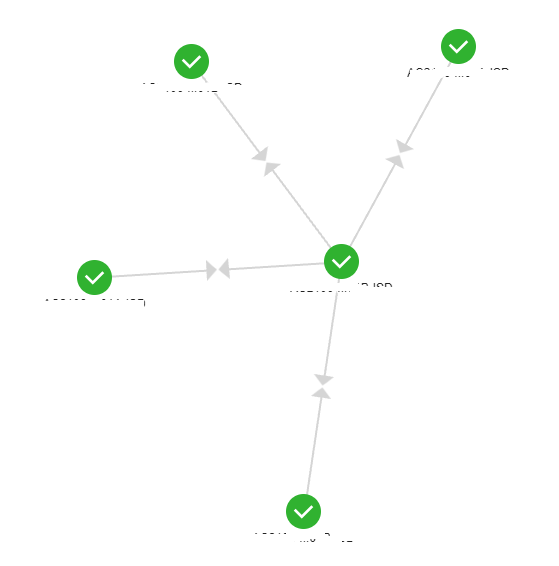
Sample map created
Product section
Network Performance Monitor
Cause
Reason for no connection:
* The Seed entity mush be inherited
* QoE not enabled
* Topology not enabled
* The Seed entity mush be inherited
* QoE not enabled
* Topology not enabled
Resolution
Manually connect the objects using the steps below.
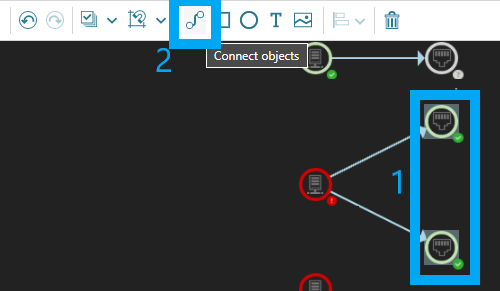
You can connect objects and define custom connections within the map editor. You must select two entities in order to activate the Connect Objects tool in the Orion Map Editor toolbar.
1. Select two entities by holding the Ctrl key to select the entities you wish to connect. You can also select entities using click and drag.
2. Click the entity connection button from the Connect Objects toolbar. This opens the Configure custom topology connection window.
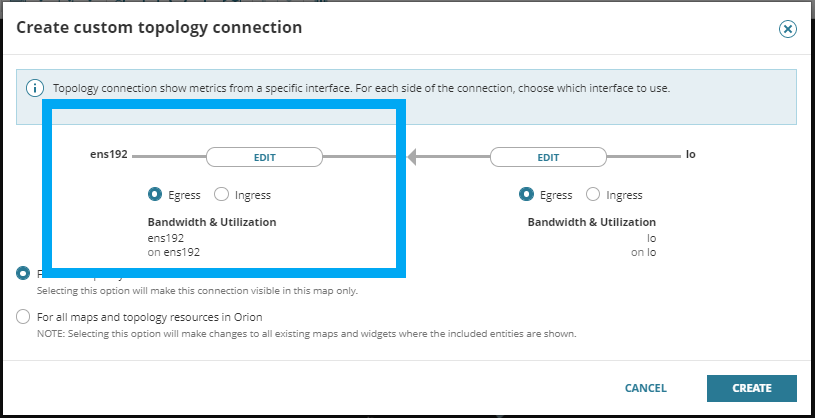
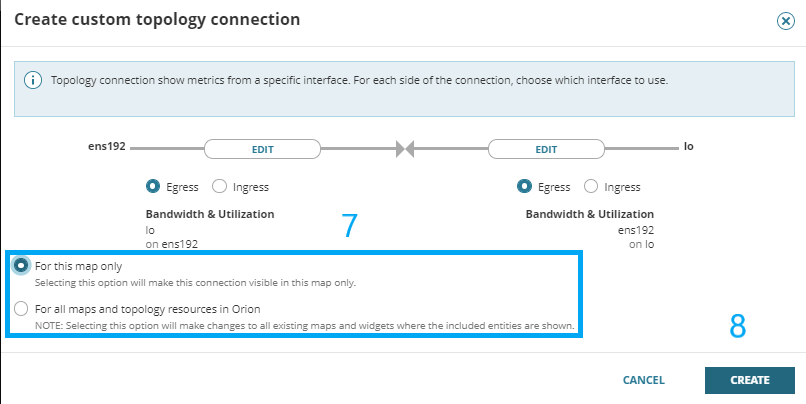
3. Select either "Egress" or "Ingress".
4. Click on "EDIT".
5. Select the entity that should be connected to the first entity then click on "APPLY".
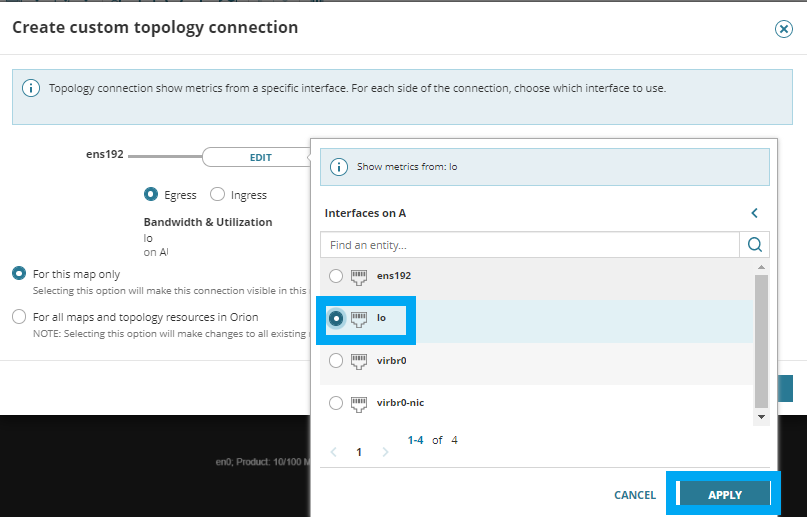
6. Repeats steps 4 and 5.
7. Kindly select if the manual created connection exists "For this map only" or "For all maps and topology resources in Orion".
8. Click on "CREATE".
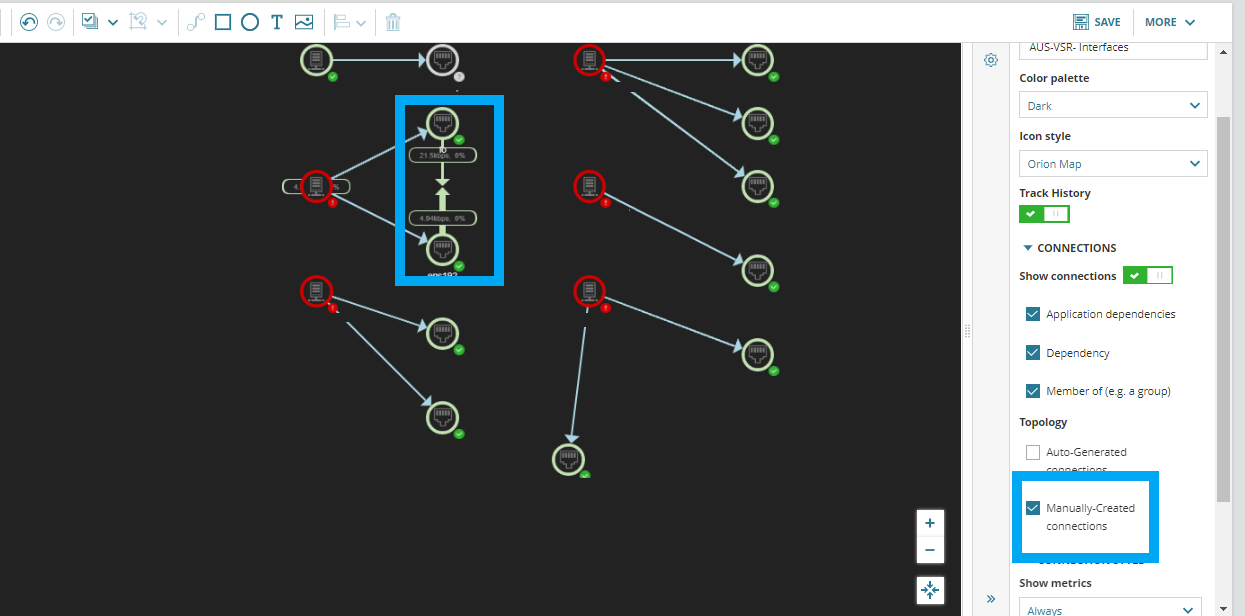
9. You will now see that the entities are now connected. Just make sure that there is a check on "Manually-created connections under Topology.
You can connect objects and define custom connections within the map editor. You must select two entities in order to activate the Connect Objects tool in the Orion Map Editor toolbar.
1. Select two entities by holding the Ctrl key to select the entities you wish to connect. You can also select entities using click and drag.
2. Click the entity connection button from the Connect Objects toolbar. This opens the Configure custom topology connection window.
3. Select either "Egress" or "Ingress".
4. Click on "EDIT".
5. Select the entity that should be connected to the first entity then click on "APPLY".
6. Repeats steps 4 and 5.
7. Kindly select if the manual created connection exists "For this map only" or "For all maps and topology resources in Orion".
8. Click on "CREATE".
9. You will now see that the entities are now connected. Just make sure that there is a check on "Manually-created connections under Topology.