
Network Management
Orion Installation Stuck on System Check and could not start Active Diagnostics
This article explains how to resolve system check when it is stuck and could not start Active Diagnostics during the installation of SolarWinds modules. Keyword not supported: 'provider'. Could not start Active Diagnostics.
First published date
10/10/2019 4:11 PM
Last published date
11/3/2023 10:27 AM
Overview
During the installation process system check run to make sure that you are ready for the upgrade/installation of your SolarWinds modules.
In some cases, the system check got stuck which prevent the customer from installing/upgrading.
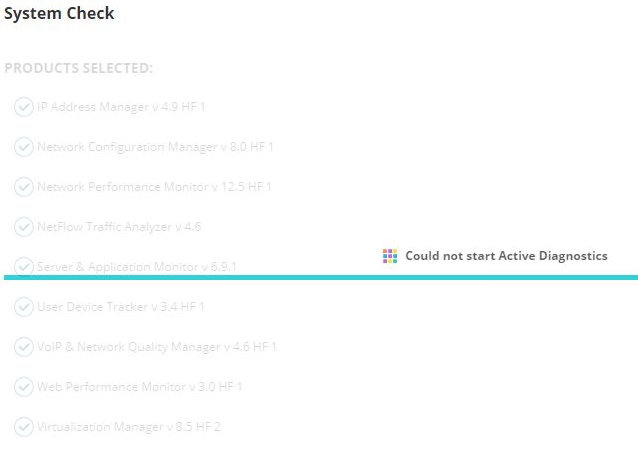
Administration service client log (C:\ProgramData\SolarWinds\Logs\Installer\[timestamp]\*.log)
In some cases, the system check got stuck which prevent the customer from installing/upgrading.
Administration service client log (C:\ProgramData\SolarWinds\Logs\Installer\[timestamp]\*.log)
ERROR (null) SolarWinds.Administration.ActiveDiagnosticsManager.CachingDiagnosticsClient - Error during gathering preflight check results
System.InvalidOperationException: Could not start Active Diagnostics ---> System.Reflection.TargetInvocationException: Exception has been thrown by the target of an invocation. ---> System.ArgumentException: Keyword not supported: 'provider'.
Product section
Orion Platform
Cause
Incomplete installation
Resolution
- Run CMD as Administrator.
- On the CMD, type cd {space}<path of the installer>
Sample Path : C:\Users\ADMINI~1\AppData\Local\Temp\3\7zS450B3DA0\SubInstallers - Click Enter.
- Queue up or drag the installer .exe on the cmd then add {space}-notests
(Screenshot property of © 2019 Microsoft) - Then, click Enter.
- After installing, you will also need to run and finish Configuration Wizard.