
Tools
"Not running, connection problems found." error message on Dameware Server Components Configuration Wizard
This documentation article is intended to resolve the issue from Dameware Server Components Configuration Wizard(DameWare Configuration Wizard) in which an established DameWare Server is showing an error message "Not running, connection problems found." and the error message "Internal Server Error" upon logging to your DRS or MRC. This is only applicable for Dameware Central Server that doesn't have a Dameware Internet Proxy.
First published date
1/11/2022 12:16 PM
Last published date
7/26/2023 4:46 PM
Overview
For centralized Dameware Remote Support and Dameware Mini Remote Control, there are cases in which the Central Server (no Dameware Internet Proxy included) shows an error message "Not running, connection problems found" in the Dameware Server Components Configuration and login error message "Internal Server Error".
This can happen even for servers that have been using the Dameware Central Server for a long time.
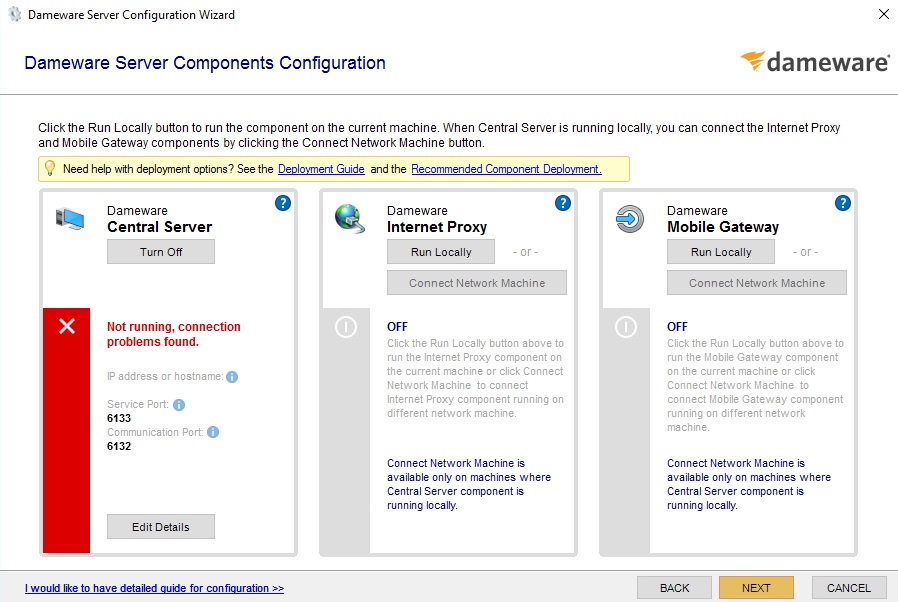
This can happen even for servers that have been using the Dameware Central Server for a long time.
Product section
Dameware Remote Support & Mini Remote Control
Cause
- Dameware Server Services was stopped upon operation (install/upgrade/migration)
- Two live Dameware Central Server is detected in the network
- Corruption of Server Database/Files (Migration of database file from old server to a new server)
Resolution
You may refer to any resolution below:
- If there are 2 live Dameware Central Servers, make sure that the Dameware Server is using the right hostname/IP address, if not, Edit Details and save settings.
- Start the "Dameware Server" service on the DameWare Server
- Open Run Command (Windows Key + R)
- Type "services.msc"
- Look for "Dameware Server" from the list of services
- Right-click then click start
- Check if the error was resolved in the Dameware Server Components Configuration Wizard.
- Turn the DameWare Central Server Off, then On
- Turn Off the DameWare Server
- Next
- Save the settings
- Reopen the Dameware configuration wizard and turn it on
- Save settings
- Repair the DameWare Server
- Run a DameWare Installer as an administrator, and make sure to use the same version you currently have
- Click Next and choose Repair
- Click Finish once done
- If it's a case where there is a migration of an old server database file to the new server, we recommend manually migrating files thru the import or export of host lists and users instead.
- Export your host list and users
- Put back the original database file of the new server
- Close Central Server
- Restart Dameware Server service
- Open Central Server
- Import your exported host list and users
- Close Central Server
- Restart Dameware Server service
- Check the Dameware Wizard Configuration if this resolves your issue
- Create a backup of the server if needed
- Deactivate License
- Uninstall Dameware Central Server
- Install Dameware Central Server
- Activate License
- Configure user accounts