
Network Management
"Allow Node Management Rights" with disabled "Allow Administrator Rights", missing Manage Nodes drop down in Orion Platform
A user has "Allow Administrator Rights" disabled, and is required to manage Nodes. "Allow Node Management Rights" is enabled, but the drop-down for "Manage Nodes" is not available.
First published date
4/28/2021 7:41 AM
Last published date
8/26/2022 3:30 PM
Overview
1. To not have Administrator Rights and to manage Nodes, the following were put into place:
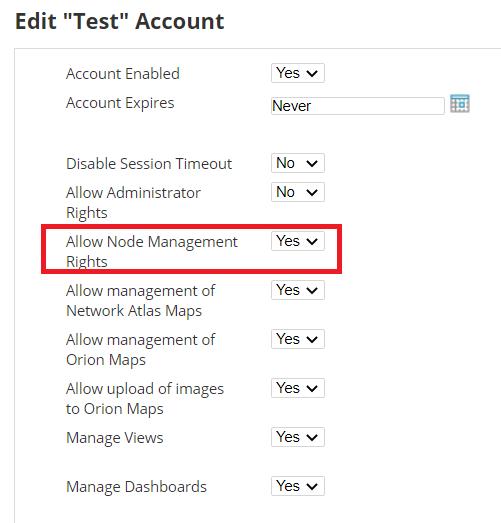
2. If the "Allow Administrator Rights" is disabled from the user, the drop-down will only show "Manage Dashboards".

3. This is by design.
4. To manage Nodes when "Allow Node Management Rights" is enabled, with the drop-down to Manage Nodes not available, you will need to use the "All Nodes" widget.
2. If the "Allow Administrator Rights" is disabled from the user, the drop-down will only show "Manage Dashboards".
3. This is by design.
4. To manage Nodes when "Allow Node Management Rights" is enabled, with the drop-down to Manage Nodes not available, you will need to use the "All Nodes" widget.
Product section
Orion Platform
Cause
By design, only accounts with Administrator Rights set to Yes in Manage Accounts will display the Manage Nodes option in the Menu Bar.
Resolution
Workaround 1
Use the "Manage Nodes" option of the "All Nodes" resource which may be found on the Summary Page of My Dashboards >> Home, Network, or Network Configuration:Workaround 2
Create and add "Manage Nodes" to the menubar:- Navigate to Settings > All Settings > Manage Accounts and edit the account in question.
- Scroll down to the Default Menu Bar and Views section and confirm the setting for the HomeTab Menu Bar:
- Using an Orion Admin account, Click My Dashboards > Configure or Settings > All Settings > Customize Menu Bars
- Edit the Menu Bar and select Manage Nodes from Available Items (Left) and drag it to the Selected Items (Right)
- Submit the change and test with the user account - the assigned User will see it in their respective Menu bar: