
Security Compliance
No resources found when configuring the AzureAD scan in the ARM
This article will explain the steps needed to resolve the issue with missing resources when configuring the AzureAD, Teams, or One Drive scan.
First published date
4/13/2021 9:47 AM
Last published date
4/13/2023 8:51 AM
Overview
Following this article, you will be able to resolve the issue with missing resources when adding the AzureAD scan.
This solution may apply also to the same scenario concerning also other online resources like Teams or OneDrive.
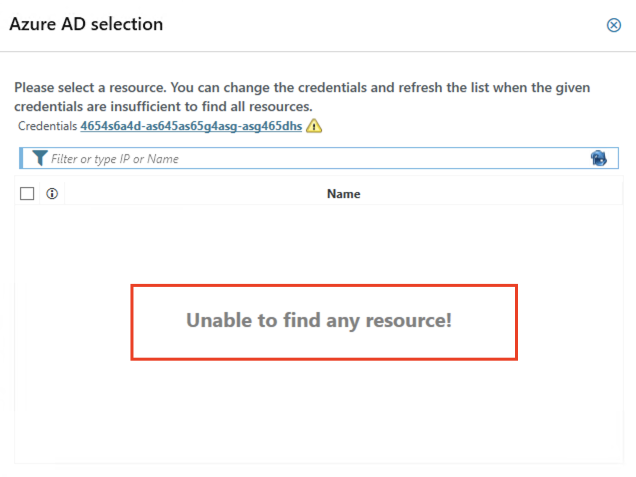
First, we are starting with the assumption that all necessary steps are done to prepare the Office365 configuration. Complete documentation can be found here - https://documentation.solarwinds.com/en/success_center/arm/content/prepare-office-365-integration.htm
If you still have the issue that no resources will appear, in the armServer.log and appConfig.log you can find a possible error log with the related timestamp of the action.
This solution may apply also to the same scenario concerning also other online resources like Teams or OneDrive.
First, we are starting with the assumption that all necessary steps are done to prepare the Office365 configuration. Complete documentation can be found here - https://documentation.solarwinds.com/en/success_center/arm/content/prepare-office-365-integration.htm
If you still have the issue that no resources will appear, in the armServer.log and appConfig.log you can find a possible error log with the related timestamp of the action.
Product section
Access Rights Manager
Cause
- The service account set in the ARM Basic configuration does not have full access rights. to C:\ProgramData\protected-networks.com\8MAN.
- The AppID, secret or tenant entered during the config is not correct.
- The ARM Server machine has no internet connection or a firewall is blocking outside connections.
- The Azure AD scan is already added in ARM Config---Scans
Resolution
To ensure that this issue is fixed and that the service account set in the ARM Basic configuration has needed permissions, we should add this account to the local admin group.
Here are the steps:
Here are the steps:
- Open Windows Server Manager
- From Tools select "Computer Management"
- From there select Local Users and Groups > Groups
- Double click on Administrators and add your service account here directly
- Restart the ARM Service
- Once the ARM server is running again login and add your AzureAD scan
- In some edge cases where the NTFS permissions are corrupted, the above may not be enough. Enforcing the inheritance to the mentioned path in the logs can fix the problem.
- Please double check the AppID if it is correctly entered.
- Please double check the secret if it is correctly entered and create a new one if necessary. In this case is only needed the 'Value' of the secret.
- Please double check the Tenant domain in Azure Active Directory > Custom domain names.
- Please ensure that the ARM Server machine itself has internet connection and can reach Azure servers at the time of adding the scan config.
- After checking and confirming the above please restart the ARM-Service on the ARM Server and retry to add the Azure AD Scan.
- Try to filter the results in ARM Config----Scans searching with the domain name or the Tenant ID to check if the Azure AD scan is already added.