
Database Management
Missing Features in the SQL Sentry Navigator Pane (Configuration Node/Rights Based Security)
This article addresses the loss of access to some of the features within the Navigator Pane. The following are some of the features that users will lose access to due to an issue with the user account: Contacts, Actions Log, Advisory Conditions, Global Settings, Inventory, Schedules and Windows, Site Configuration, and System Status.
First published date
1/3/2022 7:36 PM
Last published date
7/15/2025 11:11 PM
Overview
After assigning Rights to a Contact/Contact Group (Open specific Contact/Contact Group > Rights tab) in the Client, the once visible Configuration tab will be missing, as well as the Contacts, Actions Log, Advisory Conditions, Global Settings, Inventory, Schedules and Windows, Site Configuration, and System Status.
This is typically a result of someone attempting to put together security groups or apply restrictions which resulted in unintended users having restrictions applied to them, thus limiting access of some client features.
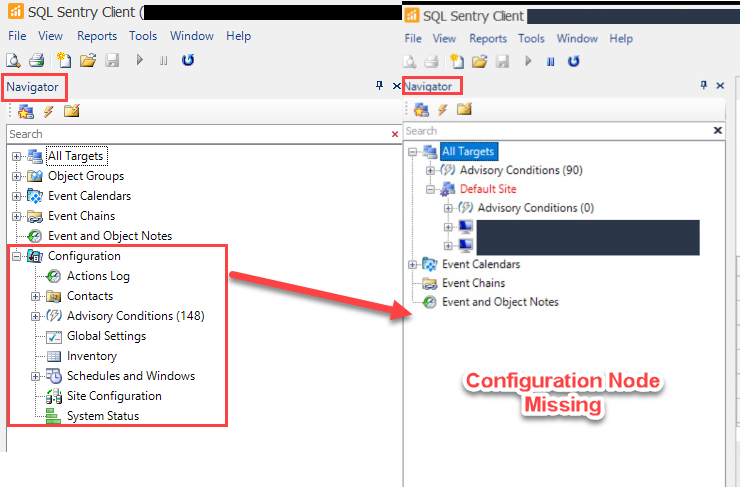
This is typically a result of someone attempting to put together security groups or apply restrictions which resulted in unintended users having restrictions applied to them, thus limiting access of some client features.
Product section
SQL Sentry (SQLS)
Cause
Rights-Based Security will play a large role in the restrictions of user access/visibility to some software features and monitored targets. It is recommended that the user contact their administrator prior to making any changes.
Any Right applied to a Contact/Contact Group in the SQL Sentry client will result in all administrative options being hidden from that user.
Any Right applied to a Contact/Contact Group in the SQL Sentry client will result in all administrative options being hidden from that user.
Resolution
---------------------------------------------------------------------------------------
-- Scripts are not supported under any SolarWinds support program or service.
-- Scripts are provided AS IS without warranty of any kind. SolarWinds further
-- disclaims all warranties including, without limitation, any implied warranties
-- of merchantability or of fitness for a particular purpose. The risk arising
-- out of the use or performance of the scripts and documentation stays with you.
-- In no event shall SolarWinds or anyone else involved in the creation,
-- production, or delivery of the scripts be liable for any damages whatsoever
-- (including, without limitation, damages for loss of business profits, business
-- interruption, loss of business information, or other pecuniary loss) arising
-- out of the use of or inability to use the scripts or documentation.
---------------------------------------------------------------------------------------
Option #1: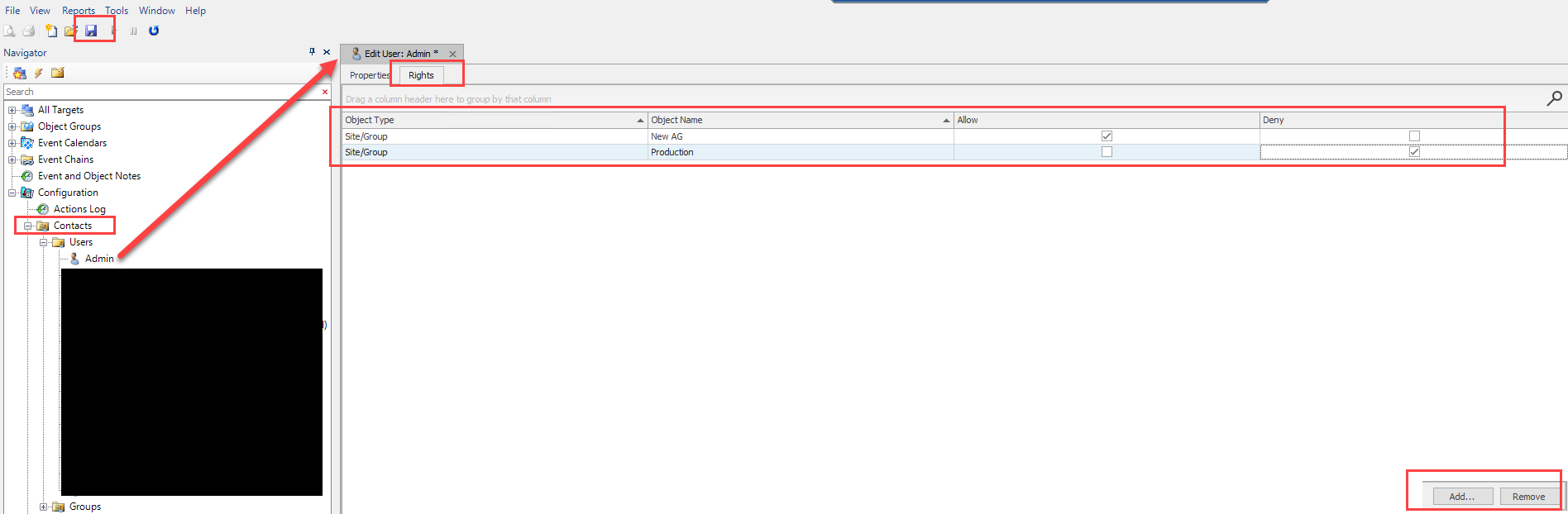
Option #2:
-- Scripts are not supported under any SolarWinds support program or service.
-- Scripts are provided AS IS without warranty of any kind. SolarWinds further
-- disclaims all warranties including, without limitation, any implied warranties
-- of merchantability or of fitness for a particular purpose. The risk arising
-- out of the use or performance of the scripts and documentation stays with you.
-- In no event shall SolarWinds or anyone else involved in the creation,
-- production, or delivery of the scripts be liable for any damages whatsoever
-- (including, without limitation, damages for loss of business profits, business
-- interruption, loss of business information, or other pecuniary loss) arising
-- out of the use of or inability to use the scripts or documentation.
---------------------------------------------------------------------------------------
Option #1:
- Log in as the Monitoring Service user and launch the Client.
- Alternatively, create a temp SQL Account with sa for the SQL Sentry DB instance > Connect SQL Sentry client to DB using that SQL Account
- Check to see if user is a contact in the contacts list.
- Check to see if Rights-Based Security is applied to that user.
- If it has Rights-Based Security:
- Remove those permissions from the user's Contact.
- Launch the Client as the user and verify that the features are back.
- If it does not have Rights-Based security:
- Remove the user from the list of Contacts.
- Launch the Client as the user and verify that the features are back.
- If it has Rights-Based Security:
Option #2:
- Close the Client
- Find the ObjectID for the user/group in question via the Contact table and/or any contact groups it is in via the ContactGroup table.
- Then delete from the [Security].[ObjectPermission] where the PrincipleID matched the ObjectID of the Contact/ContactGroup object impacted with restrictions.
- DELETE FROM [Security].[ObjectPermission]
WHERE PrincipalID = '<ContactID and/or ContactGroupID>'
- DELETE FROM [Security].[ObjectPermission]
- These queries below may also be helpful in finding the restrictions
- SELECT c.ObjectID AS 'ContactObjectID', c.FirstName, o.ObjectName AS 'PermissionObject' FROM Contact c
JOIN [Security].[ObjectPermission] op ON c.ObjectID = op.PrincipalID
JOIN vwObjects o ON op.ObjectID = o.ObjectID
- SELECT cg.ObjectID AS 'ContactGroupObjectID', cg.GroupName, o.ObjectName AS 'PermissionObject' FROM ContactGroup cg
JOIN [Security].[ObjectPermission] op ON cg.ObjectID = op.PrincipalID
JOIN vwObjects o ON op.ObjectID = o.ObjectID
- SELECT c.ObjectID AS 'ContactObjectID', c.FirstName, o.ObjectName AS 'PermissionObject' FROM Contact c
- Re-open the Client and confirm the settings have returned.