
Security Compliance
Manually upgrade SEM Agent Software via Webconsole
This article explains how to manually upgrade SEM agent software (Linux/Windows/etc) via the HTML5 Web Console in SolarWinds Security & Events Manager (SEM - formerly LEM)
First published date
10/23/2021 6:54 AM
Last published date
10/23/2021 6:54 AM
Overview
In some cases, we see that post to SEM appliance upgrade, some some of the nodes still have the old version of the SEM agent software. This article helps you manually push an agent upgrade package to the affected node(s) via the HTML5 Web Console in SolarWinds Security & Events Manager (SEM - formerly LEM) .
Product section
Security Event Manager
Cause
- Agent upgrade job fails due to local infrastructure issue.
- Environmental issues like permissions/AV.
- Manual Migration of SEM Appliance.
- Affected node not reachable.
Resolution
Resolution:
Monitor for sometime and if for some reason the agents shows "Not Connected" or
  "Connected" with outdated agent version, then perform either of below steps
- On the node having older version of the agent software, by design SEM manager starts an internal cron job to push agent software upgrades in a batch of 5 as per the SEM version you have.
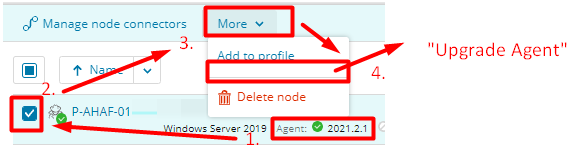
- Also, you can manually push agent upgrade to by individually selecting the node having the old agent version. (See Below)
Monitor for sometime and if for some reason the agents shows
- Login to each of those nodes with old agent software
- Uninstall old SEM agent and reinstall same as that of your SEM manager version.