
Tools
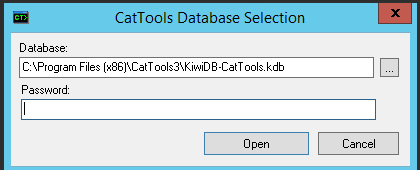
Kiwi Cattools asking for database password when opening the application
This article describes how to resolve Kiwi Cattools asking for database password when opening the application
First published date
8/9/2019 8:40 PM
Last published date
7/23/2025 3:53 PM
Overview
When launching Kiwi Cattools, you are asked to select a database and a password. You did not create a password or know the password.
Product section
Kiwi CatTools
Cause
The Cattools database has been encrypted or corrupted or has a OS permission issue
Resolution
1. Check if someone has created a password to encrypt the database.
2. On the DB selection screen go to C:\Program Files (x86)\CatTools3\KDB Backups\User Backups or C:\Program Files (x86)\CatTools3\KDB Backups\System Backups.
3. Check if you have other backups available.
4. Use the DB backup.
If there is no other DB file : (This is not applicable on version 3.12.2 and above)
1. You will need to open the KDB file via Microsoft access.
2. Save the file as *.mdb (an older version of the Access Database format).
3. Rename the completed file and change the extension back to *.kdb.
If Kiwi CatTools has been upgraded to 3.11.6:
1. Go to C:\Program Files (x86)\CatTools3, right-click the CatTools_Manager.exe, and select Properties.
2. In the Compatibility tab, click the "Change Settings for All Users" and then click the "Run this program as Administrator and hit OK.
3. Restart the Kiwi Cattools service and relaunch Kiwi Cattools Console to verify.
Additional notes:
If the other user in the server can open the Cattools without a password then it means the database has really no password. In this case, please check the local administrator group, see if the user that tries to open the Cattools is a member of the group.
2. On the DB selection screen go to C:\Program Files (x86)\CatTools3\KDB Backups\User Backups or C:\Program Files (x86)\CatTools3\KDB Backups\System Backups.
3. Check if you have other backups available.
4. Use the DB backup.
If there is no other DB file : (This is not applicable on version 3.12.2 and above)
1. You will need to open the KDB file via Microsoft access.
2. Save the file as *.mdb (an older version of the Access Database format).
3. Rename the completed file and change the extension back to *.kdb.
If Kiwi CatTools has been upgraded to 3.11.6:
1. Go to C:\Program Files (x86)\CatTools3, right-click the CatTools_Manager.exe, and select Properties.
2. In the Compatibility tab, click the "Change Settings for All Users" and then click the "Run this program as Administrator and hit OK.
3. Restart the Kiwi Cattools service and relaunch Kiwi Cattools Console to verify.
Additional notes:
If the other user in the server can open the Cattools without a password then it means the database has really no password. In this case, please check the local administrator group, see if the user that tries to open the Cattools is a member of the group.
- Run the command lusrmgr.msc.
- Navigate to the Groups.
- Click the Administrators.
- Check the user account and add it if it's not a member of the group.
- Restart the Kiwi Cattools service.