
Tools
How to renew Azure Single Sign-On Expired SAML Token Signing Certificate
SolarWinds Service Desk customers often contact support because their SAML certificate has expired, and they need help renewing it.
First published date
2/23/2023 1:31 PM
Last published date
5/14/2025 5:07 AM
Overview
A SAML certificate is a security component of Azure Single Sign-On that helps users log in to SolarWinds Service Desk using Single Sign-On securely. If the SAML certificate expires, users might not be able to log in. Some SolarWinds Service Desk customers mistakenly believe that SolarWinds Support renews their SAML certificates, but this is not the case. Customers must renew their own SAML certificates in the Azure portal. This article provides steps on how to do this.
Product section
Service Desk
Cause
Azure SSO SAML Token Signing Certificate has an expiration date by default. SolarWinds doesn't have control over the certificate expiration, and we don't completely support this issue. However, we can guide the customers on how to renew the certificate on their Azure portal page.
Resolution
Here are the steps to renew your Azure SSO SAML certificate in the Azure portal:
1) Go to Azure Portal page: https://portal.azure.com
2) Go to Microsoft Entra ID.
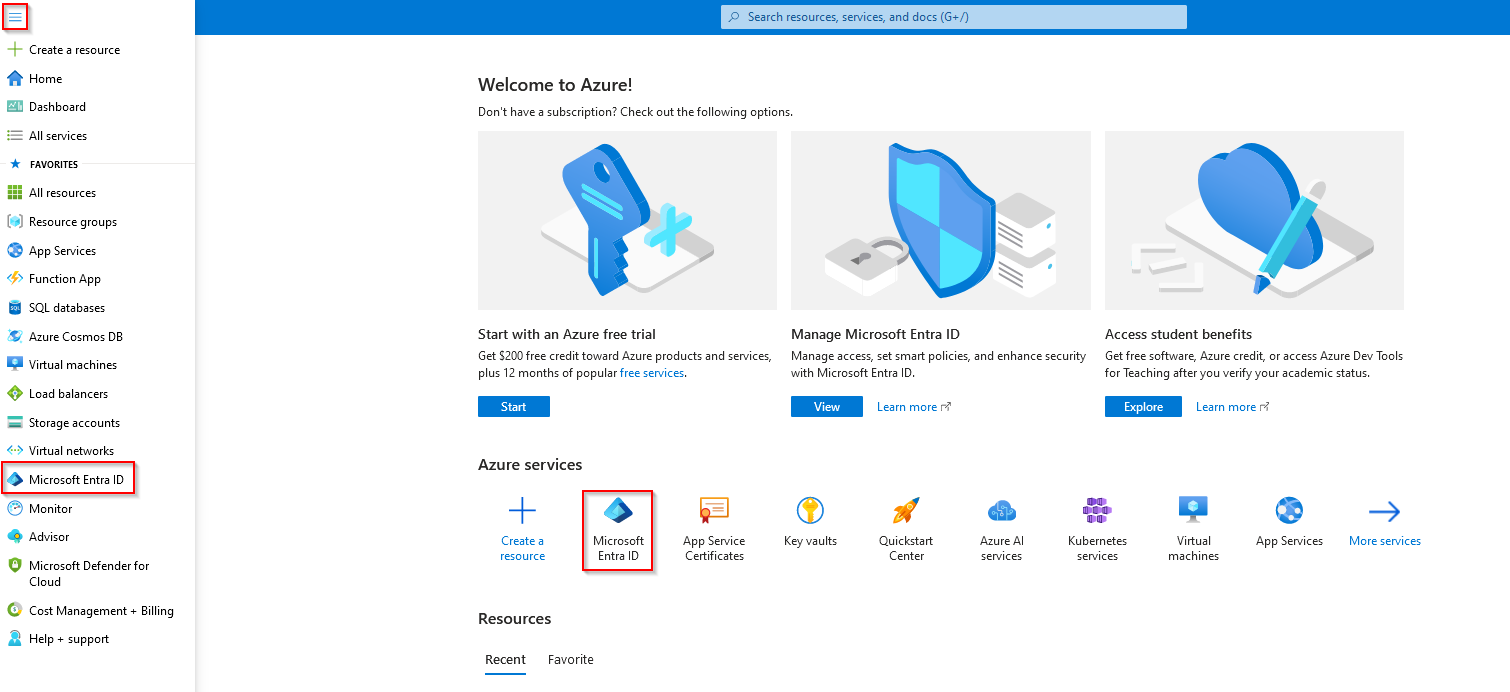
3) Go to Enterprise applications 🡪 SolarWinds Service Desk 🡪 Single Sign On.
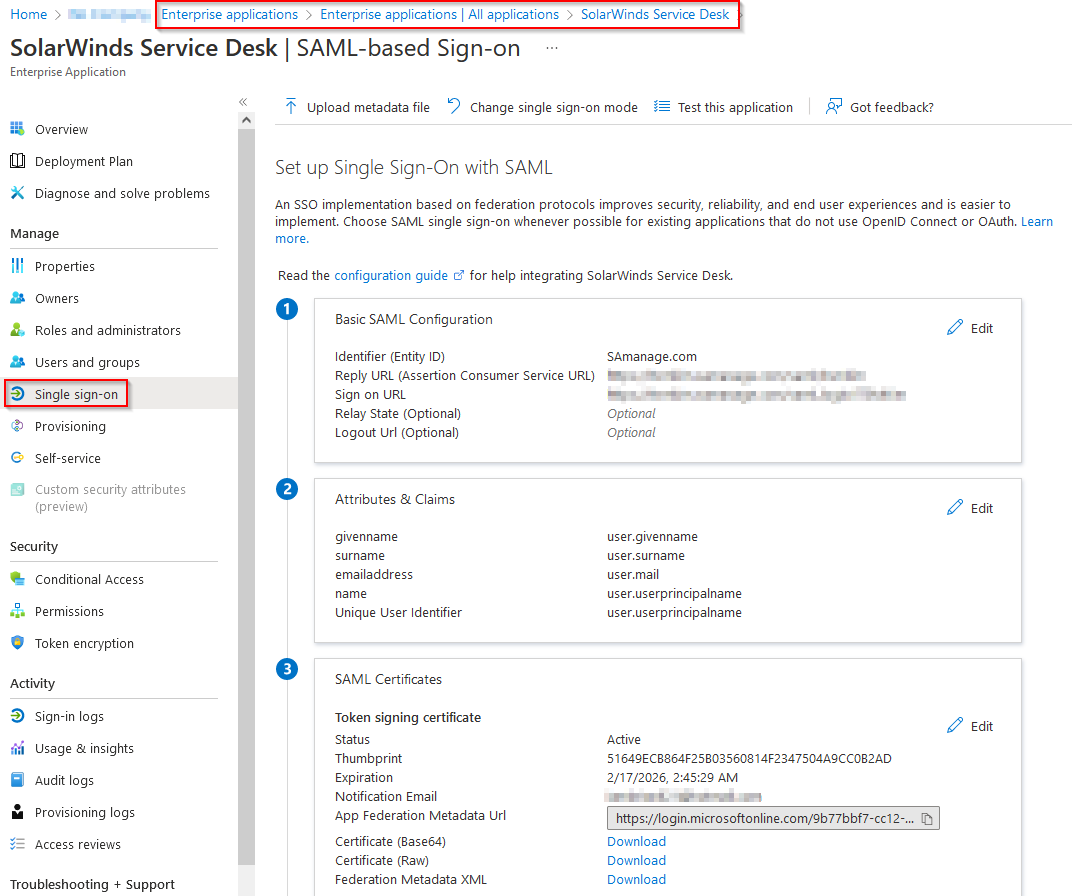
4) Click the "Edit" option under the SAML Certificates.
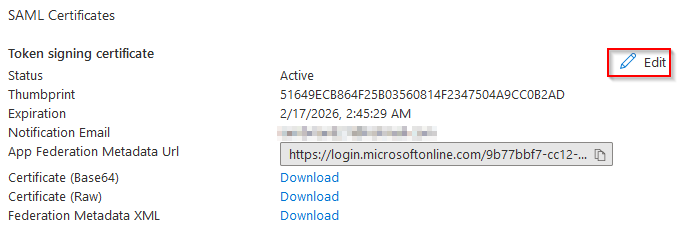
5) Click the "+ New Certificate" button.
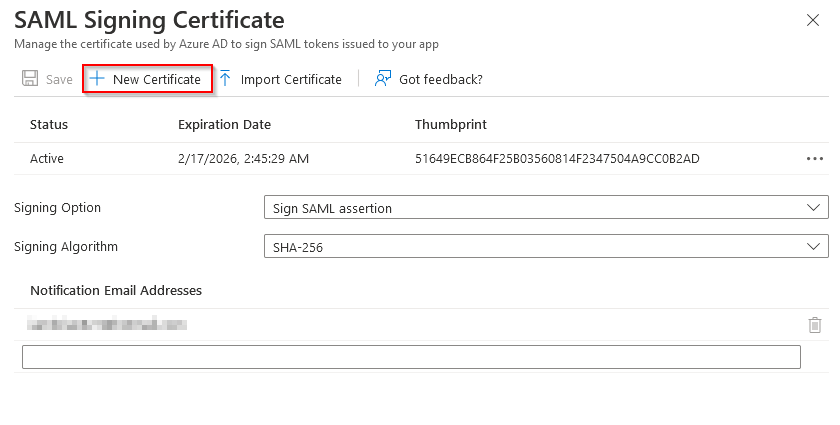
7) A new certificate will appear with the "n/a" status, and click on the "Save" option to apply the changes.
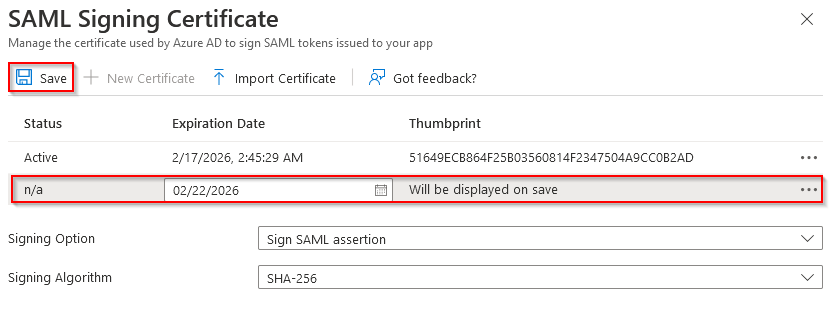
8) After creating a new certificate, please check the certificate status. If the status is "Inactive", click the "Make certificate active".
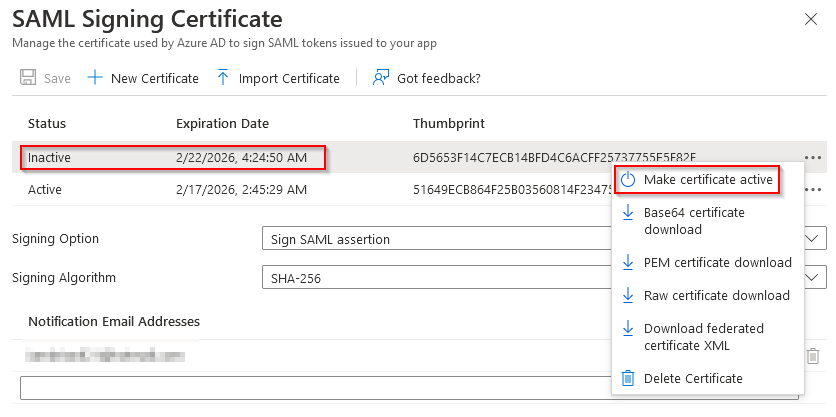
9) Once the new certificate is activated, you must download the Base64 certificate.
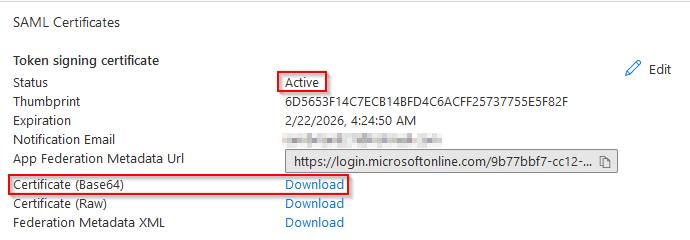
10) Open the certificate via Notepad or any text editor application, and paste the certificate to the SolarWinds Service Desk Single Sign-On Setup page.
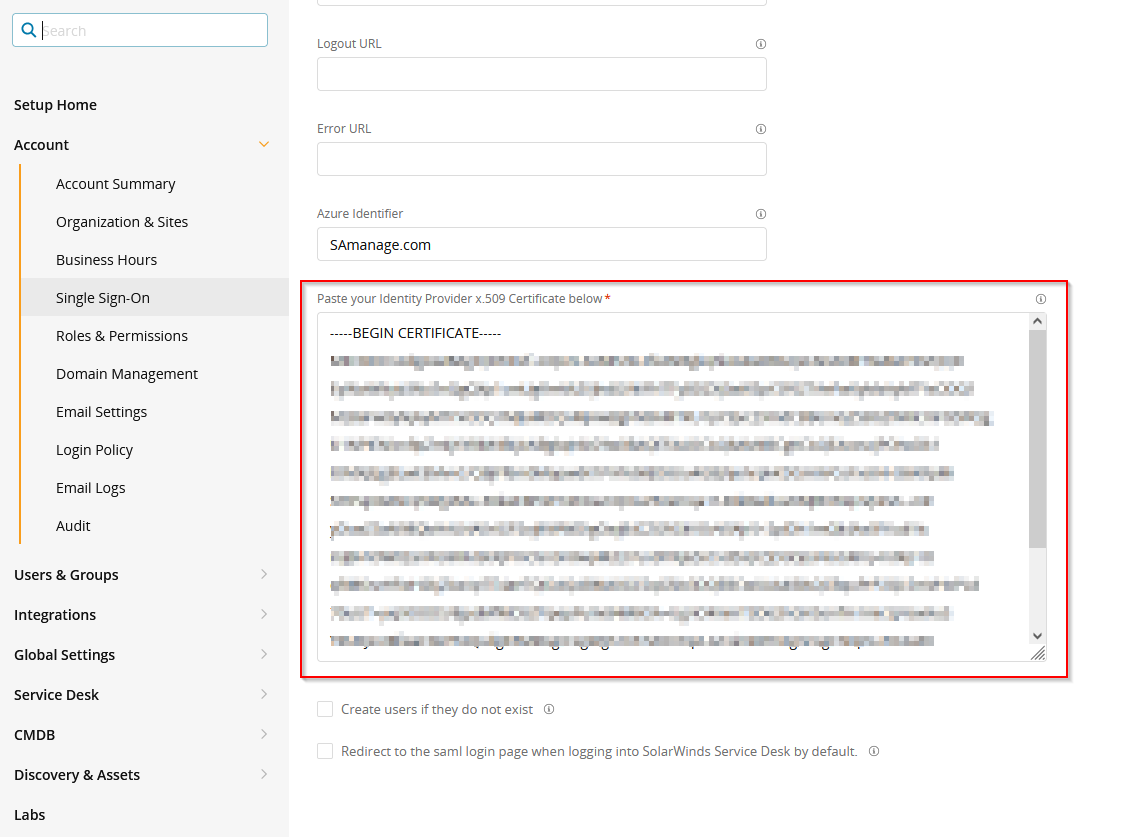
1) Go to Azure Portal page: https://portal.azure.com
2) Go to Microsoft Entra ID.
3) Go to Enterprise applications 🡪 SolarWinds Service Desk 🡪 Single Sign On.
4) Click the "Edit" option under the SAML Certificates.
5) Click the "+ New Certificate" button.
7) A new certificate will appear with the "n/a" status, and click on the "Save" option to apply the changes.
8) After creating a new certificate, please check the certificate status. If the status is "Inactive", click the "Make certificate active".
9) Once the new certificate is activated, you must download the Base64 certificate.
10) Open the certificate via Notepad or any text editor application, and paste the certificate to the SolarWinds Service Desk Single Sign-On Setup page.