
Network Management
How to unmanage groups of nodes
This article describes how to unmanage groups from the Manage Nodes menu. Convert your Orion groups to a custom property allowing you to select nodes in bulk and unmanaged them. Maintenance mode via Orion groups.
First published date
10/25/2018 12:52 PM
Last published date
12/8/2021 3:24 PM
Overview
Within the Orion, there is currently no way to un-manage nodes via a group. Maintenance mode can only be done from the Manage Nodes page. This page is limited in which 'group by' properties you can filter by, and Orion Groups are not one of them. However, node custom properties are a property you can group by.
Product section
Orion Platform
Resolution
Create a New Custom Property
- Navigate to Settings > All Settings > Manage Custom Properties
- Create a new custom property based on Nodes
- Name the property
Group_Name (or a name of your choosing) - Click 'Submit' (Do not add values at this point)
- Return to the Manage Custom Properties page and select Group_Name. Click 'View/Edit Values'
- In the 'Group By' drop-down, select "Group." You can now see all members of a group.
- Select all the members of the group and you can click 'Edit Multiple Values' to apply a Custom Property value to them. It is recommended to apply the Name of the group. See below images for clarification.
- Save changes once the custom property value is applied.
- Click Settings > Manage Node and return to the Manage Nodes page.
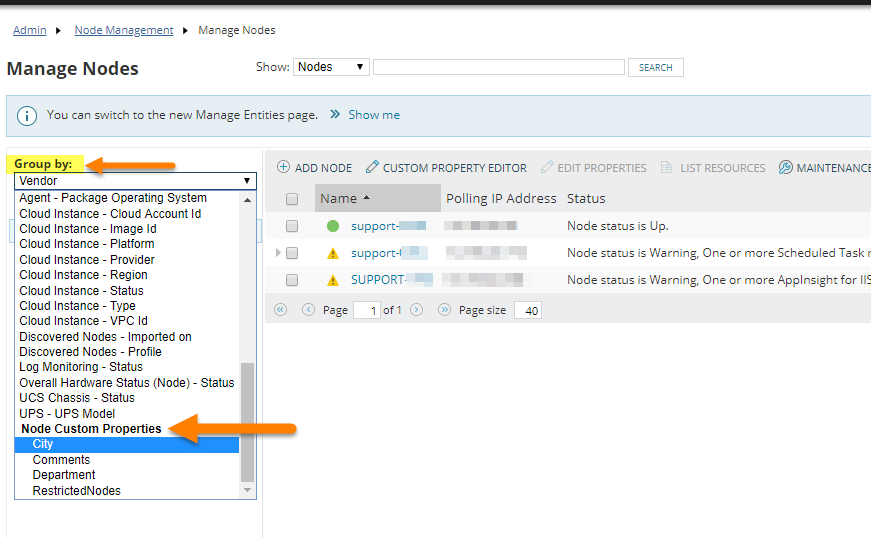
- In the left pane, select Group By > Group_Name. It is the custom property that was just created it's near the bottom of the drop-down in the section called "Node Custom Properties."
- Select the
Group_Namevalue and select all nodes in the group by selecting the very top checkbox. - Unmanage the nodes (Maintenance Mode > Unmanage Now).