
Security Compliance
How to setup WSUS inventory with upstream and downstream servers
This article provides steps on how to correctly setup the WSUS inventory when you have upstream and downstream servers
First published date
10/31/2019 5:01 PM
Last published date
10/31/2019 5:01 PM
Overview
We often get support cases and calls from customers saying they are missing some end points in WSUS Analytics report(s). Only clients from one specific WSUS server nodes on which the inventory task is run are reported.
Scenario: You have multiple WSUS server with one upstream and few downstream and multiple upstream and multiple downstream servers. Suppose Site A has 3 Downstream server which connect to one upstream server in Site B.
And end points at Site A connects to and reports to corresponding WSUS servers and endpoints in Site B connects and reports to WSUS server in Site B.
And you scheduled the WSUS Inventory task for site B which is the primary / upstream server role.
Scenario: You have multiple WSUS server with one upstream and few downstream and multiple upstream and multiple downstream servers. Suppose Site A has 3 Downstream server which connect to one upstream server in Site B.
And end points at Site A connects to and reports to corresponding WSUS servers and endpoints in Site B connects and reports to WSUS server in Site B.
And you scheduled the WSUS Inventory task for site B which is the primary / upstream server role.
Product section
Patch Manager
Cause
During Inventory configuration wizard the default option "Direct" is selected and most customers ignore that. Which results in Patch manager only querying for inventory the primary / upstream server.
Resolution
1. Disable the existing Scheduled Inventory task for the WSUS server in question (optional)
2. Create a new WSUS Inventory task, click on the link below for steps
3. And In Step 5 of the Generate WSUS Inventory task , ensure in the following highlighted section "All" is selected instead of default setting "Direct"
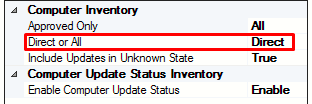
4. Run this new created WSUS inventory task and check the reports again.
If some computers are still missing then most likely their last report/contact time is in not latest, which mean there may be other issues with these specific clients due to corrupt Software distribution folder or general network communication between WSUS and the clients or WSUS service needs to be restarted.
2. Create a new WSUS Inventory task, click on the link below for steps
3. And In Step 5 of the Generate WSUS Inventory task , ensure in the following highlighted section "All" is selected instead of default setting "Direct"
4. Run this new created WSUS inventory task and check the reports again.
If some computers are still missing then most likely their last report/contact time is in not latest, which mean there may be other issues with these specific clients due to corrupt Software distribution folder or general network communication between WSUS and the clients or WSUS service needs to be restarted.