
Tools
How to request assistance in Dameware Remote Everywhere agent
This article explains how to generate support requests from the DRE agent.
First published date
4/18/2019 2:23 PM
Last published date
1/18/2022 11:58 PM
Overview
The Dameware Remote Everywhere technician can initiate a remote session from their end using the technician console or the web admin area. However, the remote user that requires support or assistance can also initiate a support request on their end provided that they have a DRE agent installed on their machine.
Product section
Dameware Remote Everywhere
Resolution
1. On the remote user device, open the DRE agent system tray.
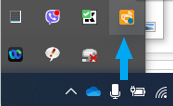
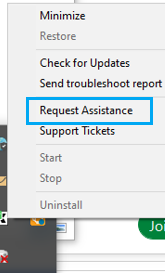
2. Right-click the DRE icon, then select Request Assistance.
3. Fill out the information, then click Send Request.
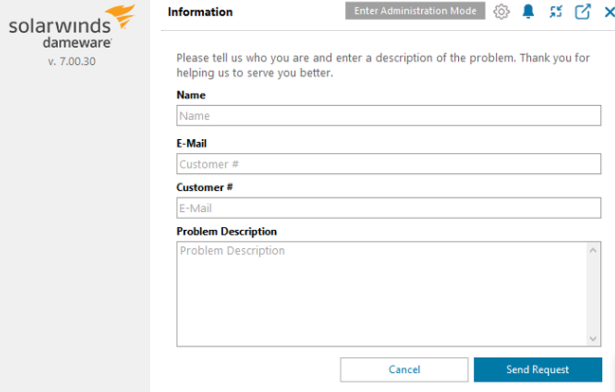
4. Once submitted, it will go to the available technicians and notify them, once they accept it, the remote session will start.
2. Right-click the DRE icon, then select Request Assistance.
3. Fill out the information, then click Send Request.
4. Once submitted, it will go to the available technicians and notify them, once they accept it, the remote session will start.