
Tools
How to generate new keypair and import CA reply using Keystore Explorer to install SSL Certificates for Web Help Desk
This article describes on how to generate new keypair using a third party application manipulating keystore files called Keystore Explorer.
First published date
8/23/2019 10:34 PM
Last published date
2/14/2022 9:26 AM
Overview
The Web helpdesk application by default used the Portecle that comes pre-installed with WHD on a Windows server to manipulate keystore. However, if the application is installed on a non-windows server, you can download and install this on user’s local machine to generate new keystore file.
Product section
Web Help Desk
Resolution
1. Download Keystore Explorer
https://keystore-explorer.org/downloads.html (© 2004 - 2013 Wayne Grant, 2013 - 2019 Kai Kramer, available at https://keystore-explorer.org/, obtained on November 26, 2019)
2. Run Keystore Explorer
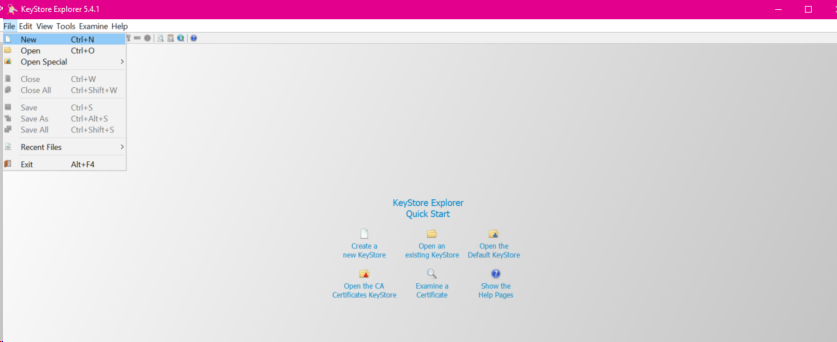
3. File>New>Choose JKS
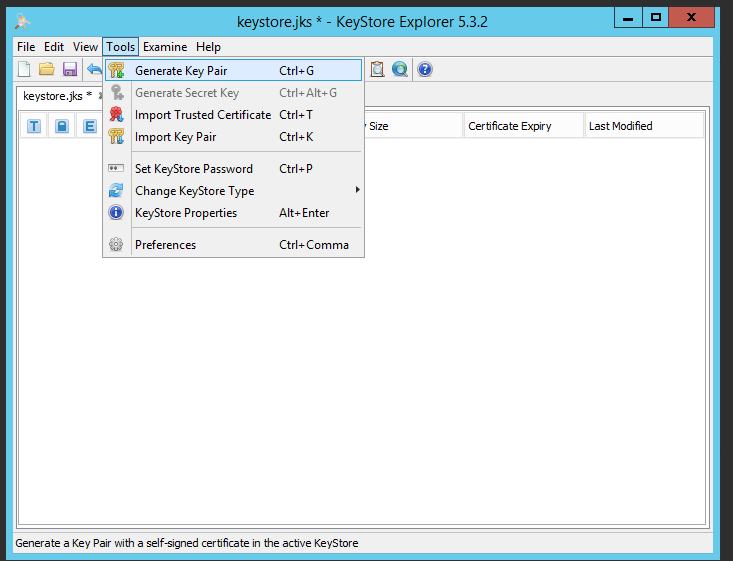
4. Generate a new key pair.
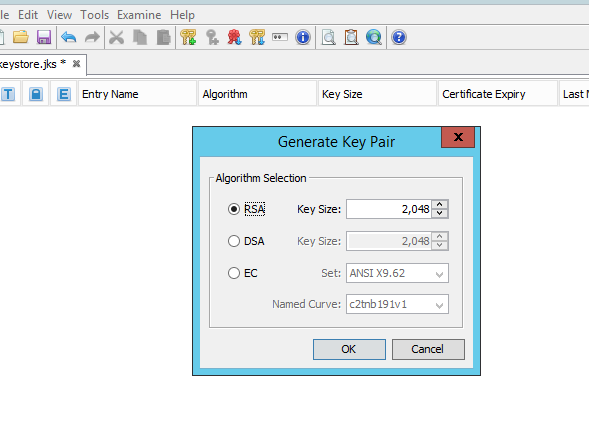
5. Choose RSA and SHA256
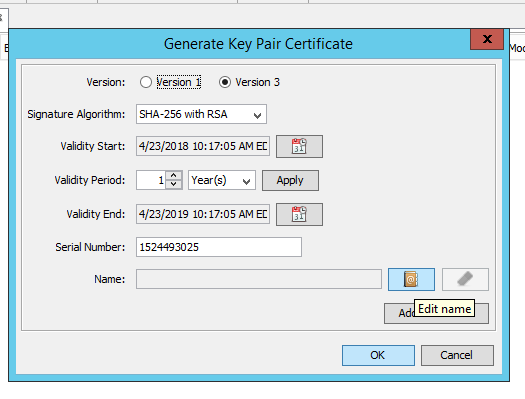
6. Click the name icon to enter your new certificate information.
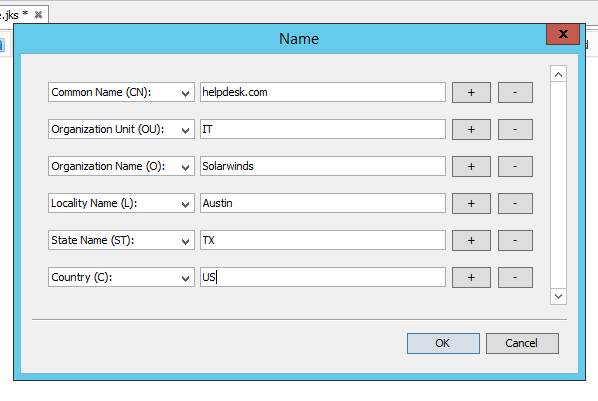
7. Click OK
8. Click Add Extensions>Plus Icon
9. Select Subject Alternative Name and click OK
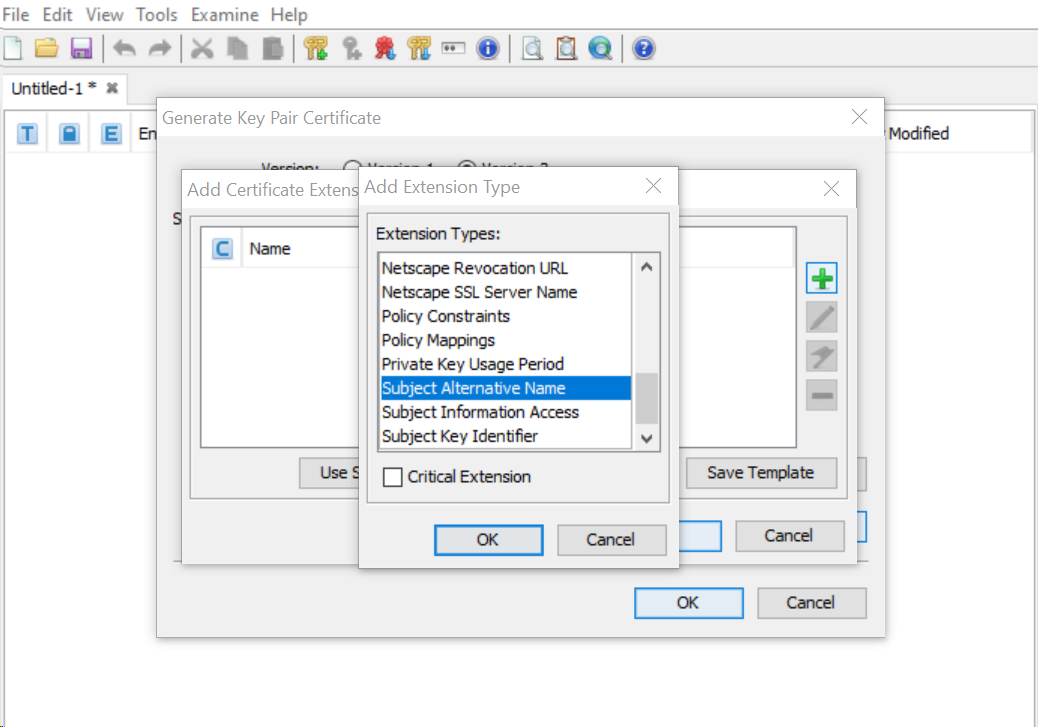
10. Click the Plus Icon>DNS Name
Note: Due to an update in Google Chrome only the subjectAlternativeName (SAN) extension, not commonName(CN), is used to match the domain name and site certificate.
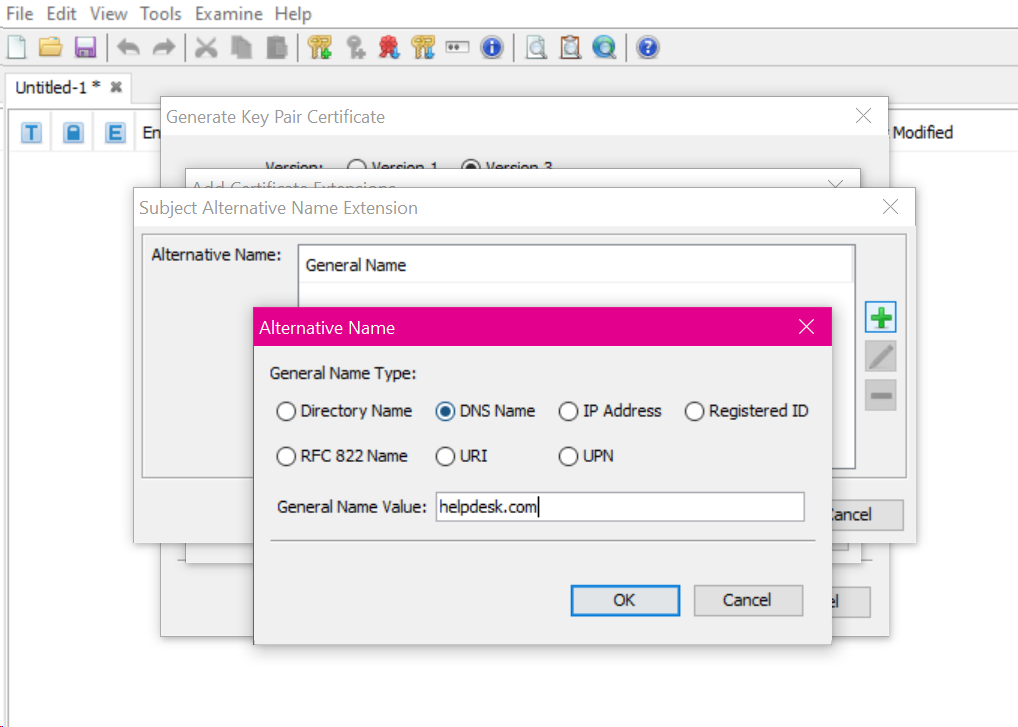
11. Click OK
12. Then change the alias to tomcat.
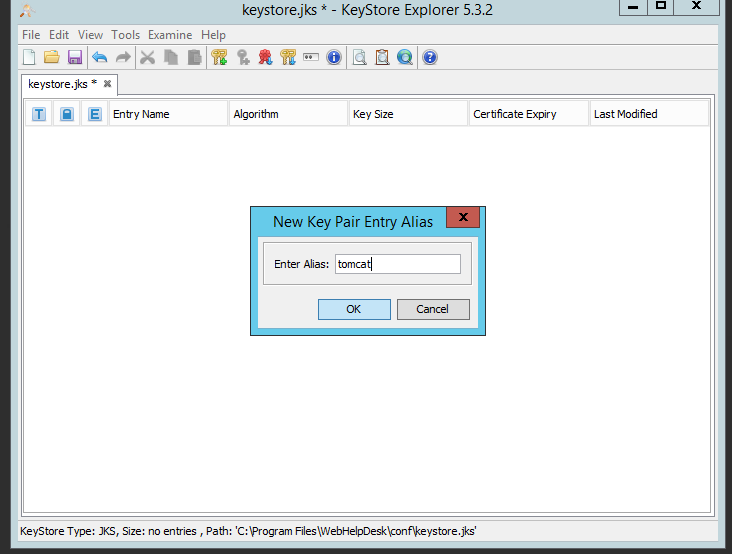
13. Enter the Password define in KEYSTORE_PASSWORD from the keystore password section from whd.conf file.
a. Open the whd.conf (\WebHelpDesk\conf\whd.conf)
b. Look at the keystore password section.
# Keystore settings (for SSL connnections)
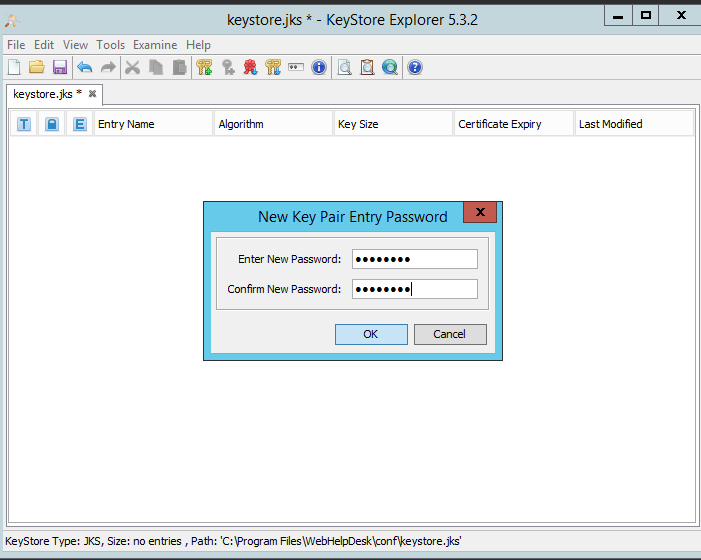
14. Save the file on the desktop.
- File > Save Keystore > KEYSTORE_PASSWORD > OK
- Filename = keystore.jks
Right click on 'tomcat' and click Certificate Details to review and make sure all details are correct
15. Generate the CSR
- Right click on 'tomcat' and click Generate Certification Request.
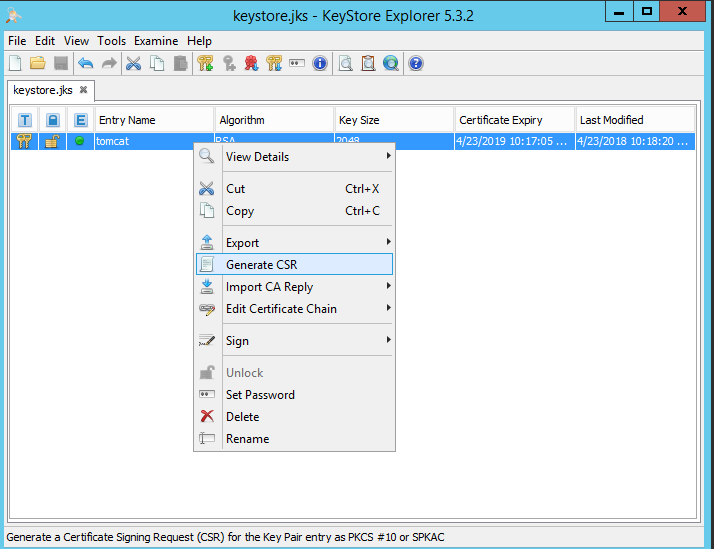
16. Submit the CSR to your CA provider.
17. Once you get the CA reply, open Keystore Explorer again, browse to your keystore.jks file, then right click on tomcat, then do Import CA Reply.
18. Browse to your certificate reply from your CA provider, then click save.
19. Copy this keystore.jks file to the conf folder.
Windows: C:\Program Files\WebHelpDesk\conf
Linux: /usr/local/webhelpdesk/conf/
MacOS: /Library/WebHelpDesk/conf
20. Restart your WHD service so the new certificate will reflect in WHD.
Disclaimer: Please note, any content posted herein is provided as a suggestion or recommendation to you for your internal use. This is not part of the SolarWinds software or documentation that you purchased from SolarWinds, and the information set forth herein may come from third parties. Your organization should internally review and assess to what extent, if any, such custom scripts or recommendations will be incorporated into your environment. You elect to use third party content at your own risk, and you will be solely responsible for the incorporation of the same, if any.
https://keystore-explorer.org/downloads.html (© 2004 - 2013 Wayne Grant, 2013 - 2019 Kai Kramer, available at https://keystore-explorer.org/, obtained on November 26, 2019)
2. Run Keystore Explorer
3. File>New>Choose JKS
4. Generate a new key pair.
5. Choose RSA and SHA256
6. Click the name icon to enter your new certificate information.
7. Click OK
8. Click Add Extensions>Plus Icon
9. Select Subject Alternative Name and click OK
10. Click the Plus Icon>DNS Name
Note: Due to an update in Google Chrome only the subjectAlternativeName (SAN) extension, not commonName(CN), is used to match the domain name and site certificate.
11. Click OK
12. Then change the alias to tomcat.
13. Enter the Password define in KEYSTORE_PASSWORD from the keystore password section from whd.conf file.
a. Open the whd.conf (\WebHelpDesk\conf\whd.conf)
b. Look at the keystore password section.
# Keystore settings (for SSL connnections)
14. Save the file on the desktop.
- File > Save Keystore > KEYSTORE_PASSWORD > OK
- Filename = keystore.jks
Right click on 'tomcat' and click Certificate Details to review and make sure all details are correct
15. Generate the CSR
- Right click on 'tomcat' and click Generate Certification Request.
16. Submit the CSR to your CA provider.
17. Once you get the CA reply, open Keystore Explorer again, browse to your keystore.jks file, then right click on tomcat, then do Import CA Reply.
18. Browse to your certificate reply from your CA provider, then click save.
19. Copy this keystore.jks file to the conf folder.
Windows: C:\Program Files\WebHelpDesk\conf
Linux: /usr/local/webhelpdesk/conf/
MacOS: /Library/WebHelpDesk/conf
20. Restart your WHD service so the new certificate will reflect in WHD.
Disclaimer: Please note, any content posted herein is provided as a suggestion or recommendation to you for your internal use. This is not part of the SolarWinds software or documentation that you purchased from SolarWinds, and the information set forth herein may come from third parties. Your organization should internally review and assess to what extent, if any, such custom scripts or recommendations will be incorporated into your environment. You elect to use third party content at your own risk, and you will be solely responsible for the incorporation of the same, if any.