
Database Management
How to connect to Office 365 Shared Mailbox Using Task Factory Email Source
This how-to article will show how to connect to Office 365 Shared mailbox using task factory email source.
First published date
7/15/2021 2:21 PM
Last published date
9/18/2023 8:30 PM
Overview
User is trying to read messages from an Office 365 shared mailbox. This can be done by setting up Office 365 configuration to Task Factory Email Connection Manager.
Product section
Task Factory (TF)
Cause
N/A
Resolution
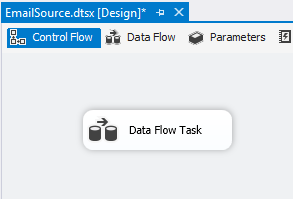
1. Drag a Data Flow Task to the Control Flow
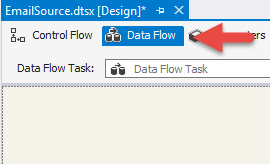
2. Click on the Data Flow tab
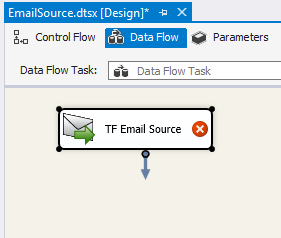
3. Drag in a Task Factory Email Source component to the Data Flow area
4. Double click or right click to edit/open the component
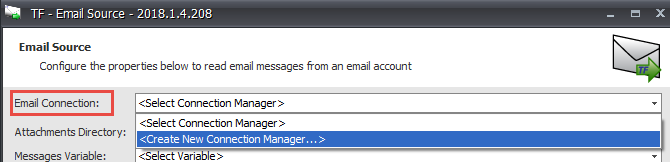
5. Select Create New Connection Manager from the Email Connection drop down menu
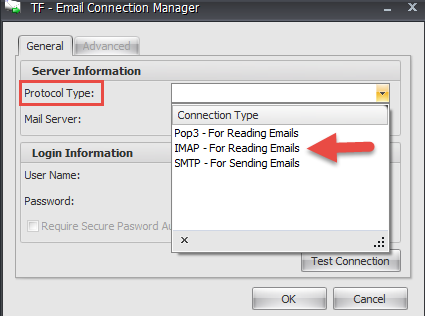
6. In the Task Factory – Email Connection Manager, select the Protocol Type from the drop down. In this example we will be using IMAP – For Reading Emails.
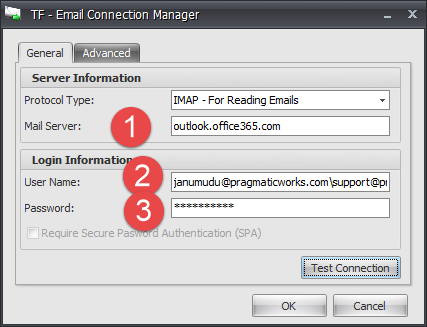
7. Enter the Mail Server, User name, and Password for the Office 365 mailbox account. In this example, we are connecting to an Office 365 shared mailbox that I have access to. (NB: syntax is user@domain\<shared mailbox user name>)
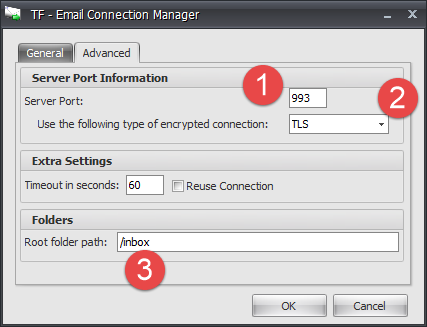
8. Go to the Advanced tab in the Task Factory – Email Connection Manager and enter the Server Port. Select the type of encryption to use. Folder path should be the “/inbox”
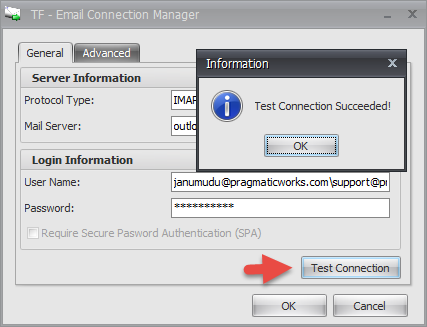
9. Switch back to the General tab in the Task Factory – Email Connection Manager and click Test Connection. Click Ok if the test connection was successful. Click OK to finish configuring the Task Factory – Email Connection Manager
10. Now that we have the Connection Manager configured. We can now select the Attachment Directory by clicking the ellipses. This is the location where the attachments will be saved.
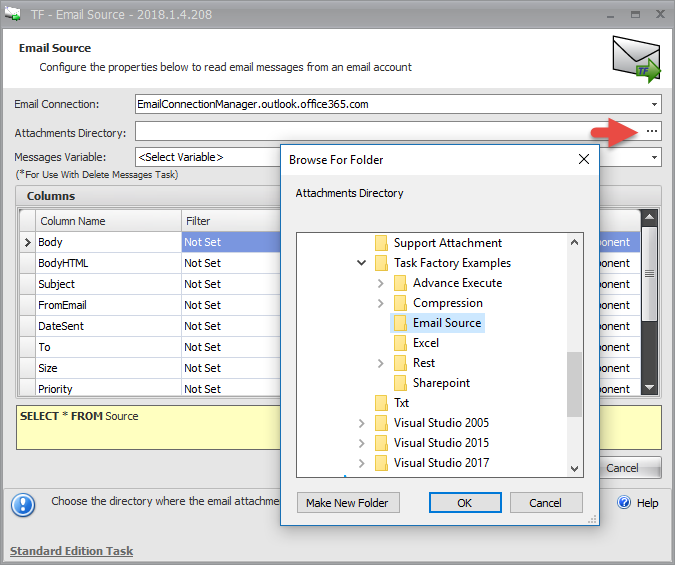
11. In the Columns section of the TF – Email Source, you can set any Filter based on the type of data you are trying to retrieve from the mailbox. (NB: If no filters are set, the component would search through the entire mailbox and retrieve all the attachments it can find).
12. Once the filters are set, click OK to complete the configuration of the TF – Email Source component.
13. Execute the task/package.
14. Browse to the directory chosen to save the Attachments to see the retrieved data.
If you run into any issues with the above steps, please contact SolarWinds Support for assistance.
2. Click on the Data Flow tab
3. Drag in a Task Factory Email Source component to the Data Flow area
4. Double click or right click to edit/open the component
5. Select Create New Connection Manager from the Email Connection drop down menu
6. In the Task Factory – Email Connection Manager, select the Protocol Type from the drop down. In this example we will be using IMAP – For Reading Emails.
7. Enter the Mail Server, User name, and Password for the Office 365 mailbox account. In this example, we are connecting to an Office 365 shared mailbox that I have access to. (NB: syntax is user@domain\<shared mailbox user name>)
8. Go to the Advanced tab in the Task Factory – Email Connection Manager and enter the Server Port. Select the type of encryption to use. Folder path should be the “/inbox”
9. Switch back to the General tab in the Task Factory – Email Connection Manager and click Test Connection. Click Ok if the test connection was successful. Click OK to finish configuring the Task Factory – Email Connection Manager
10. Now that we have the Connection Manager configured. We can now select the Attachment Directory by clicking the ellipses. This is the location where the attachments will be saved.
11. In the Columns section of the TF – Email Source, you can set any Filter based on the type of data you are trying to retrieve from the mailbox. (NB: If no filters are set, the component would search through the entire mailbox and retrieve all the attachments it can find).
12. Once the filters are set, click OK to complete the configuration of the TF – Email Source component.
13. Execute the task/package.
14. Browse to the directory chosen to save the Attachments to see the retrieved data.
If you run into any issues with the above steps, please contact SolarWinds Support for assistance.