
Tools
How to connect Microsoft Excel to the Web Help Desk embedded PostgreSQL Database
This article described how to connect Microsoft Excel to the Web Help Desk embedded PostgreSQL Database
First published date
9/30/2020 10:45 PM
Last published date
9/30/2020 10:45 PM
Overview
By design, PostgreSQL does not allow external connections.
This article will guide you on how to connect Microsoft Excel to the Web Help Desk embedded PostgreSQL Database.
This article will guide you on how to connect Microsoft Excel to the Web Help Desk embedded PostgreSQL Database.
Product section
Web Help Desk
Resolution
From the WHD Server:
1. Log in to the Web Help Desk server as an administrator.
2. Navigate to <WebHelpDesk>\pgsql9\data.
3. Back up the following files to a separate location:
- postgresql.conf
- pg_hba.conf
4. Open the postgresql.conf file in a text editor (such as Notepad).
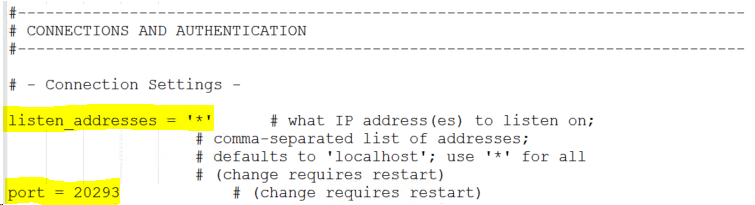
5. In the connections and authentication section:
a. uncomment listen_addresses and set the parameter to: listen_addresses = '*'
b. uncomment the port and set the parameter to: port = 20293
6. Save your changes.
7. Open the pg_hba file in a text editor.
8. Locate the following lines:
# IPv4 local connections:
host all all 127.0.0.1/32 password
9. Add a line with your_ip. your_ip that represents the ip address from which you want to connect with pg Admin.
For example,
# IPv4 local connections:
host all all 127.0.0.1/32 password
host all whd your_IP/32 password

10. Save.
11. Stop WHD using the Start Menu options (right-click and select Run as Admin).
12. Stop PostgreSQL service under services.msc.
13. Start PostgreSQL service under services.msc.
14. Start WHD using the Start Menu options (right-click and select Run as Admin).
From the Host Machine ( from where you want to browse the WHD embedded PostgreSQL database)
1. Download and Install "psqlodbc" driver:
PostgreSQL ODBC Driver. To read more, click here (© 1996-2020 The PostgreSQL Global Development Group, available at
https://ftp.postgresql.org/pub/odbc/versions/msi/psqlodbc_09_00_0200-x64.zip obtained on September 30, 2020)
Disclaimer: The content posted herein are provided as a suggestion or recommendation to you for your internal use. The information set forth herein may come from third party website or customers. SolarWinds is not liable for any downtime or any issue that may occur if you perform the following suggestions on the link provided. Your organization should internally review and assess to what extent, if any, such custom scripts or recommendations will be incorporated into your environment.
2. From your machine, open Administrative Tools and select ODBC Data Sources (64-bit)
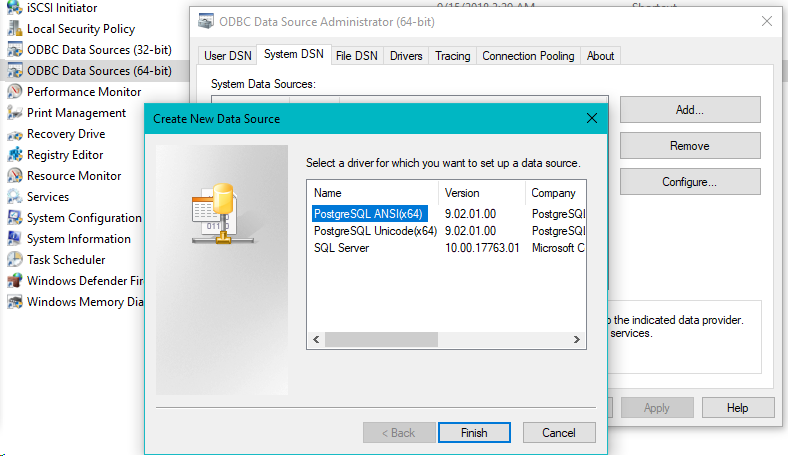
3. Navigate to System DSN, click Add, and select PostgreSQL ANSI ODBC Driver. Click Finish
4. Enter the database information, the IP Address of the WHD Server.
5. Make sure SSL Mode was set to Allow, the port is 20293, and click Test.
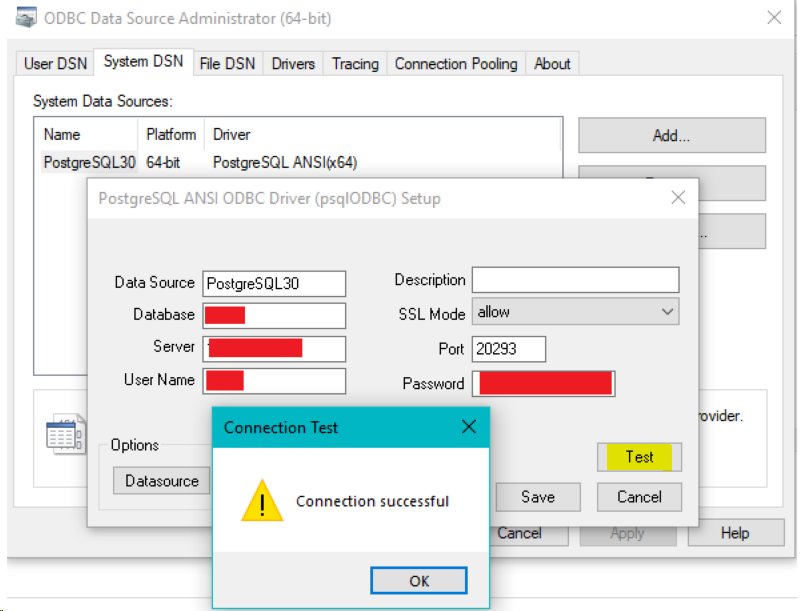
6. If the connection is successful, Go to excel application
a. Go to Data tab>Get Data>From Other Sources
b. The Select "From Microsoft Query"
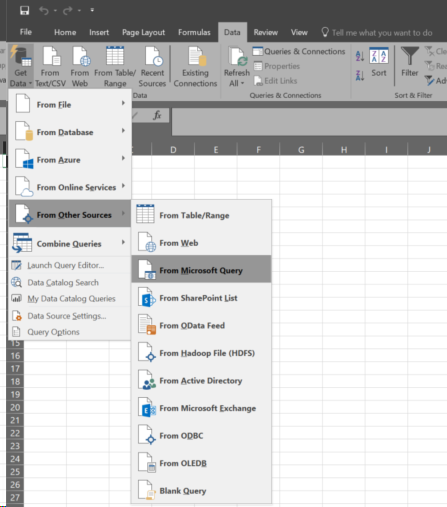
c. Under databases, select PostgreSQL30*, Click Ok.
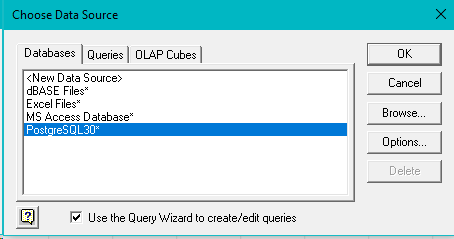
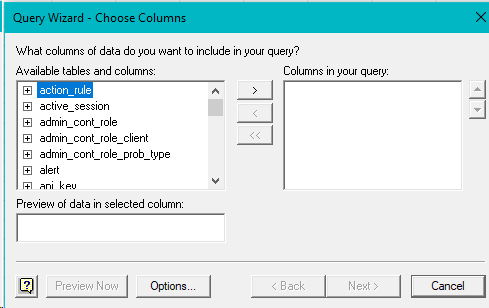
d. It will connect and give all Database connection details.
1. Log in to the Web Help Desk server as an administrator.
2. Navigate to <WebHelpDesk>\pgsql9\data.
3. Back up the following files to a separate location:
- postgresql.conf
- pg_hba.conf
4. Open the postgresql.conf file in a text editor (such as Notepad).
5. In the connections and authentication section:
a. uncomment listen_addresses and set the parameter to: listen_addresses = '*'
b. uncomment the port and set the parameter to: port = 20293
6. Save your changes.
7. Open the pg_hba file in a text editor.
8. Locate the following lines:
# IPv4 local connections:
host all all 127.0.0.1/32 password
9. Add a line with your_ip. your_ip that represents the ip address from which you want to connect with pg Admin.
For example,
# IPv4 local connections:
host all all 127.0.0.1/32 password
host all whd your_IP/32 password
10. Save.
11. Stop WHD using the Start Menu options (right-click and select Run as Admin).
12. Stop PostgreSQL service under services.msc.
13. Start PostgreSQL service under services.msc.
14. Start WHD using the Start Menu options (right-click and select Run as Admin).
From the Host Machine ( from where you want to browse the WHD embedded PostgreSQL database)
1. Download and Install "psqlodbc" driver:
PostgreSQL ODBC Driver. To read more, click here (© 1996-2020 The PostgreSQL Global Development Group, available at
https://ftp.postgresql.org/pub/odbc/versions/msi/psqlodbc_09_00_0200-x64.zip obtained on September 30, 2020)
Disclaimer: The content posted herein are provided as a suggestion or recommendation to you for your internal use. The information set forth herein may come from third party website or customers. SolarWinds is not liable for any downtime or any issue that may occur if you perform the following suggestions on the link provided. Your organization should internally review and assess to what extent, if any, such custom scripts or recommendations will be incorporated into your environment.
2. From your machine, open Administrative Tools and select ODBC Data Sources (64-bit)
3. Navigate to System DSN, click Add, and select PostgreSQL ANSI ODBC Driver. Click Finish
4. Enter the database information, the IP Address of the WHD Server.
5. Make sure SSL Mode was set to Allow, the port is 20293, and click Test.
6. If the connection is successful, Go to excel application
a. Go to Data tab>Get Data>From Other Sources
b. The Select "From Microsoft Query"
c. Under databases, select PostgreSQL30*, Click Ok.
d. It will connect and give all Database connection details.