
Tools
How to connect the Web Help Desk mobile application to the Web Help Desk server
This article shows how to connect the Web Help Desk mobile application to the server
First published date
5/12/2020 4:18 AM
Last published date
5/12/2020 4:18 AM
Overview
SolarWinds released a mobile application that can be used by technicians to view and manage tickets from their iOS mobile devices. The name display of the application from the Apps Store is Web Help Desk Mobile.
Version 1.6.6 - Released 2018
Version 1.7.0 - Released 2019
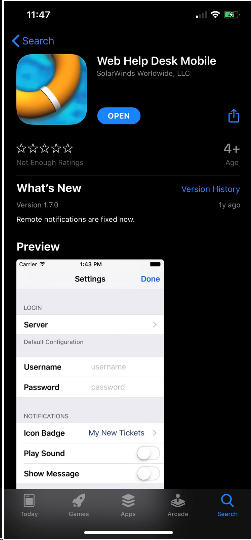
There is no mobile application released for Android devices.
Version 1.6.6 - Released 2018
Version 1.7.0 - Released 2019
There is no mobile application released for Android devices.
Product section
Web Help Desk
Resolution
Disclaimer: The instructions on this article is only tested for iOS version 13.4.1, Web Help Desk Mobile version 1.7.0, and Web Help Desk server version 12.5.2.
- To utilize this feature mobile application, download it from the Apps Store in your iOS device.
- Search for the Web Help Desk Mobile in the Apps Store and install it
- Launch the application
- Enter the technician username in the Username field
- Enter the technician password in the Password field
- Click Server and choose Default
- Enter the Web Help Desk URL or IP in the Host field (not including the https:// prefix)
- Enter the port used by Web Help Desk in the Port field
- Enable the SSL option if HTTPS is used
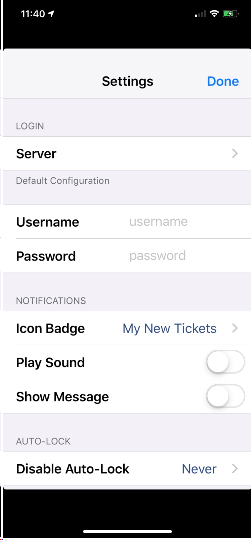
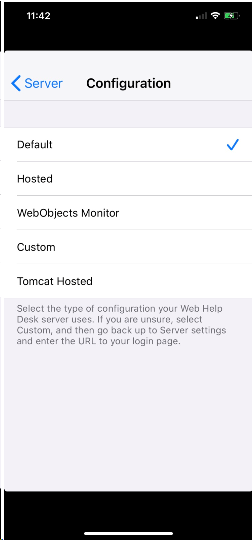
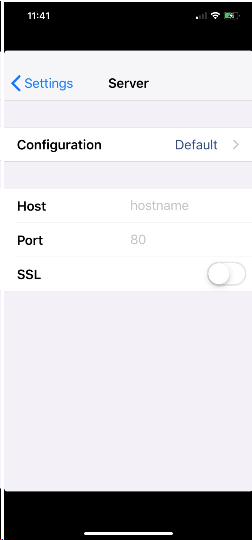
Once configured, the technicians should be able to view and manage the tickets.
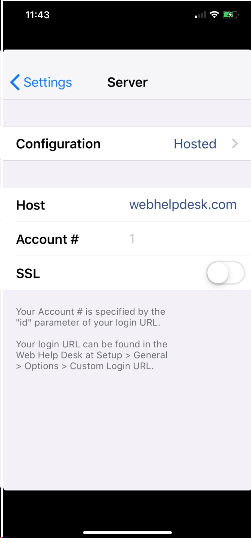
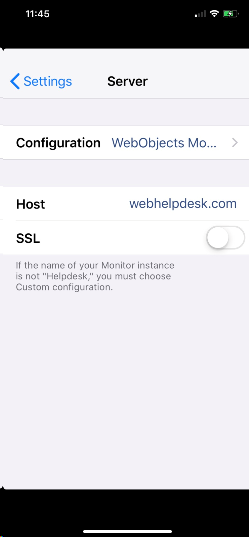
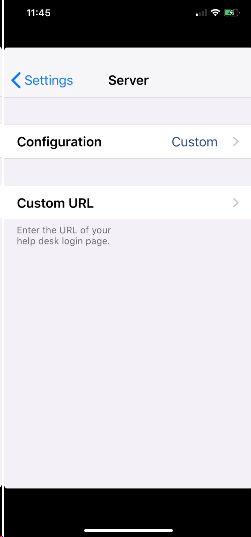
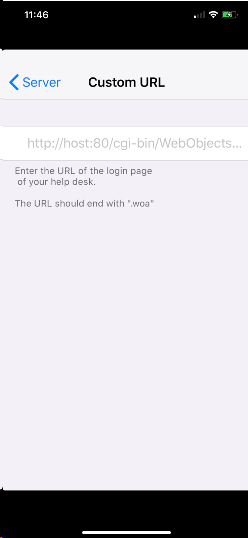
There are also other types of connections available:
Hosted:
WebObjects:
Custom:
- To utilize this feature mobile application, download it from the Apps Store in your iOS device.
- Search for the Web Help Desk Mobile in the Apps Store and install it
- Launch the application
- Enter the technician username in the Username field
- Enter the technician password in the Password field
- Click Server and choose Default
- Enter the Web Help Desk URL or IP in the Host field (not including the https:// prefix)
- Enter the port used by Web Help Desk in the Port field
- Enable the SSL option if HTTPS is used
Once configured, the technicians should be able to view and manage the tickets.
There are also other types of connections available:
Hosted:
WebObjects:
Custom: