
Tools
How to change or reset user account password in Serv-U.
This article describes how to change or reset user account password in Serv-U.
First published date
6/16/2020 10:25 PM
Last published date
1/18/2022 1:57 AM
Overview
Serv-U System Administrators can change or reset the Domain Users and Database Users via the Management Console.
Serv-U does not have the privilege to reset Active Directory or Windows user account passwords.
Product section
Serv-U Managed File Transfer & Serv-U FTP Server
Cause
N/A
Resolution
1. Login to the Server to where Serv U is installed and open Serv U Management Console.
2. Go to Domains > Users > Domain Users tab or Database users tab.
3. Locate the user either on the domain or from the database.
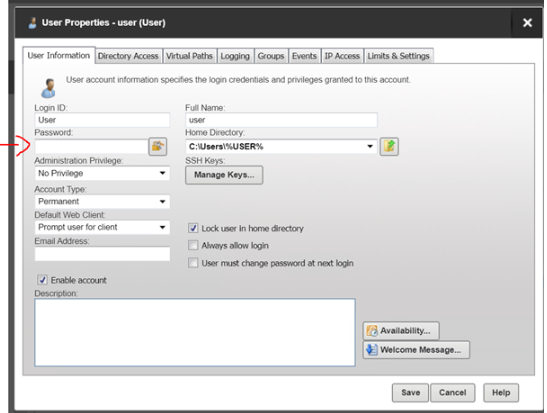
4. Edit the user and go to user information tab.
5. Click the padlock icon to generate a new password or specify a new one.
6. Save the changes.
2. Go to Domains > Users > Domain Users tab or Database users tab.
3. Locate the user either on the domain or from the database.
4. Edit the user and go to user information tab.
5. Click the padlock icon to generate a new password or specify a new one.
6. Save the changes.