
Observability
How to activate HCO Licenses in the SolarWinds Platform
Steps showing how to activate licenses based on node count in HCO.
First published date
6/15/2023 2:04 PM
Last published date
3/31/2025 10:24 PM
Overview
In SolarWinds Platform 2022.3 and newer, HCO licenses are able to be activated based on a number of nodes across multiple polling engines, or all nodes on a single engine. This article will show the steps for both Online and Offline activation.
Product section
Hybrid Cloud Observability
Resolution
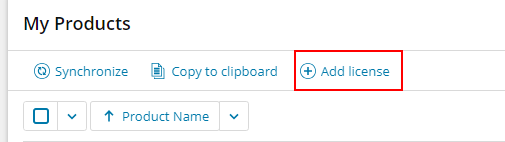
Note: If HCO is not showing in the web-based license manager, click the “ADD LICENSE” button. Then follow the activation steps.




Note: If you still face issues, please contact customerservice@solarwinds.com with your error message and the steps you have taken.
Online activation
- In the SolarWinds Platform Web Console, click Settings > All Settings.
- Click License Manager in the Details section.
- Select Hybrid Cloud Observability and click Activate.
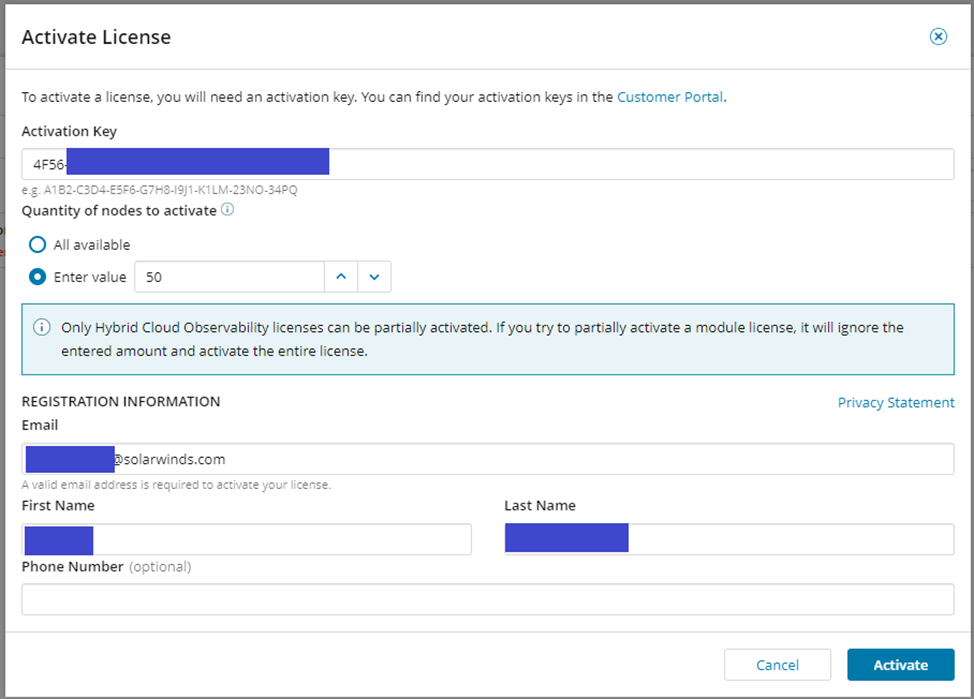
- Enter the activation key.
- Enter the number of nodes you want to activate for this installation.
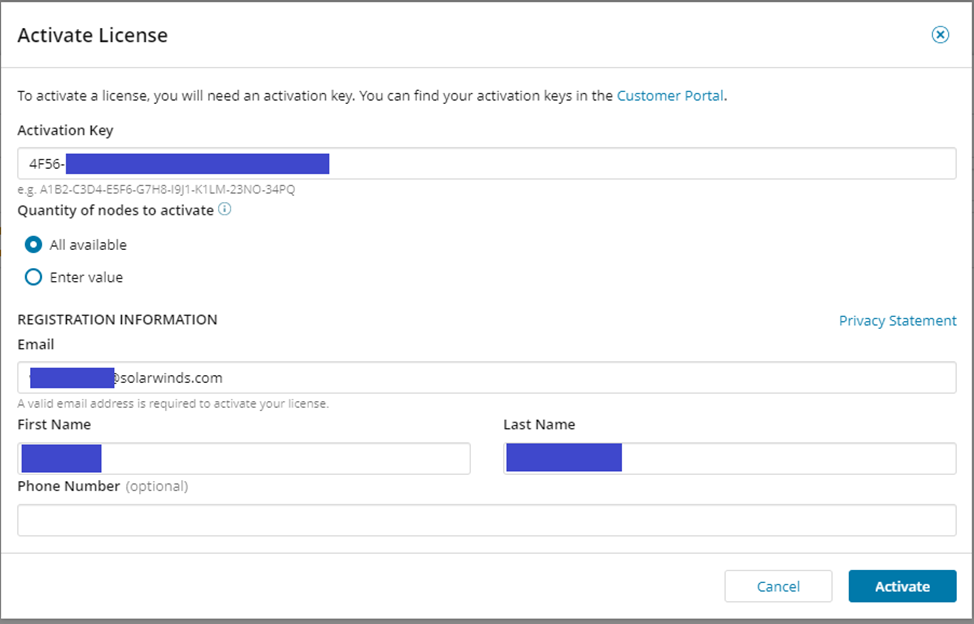
- Select All Available if you want to use all the nodes in the license key.
- Fill in your information and click Activate.
- When you return to the license manager, you will see the activated license key with the appropriate number of nodes.
Offline Activation
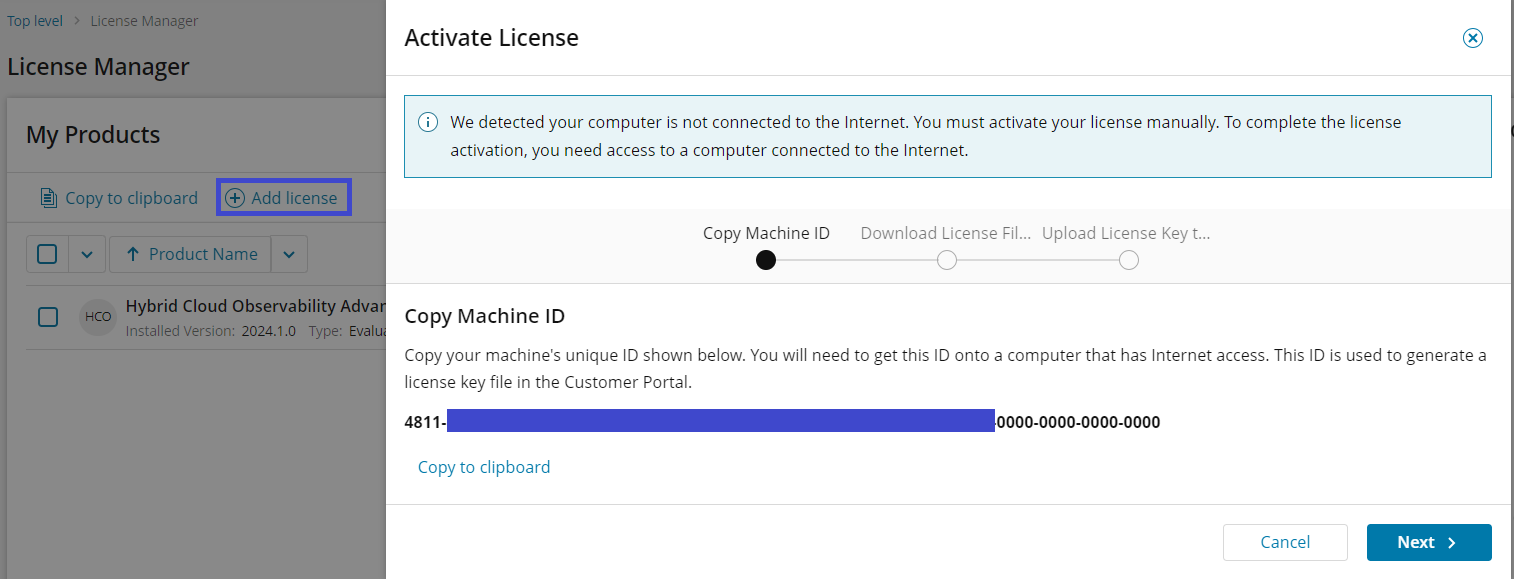
Note: If HCO is not showing in the web-based license manager, click the “ADD LICENSE” button, copy the UMID, and send it to Customer Service to generate the license file.- In the SolarWinds Platform Web Console, click Settings > All Settings.
- Click License Manager in the Details section.
- Select Hybrid Cloud Observability and click Activate.
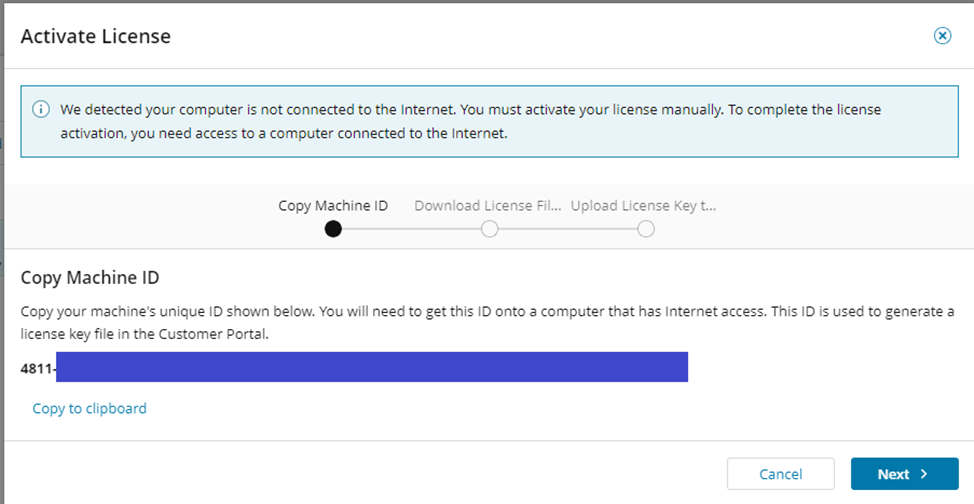
- Click Copy to Clipboard to copy the unique machine key.
- Use the copied machine ID to obtain a .lic file. If you are evaluating Hybrid Cloud Observability, give the machine ID to a SolarWinds representative to obtain a
.licfile and continue with step 6.- Log in to the Customer Portal, and click Licenses > Manage Licenses.
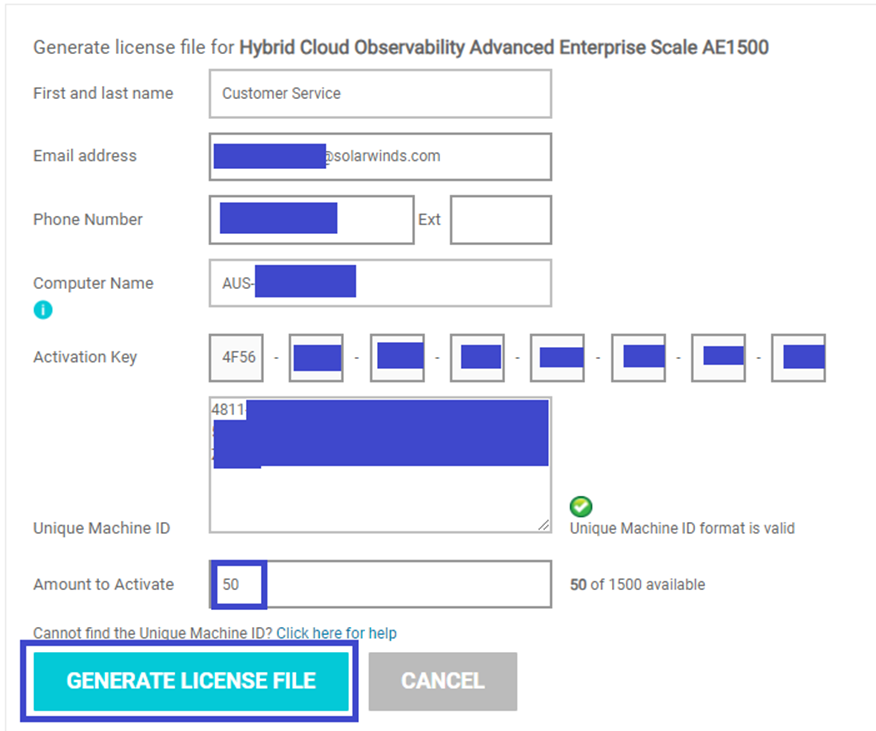
- On the Customer Portal License Management page, expand the product license to activate, and click Activate License Manually.
- In the Generate license file section, fill in your information.
- Paste the unique machine id from the clipboard.
- Enter the number of nodes you want to activate.
- Click Generate License File. Save the .lic file locally and transfer it to the offline computer.
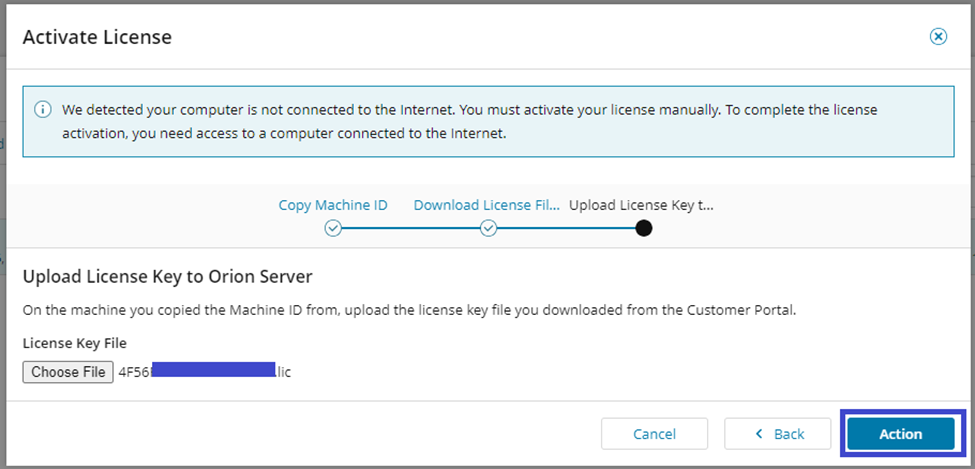
- Back in the License Manager on the offline computer, choose the .lic file, and click Action.
- Your license is now activated, and the license details are displayed in the License Manager.
Note: If you still face issues, please contact customerservice@solarwinds.com with your error message and the steps you have taken.