
Database Management
How to Filter for Schema and Table Results
This article guides how to filter for schema and table results.
First published date
8/5/2021 5:16 PM
Last published date
8/5/2021 5:16 PM
Overview
How to use the Filter in DBA xPress to filter schema and table results.
Product section
DBA xPress (DX)
Cause
N/A
Resolution
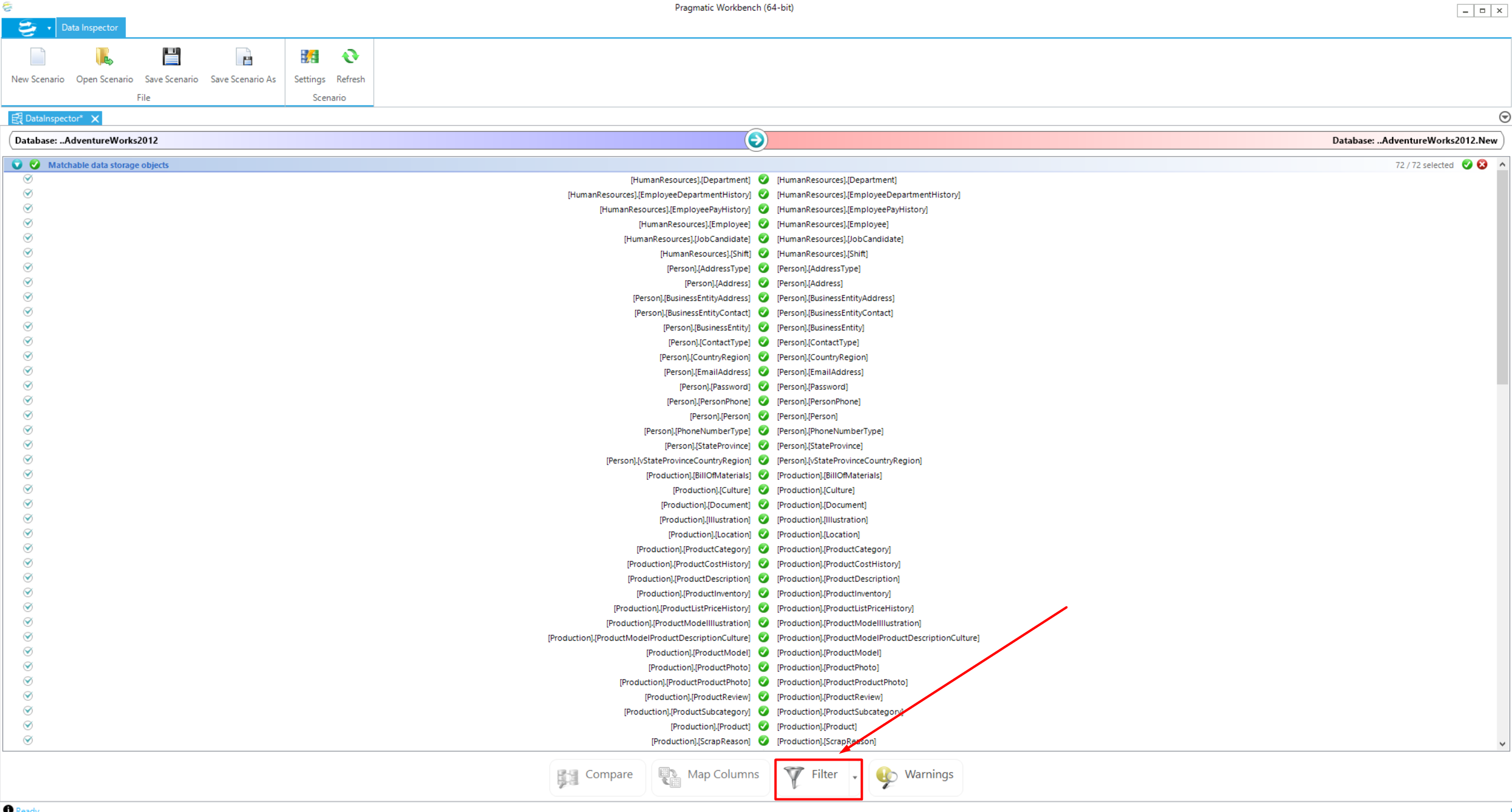
1. In this example, the Data Inspector will be used to compare two Adventure Works 2012 databases. Once complete, select “Filter.”
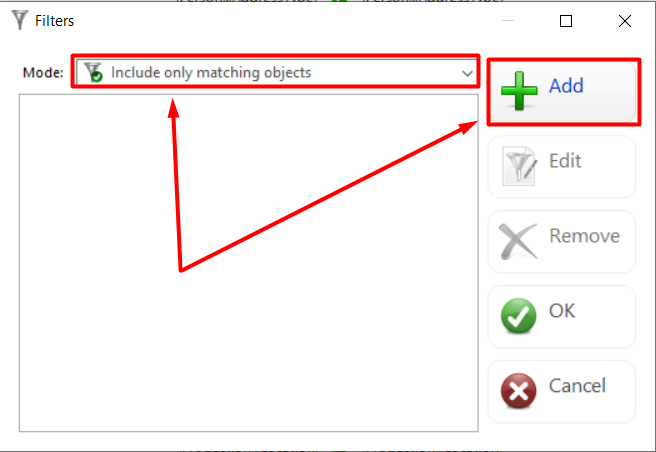
2. Next, select between filtering out the objects or only including the filtered objects, then click 'Add.'
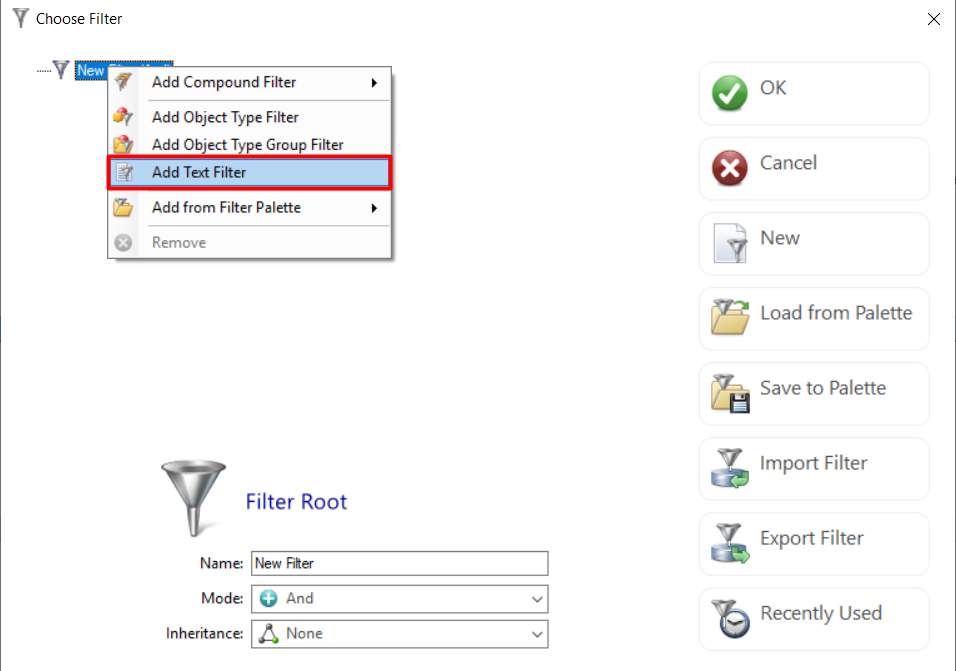
3. This test only includes results from the Production schema. Right-click on the “New Filter” and select “Add Text Filter.”
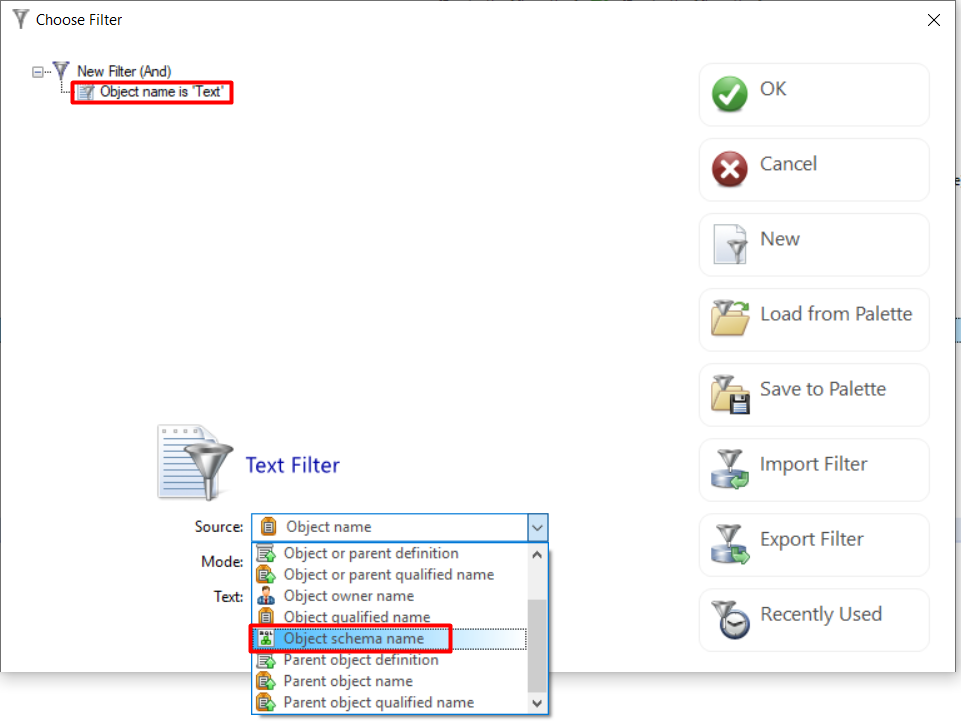
4. Right-click on the Text Filter select “Object schema name” in the dropdown.
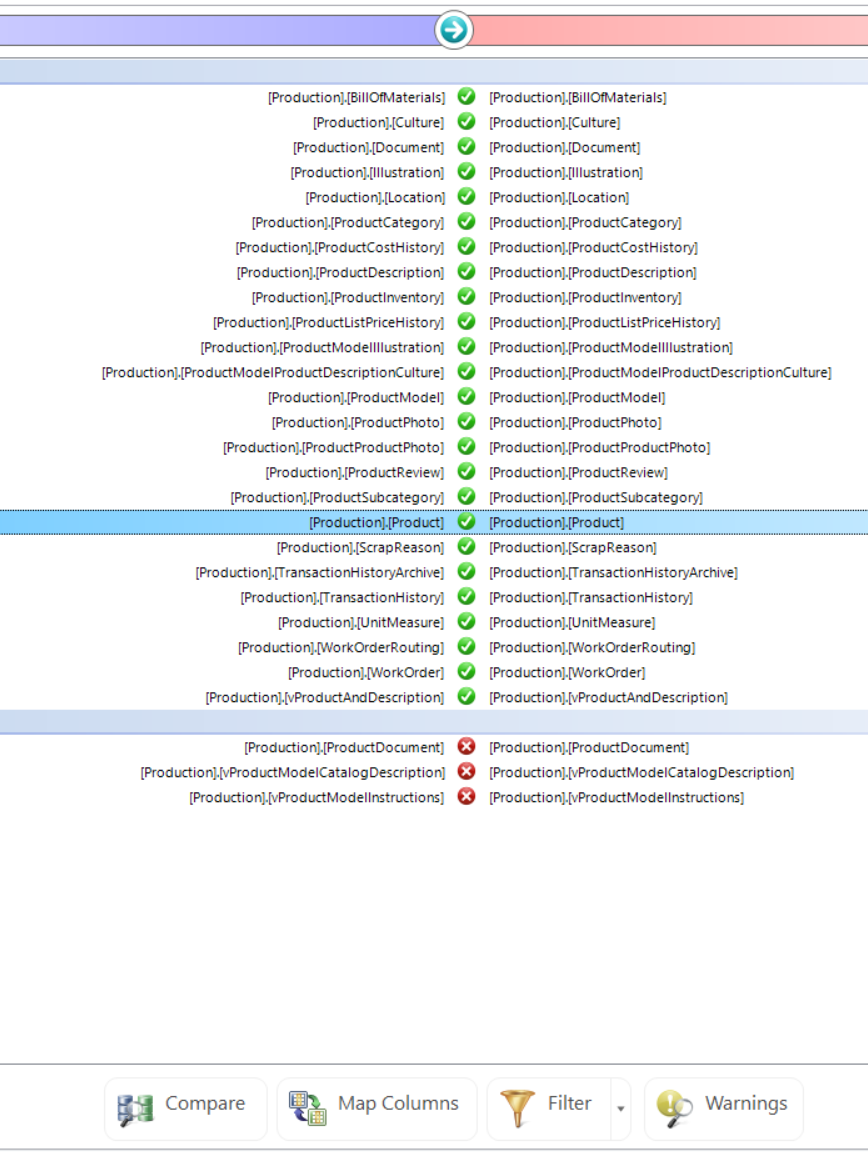
5. In the Text field, type “Production” and select 'OK.' Give the filter a name and select okay on the main Filtering screen. Notice now that all the results that were given are now only the Production schema.
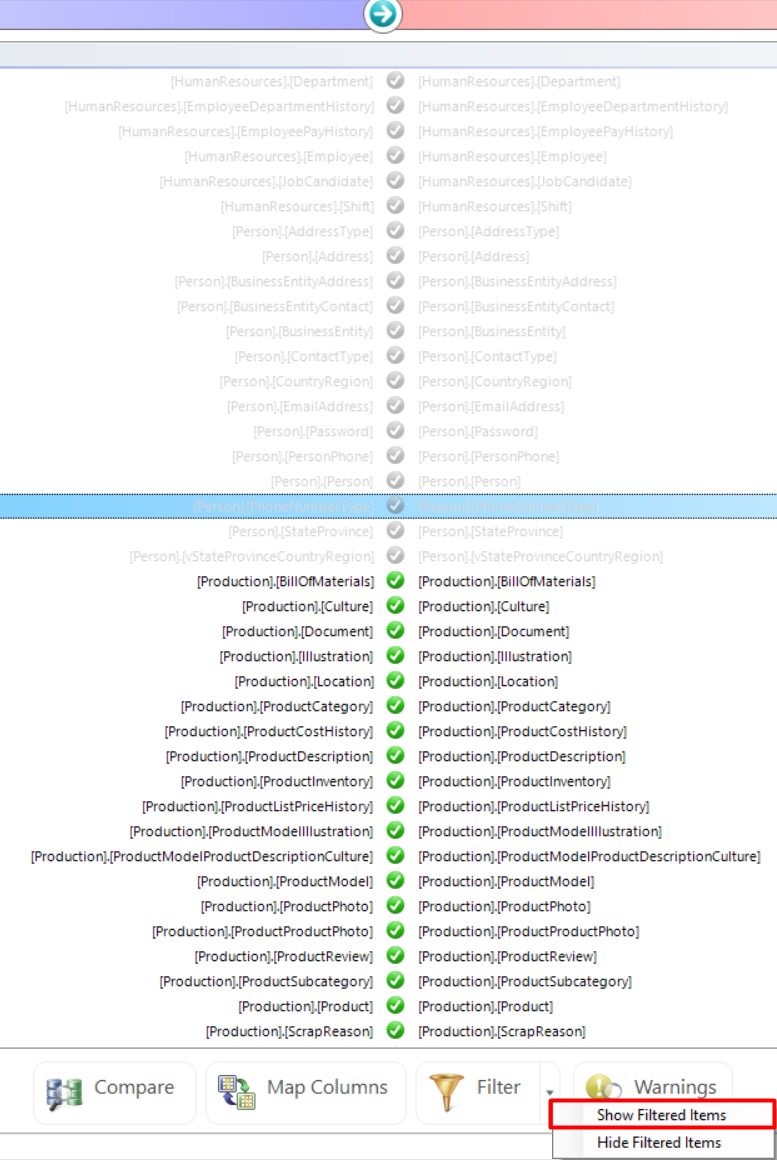
6. To see the filtered items, select the dropdown next to 'Filter.'
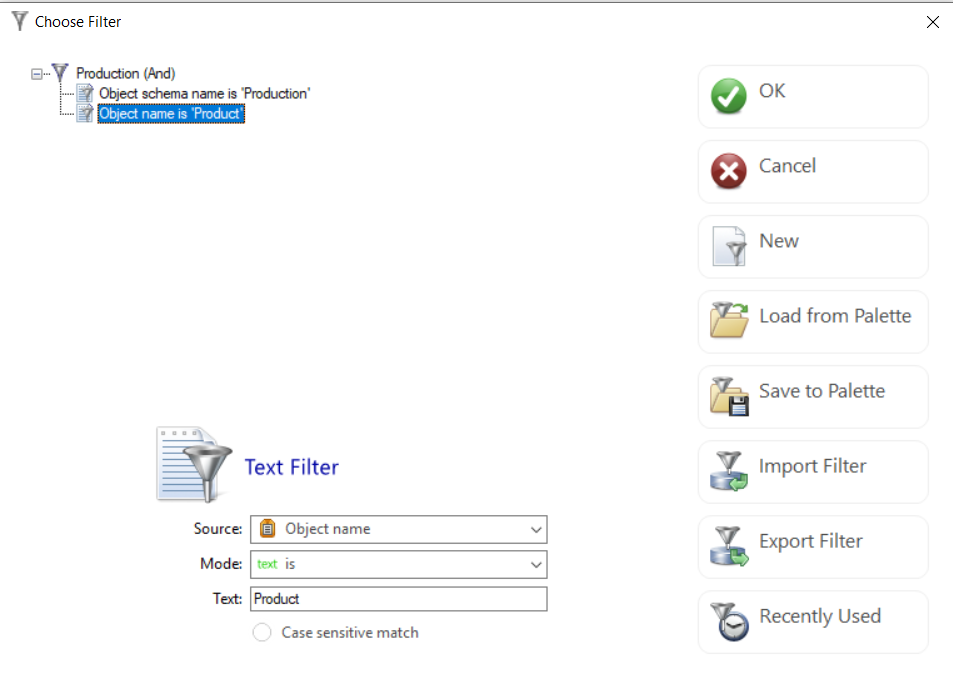
7. Now, add the filter for the table now under the Schema. For example, only include "Production.Product". Go back into the filter just made and right-click on the filter again. Then, add a new Text Filter. It should already be on “Object name,” so just type Product in the Text field:
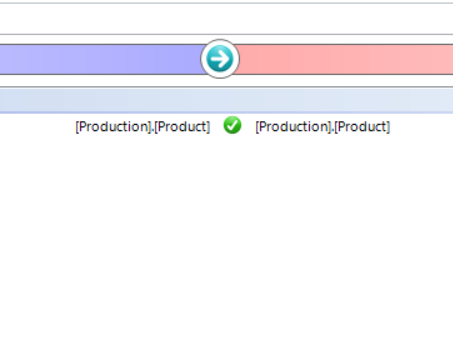
8. Now, the only result returned is the Production.Product table:
2. Next, select between filtering out the objects or only including the filtered objects, then click 'Add.'
3. This test only includes results from the Production schema. Right-click on the “New Filter” and select “Add Text Filter.”
4. Right-click on the Text Filter select “Object schema name” in the dropdown.
5. In the Text field, type “Production” and select 'OK.' Give the filter a name and select okay on the main Filtering screen. Notice now that all the results that were given are now only the Production schema.
6. To see the filtered items, select the dropdown next to 'Filter.'
7. Now, add the filter for the table now under the Schema. For example, only include "Production.Product". Go back into the filter just made and right-click on the filter again. Then, add a new Text Filter. It should already be on “Object name,” so just type Product in the Text field:
8. Now, the only result returned is the Production.Product table: