
Tools
How to connect the Web Help Desk application to a different database instance
This article describes on how to connect the Web Help Desk application to another database
First published date
2/2/2023 1:02 AM
Last published date
2/2/2023 3:47 PM
Overview
Web Help Desk supports 3 database platforms:
- PostgreSQL
- Microsoft SQL
- MySQL
Web Help Desk can be configured to connect to a different database during the initial configuration of the application, or by following the procedures below.
Note that Web Help Desk can only connect to one instance of database.
It is also not suggested to connect two or more Web Help Desk instances to the same database.
For more information about the database versions compatible with different versions, see the System Requirements from this article .
Product section
Web Help Desk
Resolution
For Windows:
1. Stop the Web Help Desk service > C:\Program Files\WebHelpDesk\whd_stop.bat - run as administrator
2. Navigate to C:\Program Files\WebHelpDesk\conf
3. Rename the .whd.properties file to .whd.properties.bak
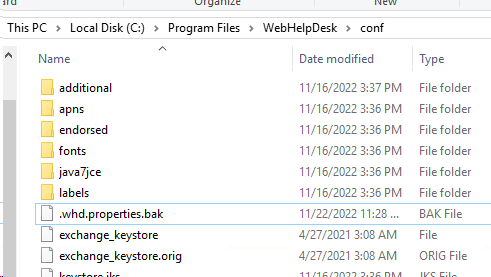
4. Restart the Web Help Desk service > C:\Program Files\WebHelpDesk\whd_stop.bat - run as administrator
5. The Web Help Desk portal will load and will promopt for a database connection
6. Choose 'Use Custom SQL database (advanced)
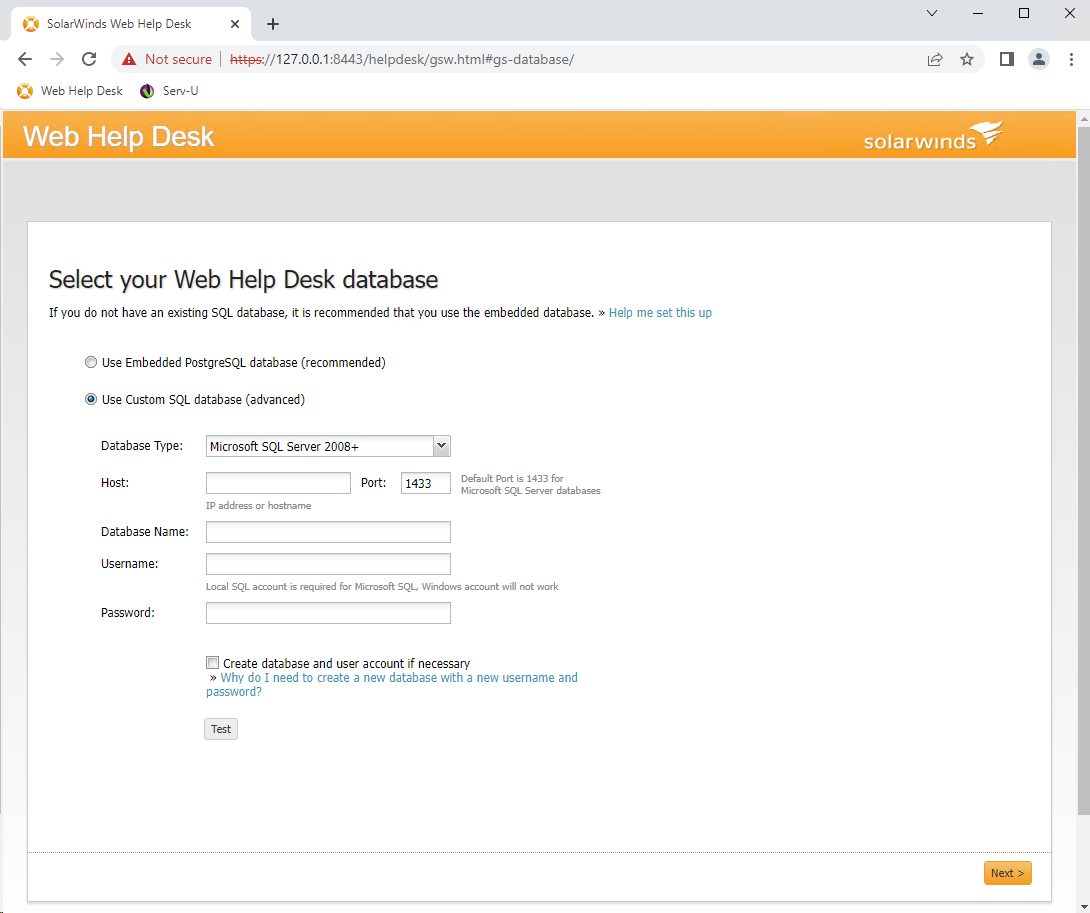
7. Enter your SQL database and credential information then click the 'Test' button
8. Once the test is successfull, click the 'Next' butto at the lower right hand corner of the page
9. Web Help Desk will connect and load the database information, and will prompt you to log in.
1. Stop the Web Help Desk service > C:\Program Files\WebHelpDesk\whd_stop.bat - run as administrator
2. Navigate to C:\Program Files\WebHelpDesk\conf
3. Rename the .whd.properties file to .whd.properties.bak
4. Restart the Web Help Desk service > C:\Program Files\WebHelpDesk\whd_stop.bat - run as administrator
5. The Web Help Desk portal will load and will promopt for a database connection
6. Choose 'Use Custom SQL database (advanced)
7. Enter your SQL database and credential information then click the 'Test' button
8. Once the test is successfull, click the 'Next' butto at the lower right hand corner of the page
9. Web Help Desk will connect and load the database information, and will prompt you to log in.