
Tools
How To Set Download Link And Agents Without Expiration Date in Dameware Remote Everywhere (DRE)
How to set an Agent install without expiration.
First published date
10/7/2019 10:38 PM
Last published date
7/20/2020 8:26 PM
Overview
This process will create a download LINK and AGENT installer without expiration date. This can be applied to computers that are within the network.
This article will also demonstrate how to create the DRE agent on both the Admin area and Tech console
This article will also demonstrate how to create the DRE agent on both the Admin area and Tech console
Product section
Dameware Remote Everywhere
Resolution
On the DRE Desktop or Technician Console:
- Login to your Dameware Remote Everywhere Application.
- Select the My Computers tab.
- Select the ADD COMPUTER button.
- Fill out the form on the right as intended (Computer Name and Device Type are mandatory).
- Select Computer never expires and set the Computer Expiration date.
- Press GENERATE LINK.
- Access (or have your client access) the generated link to download the installer (if the client is on a macOS/OSX device, they'll also need the generated PIN Code).
- Run (or have the client run) the downloaded installer.
1. log on to the DRE admin area thru your internet browser.
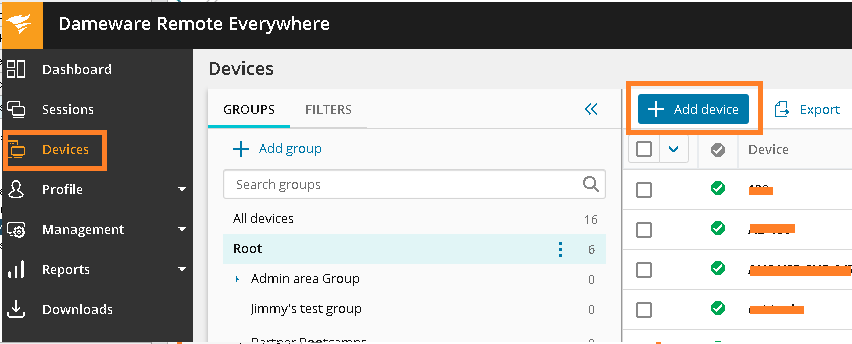
2. Go to Devices and click on the "+ Add Device"
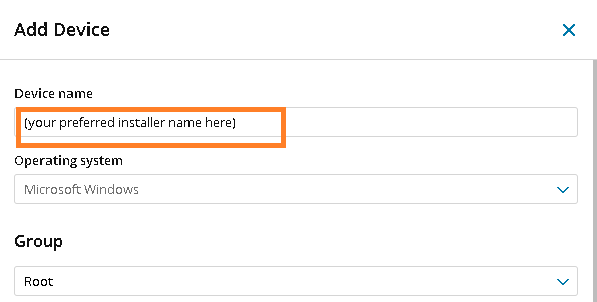
3. Type in any name for the Device name field then scroll down
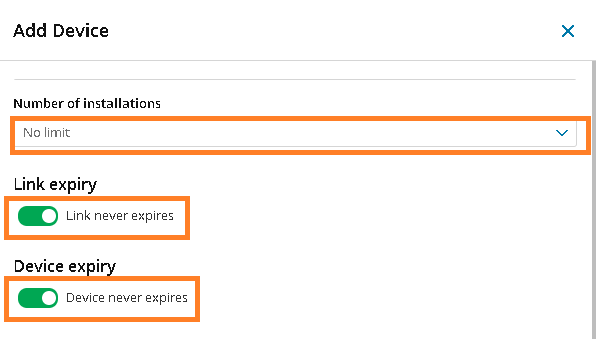
4. Make sure the following is set on the fields below before clicking the Save button
- Number of installation = No Limit
- Link Expiry = Link never expires
- Device Expiry = Device never expires
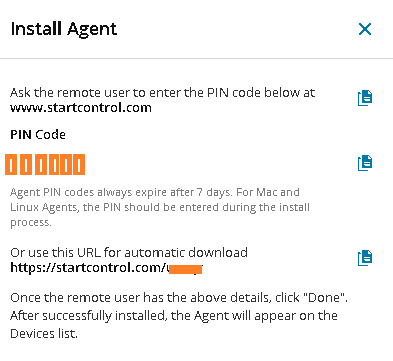
5. download the DRE agent from the link generated
2. Go to Devices and click on the "+ Add Device"
3. Type in any name for the Device name field then scroll down
4. Make sure the following is set on the fields below before clicking the Save button
- Number of installation = No Limit
- Link Expiry = Link never expires
- Device Expiry = Device never expires
5. download the DRE agent from the link generated
This will create a new DRE agent that will not expire